
If you've ever built a really long dashboard or a complex wizard in Salesforce, you know that LWC element scrolling is one of those small details that makes a huge difference. I've seen plenty of projects where the UI looks great, but the user has to manually scroll through miles of data to find what they just clicked on. It's frustrating for them and, frankly, it makes the app feel unfinished.
Why LWC element scrolling matters for your users
Look, the goal is always to keep the user focused. When someone clicks a "View Details" button at the top of a page, and the details are at the bottom, they shouldn't have to hunt for them. By using LWC element scrolling, you can snap the viewport exactly where it needs to be. It's about reducing friction. In my experience, if a user has to scroll more than two full screens to find a result, they start thinking the system is broken.
I usually use this for things like error validation summaries, section navigation in long record pages, or even "back to top" buttons. If you're building something complex, you might also need to handle component communication to trigger these scrolls from a parent or sibling component. It's a simple trick, but it's one of those things that separates a junior dev's work from a polished, professional tool.
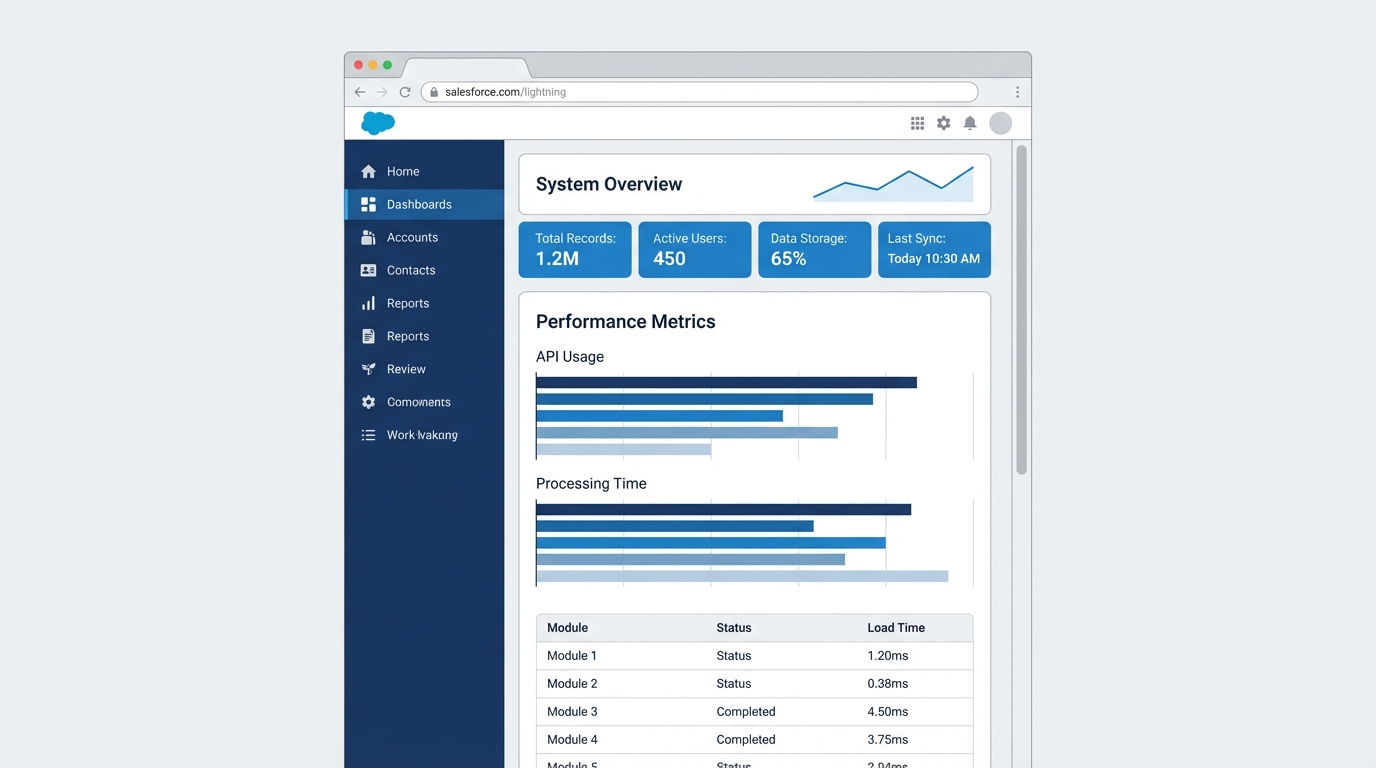
A professional Salesforce Lightning interface mockup showing a sidebar navigation menu and a long, scrollable content area with organized data sections.
How to implement LWC element scrolling the right way
The heavy lifter here is a standard DOM method called scrollIntoView(). But here's the thing: most people just call it without any arguments and it looks terrible. It just "jumps" to the section, which can be disorienting. You want to use the smooth behavior so the user can actually see the page moving. It gives them a sense of where they are in the component.
Here's a quick look at how I usually set this up in a real project. We use a data-id attribute because it's cleaner than relying on CSS classes that might change later.
The HTML Template
<template>
    <div class="container">
        <div class="navigation">
            <lightning-button label="Jump to Red Section" onclick={handleScroll}></lightning-button>
        </div>

        <div class="spacer">Lots of content here...</div>

        <div class="target-section" data-id="redSection">
            <h2>You've arrived at the Red Section!</h2>
        </div>
    </div>
</template>
The JavaScript Logic
In the JS, we just grab that element using the querySelector and tell the browser to scroll to it. It's straightforward, but you've got to make sure the element actually exists in the DOM before you try to call methods on it.
import { LightningElement } from 'lwc';

export default class ScrollDemo extends LightningElement {
    handleScroll() {
        const element = this.template.querySelector('[data-id="redSection"]');
        if (element) {
            element.scrollIntoView({
                behavior: 'smooth',
                block: 'start',
                inline: 'nearest'
            });
        }
    }
}
Pro tip: Always check if the element exists first. If you're using
if:truetemplates orlwc:if, the element might not be rendered yet, and your code will throw a null pointer error. It's a classic mistake that trips people up.
Common pitfalls with LWC element scrolling
One thing I've noticed with LWC element scrolling is that people forget about the Salesforce header. If you have a sticky header or a global navigation bar, scrollIntoView might hide your target element right under that header. You might need to add some CSS scroll-margin-top to your target sections to give them some breathing room.
Another issue is accessibility. When you scroll a user to a new section, you should ideally move their focus there too. If they're using a screen reader and you scroll the page but leave the focus on the button they just clicked, they'll be completely lost. Use element.focus() if the target is an interactive element like an input or a link.
And don't overdo the animations. Smooth scrolling is great, but if your page is 10,000 pixels long and the scroll takes 5 seconds to finish, your user is going to get annoyed. For extremely long lists, you're better off using pagination or something like advanced LWC navigation patterns instead of forcing a long scroll.
Key Takeaways for LWC element scrolling
- Use Smooth Behavior: Always set
behavior: 'smooth'for a better feel. - Target with Data Attributes: Use
data-idinstead of classes for more stable code. - Mind the Header: Use CSS
scroll-margin-topif you have sticky elements. - Accessibility Matters: Think about where the focus goes after the scroll happens.
- Test on Mobile: Scrolling feels very different on a phone than it does on a desktop.
At the end of the day, LWC element scrolling is about making your app feel like it's helping the user, not fighting them. It takes five minutes to set up but saves your users a lot of clicking and dragging. Try it out on your next big component and see how much better the flow feels. Your users (and your support desk) will thank you.


Leave a Comment