

Ever had a user complain that the standard number input in a Screen Flow feels clunky? I get it. A simple Salesforce Flow Counter LWC is often all it takes to make a screen feel like a modern app instead of a database form, and it is one of those small UX wins that makes people enjoy using the tools we build.
In my experience, users hate typing if they don't have to. Out in a warehouse or on a retail floor, they want big, clickable buttons. This guide shows you how to build a reusable counter component you can drop into any flow so users tap their way to the right number.
Why you need a Salesforce Flow Counter LWC for better UX
The standard number field in a flow works, but it gives users no tactile feedback. When I first worked with inventory management apps, store managers were constantly fat-fingering numbers on their mobile devices. A plus-minus counter fixes that.
A custom Salesforce Flow Counter LWC gives them a clean interface for inventory adjustments, quantity picks, or simple numeric scores. It cuts errors because they watch the value change in real time instead of clicking into a tiny text box, and it is reusable across objects and flows.
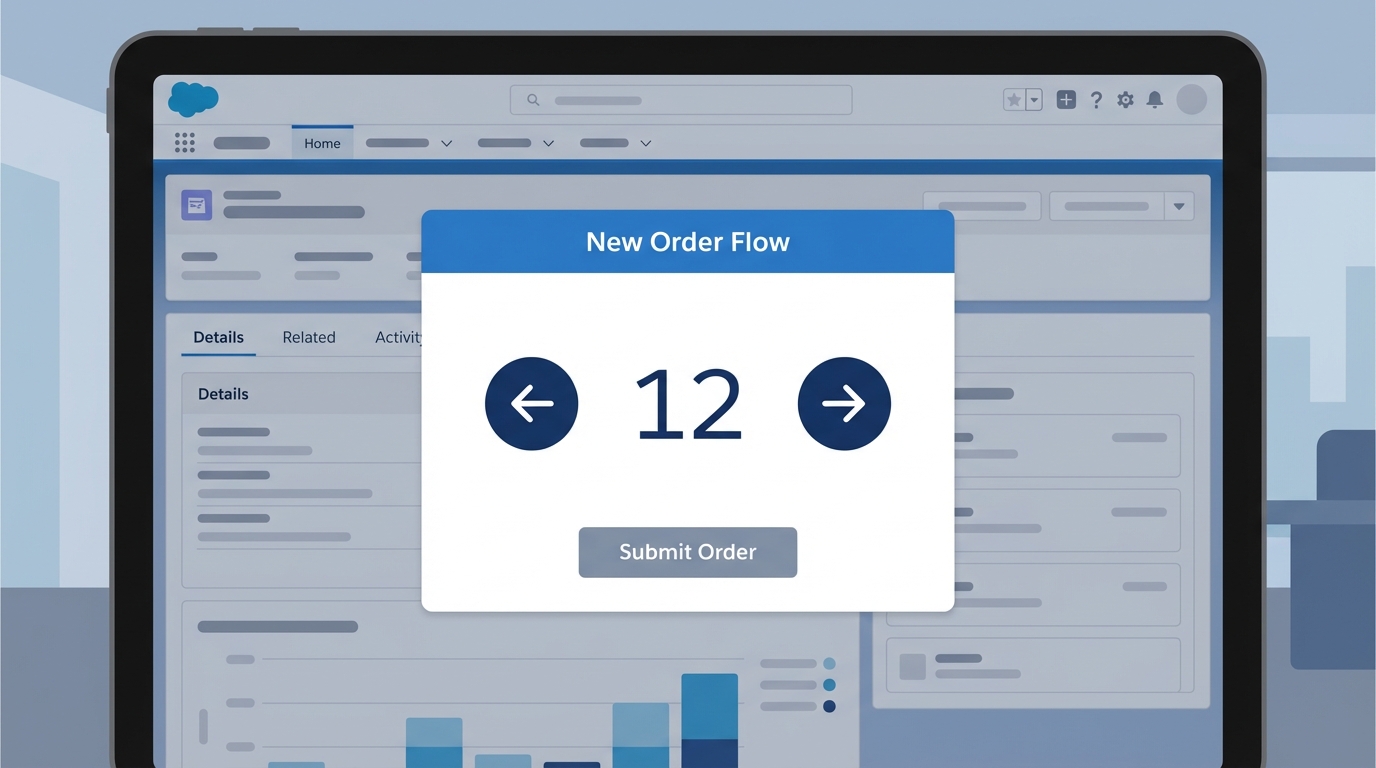
The counter as users see it: a label, the current value, and a button on each side.
Step 1: Prep your custom field
Before we touch any code, you need a place to store the data. For this example we'll use the Product object. Create a Number field on Product2. I usually call it "Current Inventory" or something similar. Set it to 3 digits with no decimals. Check your field-level security too, so the users running the flow can actually see and edit it.
Step 2: Building the Salesforce Flow Counter LWC
Now the component itself. It has three jobs: show a label, handle the button clicks that change the value, and tell the Flow when that value changes. If you are new to this, read up on LWC component communication first to see how data moves between elements.
screenCounterComponent.html
<template>
    <div class="slds-form-element">
        <label class="slds-form-element__label">{label}</label>
        <div class="slds-form-element__control">
            <div class="slds-grid slds-grid_vertical-align-center">
                <button class="slds-button slds-button_icon slds-button_icon-border"
                        onclick={decrementCounter}>
                    <lightning-icon icon-name="utility:dash" size="small" class="decrement-color"></lightning-icon>
                </button>
                <input type="number"
                       class="slds-input slds-m-horizontal_small slds-text-align_center"
                       value={counterValue}
                       onchange={handleInputChange} />
                <button class="slds-button slds-button_icon slds-button_icon-border"
                        onclick={incrementCounter}>
                    <lightning-icon icon-name="utility:add" size="small" class="increment-color"></lightning-icon>
                </button>
            </div>
        </div>
    </div>
</template>
screenCounterComponent.css
.increment-color { - sds-c-icon-color-foreground-default: #2e844a;
}
.decrement-color { - sds-c-icon-color-foreground-default: #ea001e;
}
input::-webkit-outer-spin-button,
input::-webkit-inner-spin-button {
    -webkit-appearance: none;
    margin: 0;
}
screenCounterComponent.js
This is where the logic lives. The @api decorator lets the Flow talk to our component. When the value changes, we dispatch a "change" event, which is how the Flow learns the new number.
import { LightningElement, api, track } from 'lwc';

export default class ScreenCounterComponent extends LightningElement {
    @api label;
    @api defaultValue = 0;
    @api value;

    @track counterValue;

    connectedCallback() {
        this.counterValue = this.defaultValue;
    }

    incrementCounter() {
        this.counterValue++;
        this.updateFlowValue();
    }

    decrementCounter() {
        if (this.counterValue > 0) {
            this.counterValue - ;
            this.updateFlowValue();
        }
    }

    handleInputChange(event) {
        this.counterValue = parseInt(event.target.value, 10) || 0;
        this.updateFlowValue();
    }

    updateFlowValue() {
        this.value = this.counterValue;
        this.dispatchEvent(new CustomEvent('change'));
    }
}
screenCounterComponent.js-meta.xml
This part is critical. If you don't set the target to lightning__FlowScreen, your component never appears in the Flow builder. The inputs and outputs are defined here too.
<?xml version="1.0" encoding="UTF-8"?>
<LightningComponentBundle xmlns="http://soap.sforce.com/2006/04/metadata">
    <apiVersion>61.0</apiVersion>
    <isExposed>true</isExposed>
    <targets>
        <target>lightning__FlowScreen</target>
    </targets>
    <targetConfigs>
        <targetConfig targets="lightning__FlowScreen">
            <property name="label" type="String" label="Label" />
            <property name="defaultValue" type="Integer" label="Starting Value" />
            <property name="value" type="Integer" label="Output Value" role="outputOnly" />
        </targetConfig>
    </targetConfigs>
</LightningComponentBundle>
Wiring the Salesforce Flow Counter LWC into your Flow
Now that the code is deployed, it is time to use it. Open the Flow Builder and create a new Screen Flow. Start by creating a variable called recordId (Available for Input) so the flow knows which product it is looking at.
- Get Records: fetch the Product record where the Id matches your
recordIdvariable. - Screen Element: drag your new "LWC Counter Component" onto the screen. Set the "Label" to something like "Adjust Stock" and map the "Starting Value" to the current inventory field from your Get Records element.
- Update Records: use the output value from the LWC to update the Product record.
Spell that
recordIdvariable exactly: lowercase "r", uppercase "I". Get it wrong and the Quick Action won't pass the ID automatically, and you'll sit there wondering why the flow is blank.
If you enjoy building custom UI like this, there's also my tutorial on how to build a reusable Salesforce Flow progress bar with LWC. It uses similar logic to keep users engaged during long processes.
Key takeaways
- A Salesforce Flow Counter LWC improves mobile usability by replacing small text inputs with large, clickable buttons.
- The
@apidecorator is how you pass data between the Flow and your LWC. - Always include a "change" event in your JS so the Flow engine knows the value changed before the user clicks "Next".
- CSS custom properties (SLDS hooks) are the easiest way to color your icons without writing complex styles.
Wrap up
For the org, this shows up as fewer support tickets about "bad data" and a happier user base. A component like this makes the system work for the people using it every day. Try it in a sandbox and watch how much faster your users get through their tasks.
Leave a Comment