

Salesforce PDF forms is reshaping how Salesforce professionals work — and this article breaks down everything you need to know.
Look, we’ve all been there. You build a great process in the CRM, but the moment a customer needs to sign a document, everything hits a wall. You’re stuck emailing static attachments that people have to print, scan, and send back. It’s a mess. That’s why I’m a big advocate for using Salesforce PDF forms that actually talk to your data in real-time.
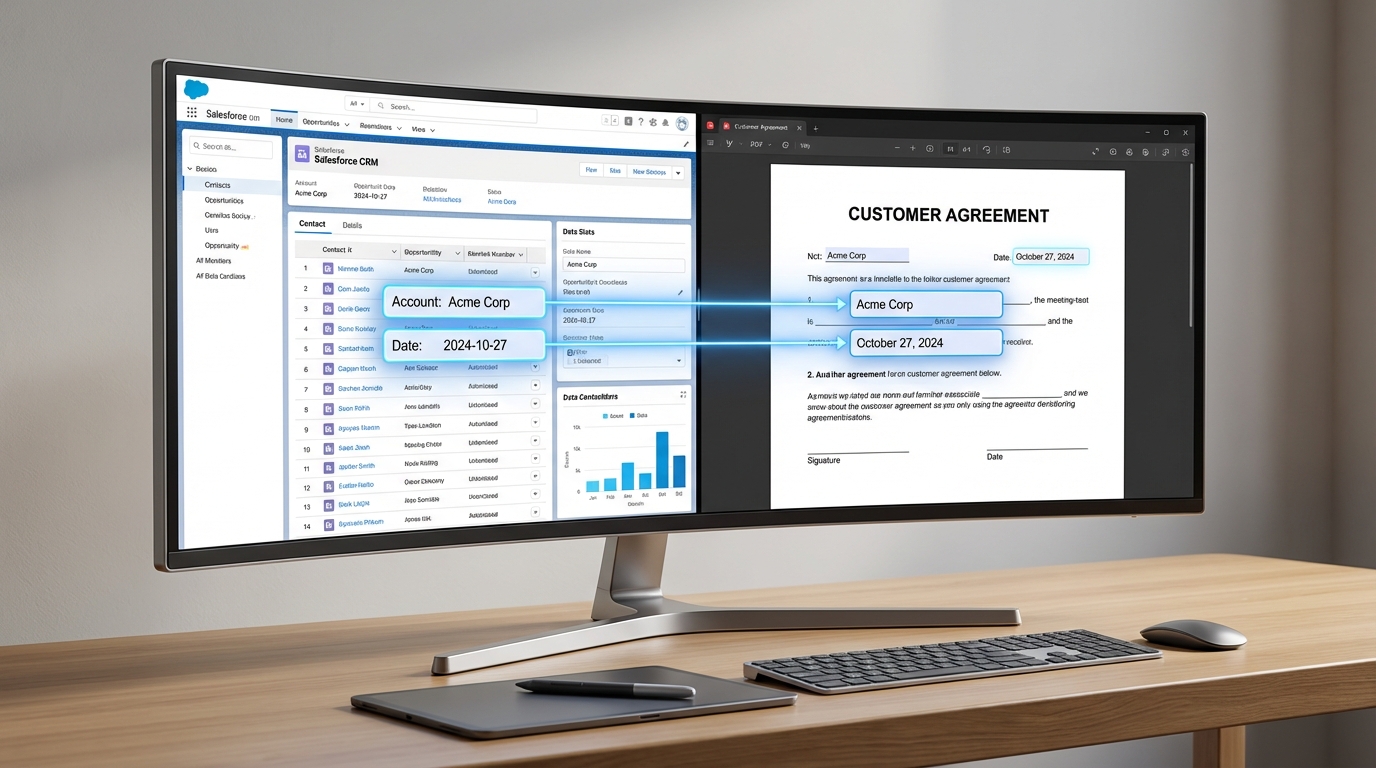
When you connect your documents directly to the source, you aren’t just sending a file. You’re creating a live bridge between your records and your users. It’s the difference between a dead-end document and a functional tool that keeps your pipeline moving.
Why Salesforce PDF forms are a life-saver for admins
So what does “dynamic” actually mean in the real world? It means the form is smart enough to know who is looking at it. If a field in Salesforce says a customer is in California, the PDF can automatically show the specific state disclosures they need to see. You don’t have to build ten different templates. You build one that adapts. It’s much simpler than managing a library of static files.
I’ve seen teams spend hours every week manually fixing typos in contracts. When you use Salesforce PDF forms, that work just disappears. The data pulls straight from your objects – standard or custom – so if the name is right in the CRM, it’s right on the dotted line. No more copy-paste errors that hold up a deal.
The core benefits you’ll actually notice
- Real-time accuracy: You’re pulling live data. If a rep updates a price in Salesforce, it’s updated on the PDF the next second.
- Less busy work: Pre-filling fields means your customers only have to fill out what’s missing. They’ll appreciate that you didn’t ask for their address for the fifth time.
- Consistency: Using a platform like Titan Docs ensures that when a user signs, the data pushes back to the record instantly. Both systems stay in sync without you lifting a finger.
- Better UX: Conditional logic hides the clutter. If a section isn’t relevant to the user, they don’t see it. It’s clean and professional.
I’ve seen teams try to build these using complex Apex triggers and custom Visualforce pages. Honestly? Don’t do that to yourself. Use a tool that handles the heavy lifting so you can focus on the business logic instead of debugging PDF rendering issues.
Common ways to use Salesforce PDF forms
You can use these for almost anything, but some spots make more sense than others. Loan applications and insurance forms are the big ones because they’re usually long and full of “if-this-then-that” logic. But don’t overlook the simple stuff. Order forms, invoices, and even employee onboarding docs are perfect candidates.
While we often talk about Salesforce Dynamic Forms vs Record Types for the UI inside your org, the same logic applies to your external documents. You want the experience to be just as focused for the person outside your company as it is for your internal users.
Best practices for Salesforce PDF forms in production
Setting this up isn’t hard, but there are a few things that trip people up. First, you need to decide on your single source of truth. Usually, that’s Salesforce. If a user changes their phone number on a form, do you want that to overwrite the CRM data immediately? Most of the time the answer is yes, but you need to be intentional about it.
And here is the thing about conditional logic: keep it simple. It’s tempting to build a form with a thousand branches, but that makes testing a nightmare. Test every path on both desktop and mobile. If a customer can’t sign a contract on their phone while they’re at lunch, you’re going to hear about it.
Finally, think about what happens after the signature. Don’t just let the PDF sit in an inbox. You should follow best practices for Salesforce Flow to automate the next steps. Whether that’s updating a stage to “Closed Won” or sending a notification to the finance team, make sure the loop is closed.
Key Takeaways
- Dynamic Salesforce PDF forms reduce manual data entry by pulling info directly from your records.
- Conditional logic makes forms shorter and easier for customers to finish.
- Bi-directional sync ensures that your CRM stays updated the moment a form is submitted.
- Always test your document workflows on mobile devices to avoid frustrated users.
- Automating the post-submission steps with Flow is where the real ROI happens.
At the end of the day, this is about making life easier for your team and your customers. Getting rid of the “print-sign-scan” cycle is one of the fastest ways to show value to your stakeholders. If you haven’t moved away from static documents yet, now is the time to start. It’s a small change that makes a massive difference in how your business actually functions on a daily basis.