

If you have been working in the ecosystem for a while, you know that Salesforce web portals are basically the front door to your CRM data for anyone who doesn't have an internal login. It's not just about showing a static page anymore; it's about giving customers and partners a way to actually interact with your data in real time.
What exactly are Salesforce web portals?
When we talk about Salesforce web portals, we're talking about interactive sites that change based on who is looking at them. It's the difference between a generic "Contact Us" page and a dashboard that knows exactly what products a customer bought last Tuesday. These sites use your CRM data to show personalized content, custom workflows, and live updates without making the user wait for a sync.
In my experience, the best portals are the ones that feel like an extension of your app, not a clunky add-on. They use server-side logic to decide what a user should see. So, a Gold tier customer might see a different layout than a Standard tier user. It's all about making the experience feel tailored.
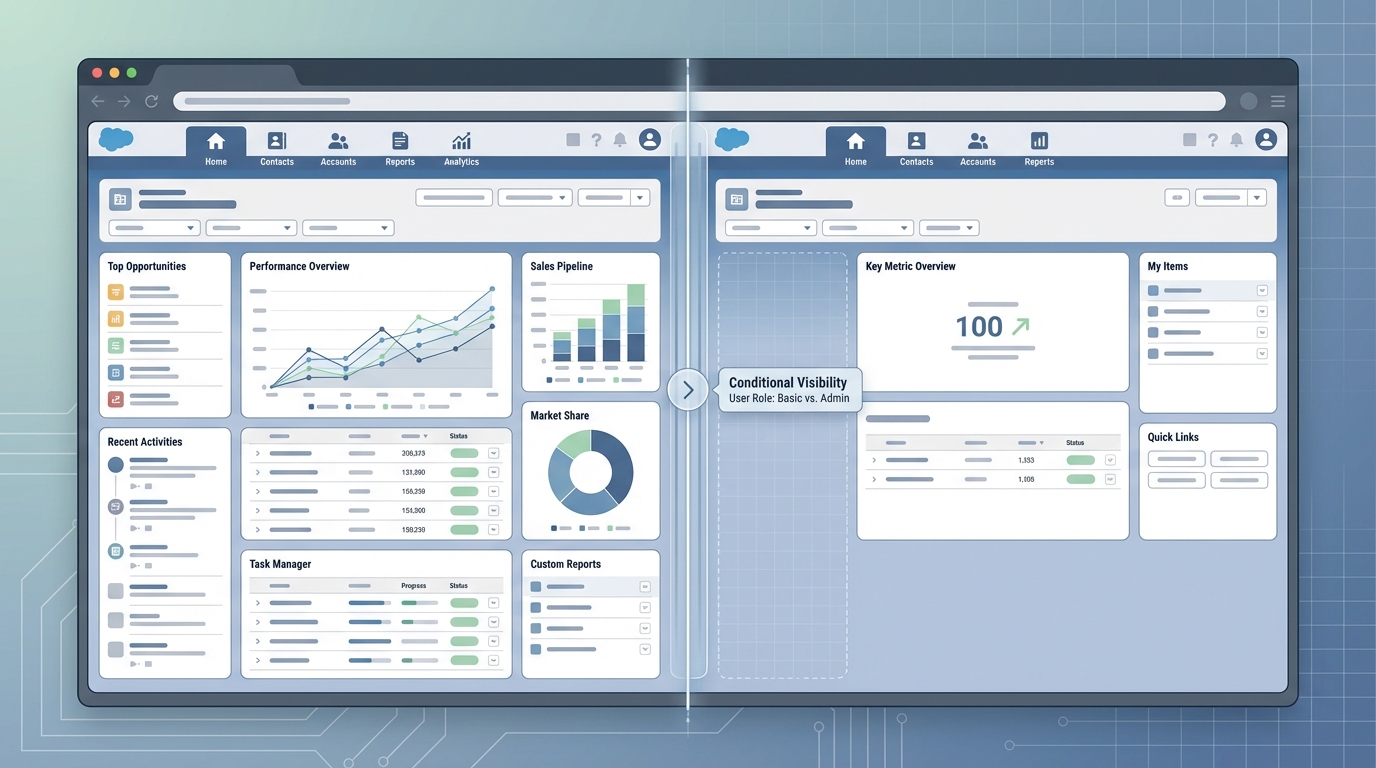
A side-by-side comparison of two web portal dashboards showing different layout configurations for different user tiers.
Features that actually matter
- Personalized dashboards that pull directly from Salesforce records.
- Secure login flows so you aren't accidentally leaking sensitive data.
- Self-service tools like order tracking or case management.
- Real-time updates so when a record changes in the CRM, the portal shows it instantly.
- Interactive bits like forms and chatbots that help users get answers fast.
Why you should build Salesforce web portals
Look, the main reason to do this is to get your support team out of the weeds. I've seen teams get buried under "where is my order" tickets. But if you give the customer a portal where they can see that status themselves, those tickets just disappear. It's a win for the customer because they get an answer in seconds, and a win for your team because they can focus on harder problems.
And it isn't just for customers. You can build these for partners to manage leads or for employees to handle internal HR tasks. The short answer is that if you have data in Salesforce that someone outside your core team needs to see or edit, a portal is the way to go. If you are building these on Experience Cloud, you might even want to look into setting up Google Analytics 4 to see what people are actually doing once they log in.
One thing that trips people up is data security. Just because you can show every field on the Contact object doesn't mean you should. Always start with a "least privilege" mindset when you're exposing CRM data to the web.
Using tools like Titan to speed things up
Building everything from scratch with custom code is an option, but it's usually a slow road. Tools like Titan have changed the game for a lot of the projects I work on. They let you build these portals with a drag-and-drop interface while staying connected to your Salesforce data. It's especially useful when you need to get something live quickly but don't want to hire a full team of web developers.
One of the coolest parts is the native support for things like Lightning Web Components (LWC). If you are already doing custom development, you can focus on LWC component communication to make the UI feel snappy, while the portal builder handles the heavy lifting of the site structure.
What makes these tools useful?
- No-code builders that let admins handle the layout and basic logic.
- Pre-built templates for common stuff like help centers or e-commerce stores.
- Engagement tracking that shows up right in your Salesforce dashboards.
- Automatic syncing so you don't have to write custom API integrations for every form.
Best practices for Salesforce web portals
Honestly, most teams get this wrong by trying to do too much at once. They want a portal that does everything from billing to social networking on day one. Don't do that. Start with the one thing that causes your support team the most pain and solve that first. Usually, that's something simple like case status or profile updates.
You also need to think about the logic behind the scenes. When a user submits a form on your portal, what happens next? You'll often find yourself choosing between Apex and Flow to handle the data processing. My advice? Keep it in Flow if you can, but don't be afraid to drop into Apex if the logic gets too hairy.
A few more tips from the field
- Make it mobile-friendly. Most of your users are going to check their status while they're standing in line for coffee.
- Watch your limits. Salesforce has specific limits on how much data you can push and pull through portals.
- Test as a portal user. Don't just test as a System Admin. You need to see exactly what the end-user sees.
- Automate the boring stuff. If a portal action can trigger a Flow to send an email, set that up immediately.
Key Takeaways
- Salesforce web portals turn your CRM into a self-service machine.
- Personalization is the secret sauce - use your data to show users exactly what they need.
- Tools like Titan or Experience Cloud save you months of development time.
- Always prioritize security and mobile responsiveness.
- Start small, solve one big pain point, then expand.
At the end of the day, a good portal is about making life easier for your users. If they can find what they need without calling you, you've done your job. Start by looking at your most common support requests and see if those could be handled by a simple, data-driven page. You'll be surprised how much of a difference it makes for your team's workload.




Leave a Comment