

If you've been building flows for a while, you probably know the pain of looping through records just to get a simple total. That's why the Salesforce Flow Transform element is such a relief for those of us trying to keep our canvases clean and our logic easy to follow.
I've seen teams build massive, sprawling flows with loops, assignments, and counter variables just to count how many open cases an account has. Honestly, it's a lot of extra work for something that should be simple. But with the latest updates, we can finally skip the "loop-and-assign" dance and handle aggregations in a single step.
Ditching the Loop with Salesforce Flow Transform
The big shift here is that the Salesforce Flow Transform element now lets you map a collection of records directly to a single value. Think of it like a mini-rollup engine sitting right inside your flow. Instead of iterating through every item in a list to sum up an amount, you just tell the element which field to look at and what math to do.
Now, here is the thing you need to remember: as of the Spring '25 release, this specific aggregation trick only works in after-save record-triggered flows. If you are trying to do this in a before-save flow, you won't see these options yet. It's a bit of a bummer, but for most rollup use cases, after-save is where you want to be anyway to ensure data integrity across related records.
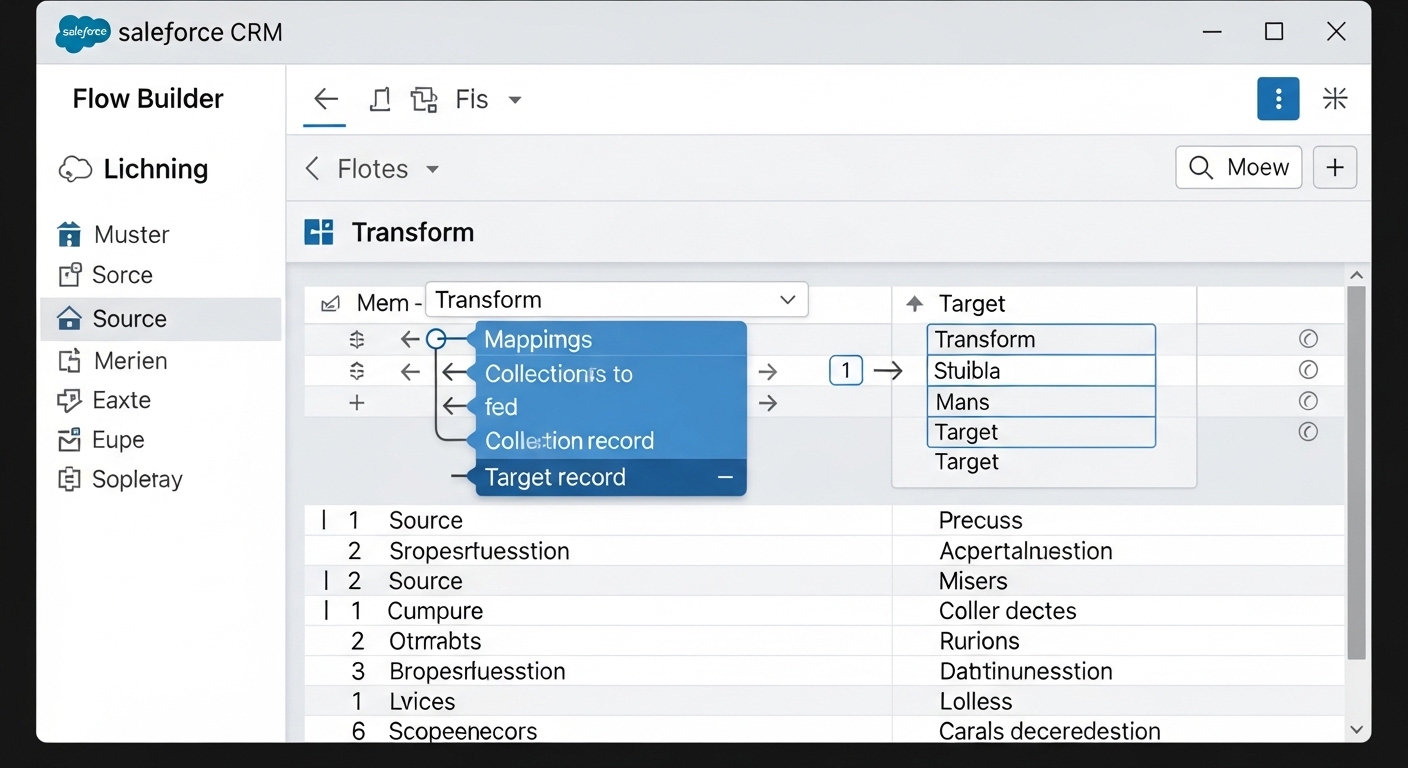
A professional screenshot of the Salesforce Flow Builder interface showing the Transform element mapping data from a collection of records.
How to set up the Salesforce Flow Transform element
Let's look at a real-world example. Say you need to update a total "Open Opportunity Value" field on an Account every time a deal changes. In the old days, you'd get the records, loop them, add the amount to a variable, and then update the Account. Here is how you do it now with the Salesforce Flow Transform element.
- Get your records: Start with a standard Get Records element to find all open Opportunities related to your Account. Only pull the fields you actually need, like Amount.
- Add the Transform element: Drop the Transform element onto your canvas. For your Source Data, pick that collection of Opportunities you just fetched.
- Configure the Target: This is where it gets interesting. For the Target Data, don't pick a collection. Instead, set the Data Type to Currency and make sure "Allow multiple values" is unchecked.
- Map and Aggregate: Drag the source collection over to your target field. A window will pop up asking how you want to map it. Choose "Aggregate" and then select "Sum" (or "Count" if you just want the total number of records). Select the Amount field, and you're done.
One thing that trips people up is multi-currency. If your org has multiple currencies enabled, the Transform element doesn't always handle the conversion for you automatically in the mapping. I usually recommend using a formula field on the record itself to convert values to a corporate currency first if you need a truly accurate total.
Why this beats the old way
So why does this matter? Performance is the short answer. Loops in Flow are notoriously heavy on resources. When you use the Salesforce Flow Transform element, you're giving the engine a much more direct path to the result. It's cleaner to look at, which makes it way easier for the next admin who inherits your work to understand what's going on.
I've also found that this approach helps a lot with bulk record processing. When you are dealing with hundreds of records, a loop can hit limits faster than you'd think. Transform is just more efficient at handling those collections under the hood.
Best practices for cleaner flows
Just because we have a new tool doesn't mean we should get sloppy. I always tell my colleagues to keep their Get Records filters tight. Don't just grab every Opportunity; grab only the ones that are actually open. If you bring 50,000 records into a flow, you're going to have a bad time regardless of whether you use a loop or a transform.
Also, keep an eye on your data types. If you're counting records, use a Number field. If you're totaling money, use Currency. It sounds obvious, but I've seen plenty of flows break because of a simple type mismatch in the mapping. If you're interested in other ways to use this element, you can also check out my post on collecting IDs without loops.
Key Takeaways
- The Salesforce Flow Transform element replaces messy loops for summing or counting items.
- It is currently restricted to after-save record-triggered flows (Spring '25+).
- It makes your automation faster and much easier to maintain.
- Always filter your Get Records collection to keep the data set manageable.
At the end of the day, our goal is to build stuff that doesn't break and is easy to fix if it does. Moving away from loops for basic math is a huge step in that direction. Give it a try on your next rollup project and see how much cleaner your flow looks.




Leave a Comment