

Salesforce Flow Transform is reshaping how Salesforce professionals work — and this article breaks down everything you need to know.
Look, we've all been there. You're building a flow and you just need a simple list of record IDs to pass into an Apex action or a subflow. Usually, you'd reach for a loop, but the Salesforce Flow Transform element makes that feel like a lot of extra work for nothing.
In my experience, loops are one of the biggest causes of messy canvases. You have to create the loop, then an assignment element, and then manage a separate collection variable. It's not just about the clutter, though. It's about making your automation easier for the next person to understand. That's why I've started using this new approach for simple data mapping.
Why I'm moving away from loops with Salesforce Flow Transform
The Salesforce Flow Transform element is probably one of the most overlooked tools in our kit. It lets you take a bunch of records and map specific fields directly into a new collection. No arrows looping back on themselves and no extra assignment steps. It's just cleaner.
But here's the thing: it isn't a total replacement for every loop. If you need to do heavy logic, like checking multiple conditions inside the loop or sorting data on the fly, you'll still need the old-school way. But for simply grabbing a list of IDs? This is the way to go. Following Best practices for Salesforce Flow means keeping things as simple as possible, and this definitely fits the bill.
The real-world use case
Let's talk about a common scenario I see all the time. You have an Account update that needs to trigger something for all its open Opportunities. Maybe you're sending those IDs to an external system or a specialized Apex tool. You don't need the whole Opportunity record; you just need a collection of Text IDs.
In the past, I've seen teams build massive flows for this. Now, we can do it in about three clicks. It's faster to build and much easier to debug when things go wrong.
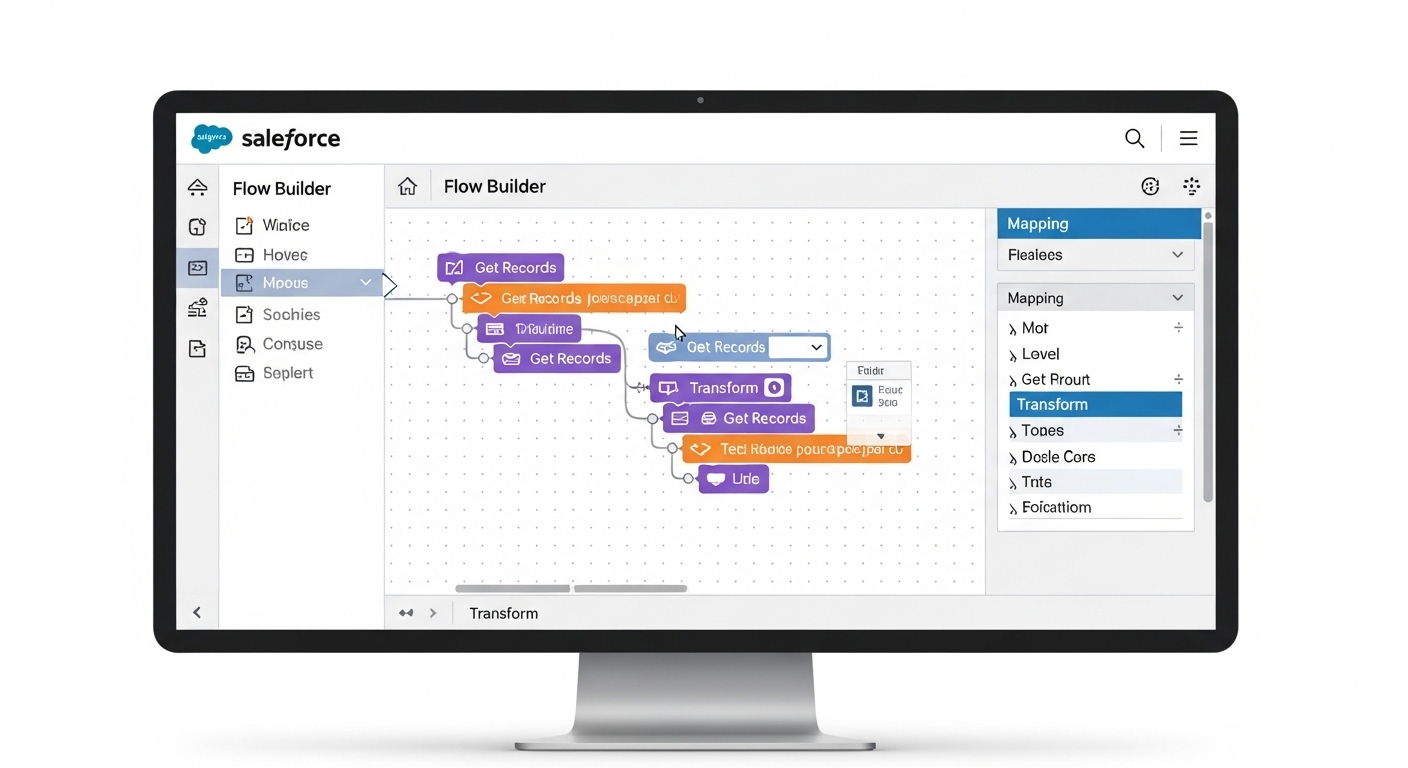
A professional visualization of the Salesforce Flow Builder canvas showing a Get Records element connected to a Transform element for data mapping.
Setting up the Salesforce Flow Transform element
So how do you actually set this up? It's pretty straightforward, but there are a couple of spots where people usually get stuck. Let's walk through the setup for our Opportunity ID collection.
- Get Your Records: Start with a standard Get Records element. In our case, we're looking for Opportunities where the
AccountIdmatches our record andIsClosedis false. - Add the Transform: Drop the Transform element onto the canvas. For your Source Data, pick the collection you just got from the previous step.
- Create the Target: This is where people trip up. You need to create a new resource. Set the Data Type to Text and make sure you check the box for "Allow multiple values (collection)".
- Map the Fields: Now you'll see your Source on the left and Target on the right. Just click the
Idfield on the left and drag it to your Text collection on the right.
Quick tip from the field: Always double-check your data types. If you try to map a record ID to a collection that isn't explicitly set to "Text," Flow Builder will get cranky and won't let you finish the mapping.
Once you've mapped the ID, you're done. You now have a clean collection of strings ready to use. If you want to see how this same logic applies to other tasks, you can also use this to sum or count items without writing a single line of code.
Wait, what about filtering?
One thing to remember is that the Salesforce Flow Transform element doesn't filter your data. It just maps what you give it. If you need to weed out specific records, do that in your Get Records element first or use a Collection Filter. Think of Transform as a translator, not a bouncer. It just moves data from point A to point B in the format you want.
Key Takeaways
- Salesforce Flow Transform replaces the Loop-plus-Assignment pattern for simple field extraction.
- It keeps your flow canvas clean and much easier to maintain for other admins.
- Always define your target collection variable before you start mapping.
- Use Get Records or Collection Filters to handle your logic before the data hits the Transform element.
- It's perfect for prepping data for Apex actions or subflows that only need specific fields.
At the end of the day, our goal is to build stuff that doesn't break and isn't a nightmare to fix six months from now. Using the Salesforce Flow Transform element instead of unnecessary loops is a small change, but it makes a huge difference in how professional and performant your automation feels. Give it a try on your next project - your future self will thank you.




Leave a Comment