

Picklist on Events: Understanding Shared Activity Fields
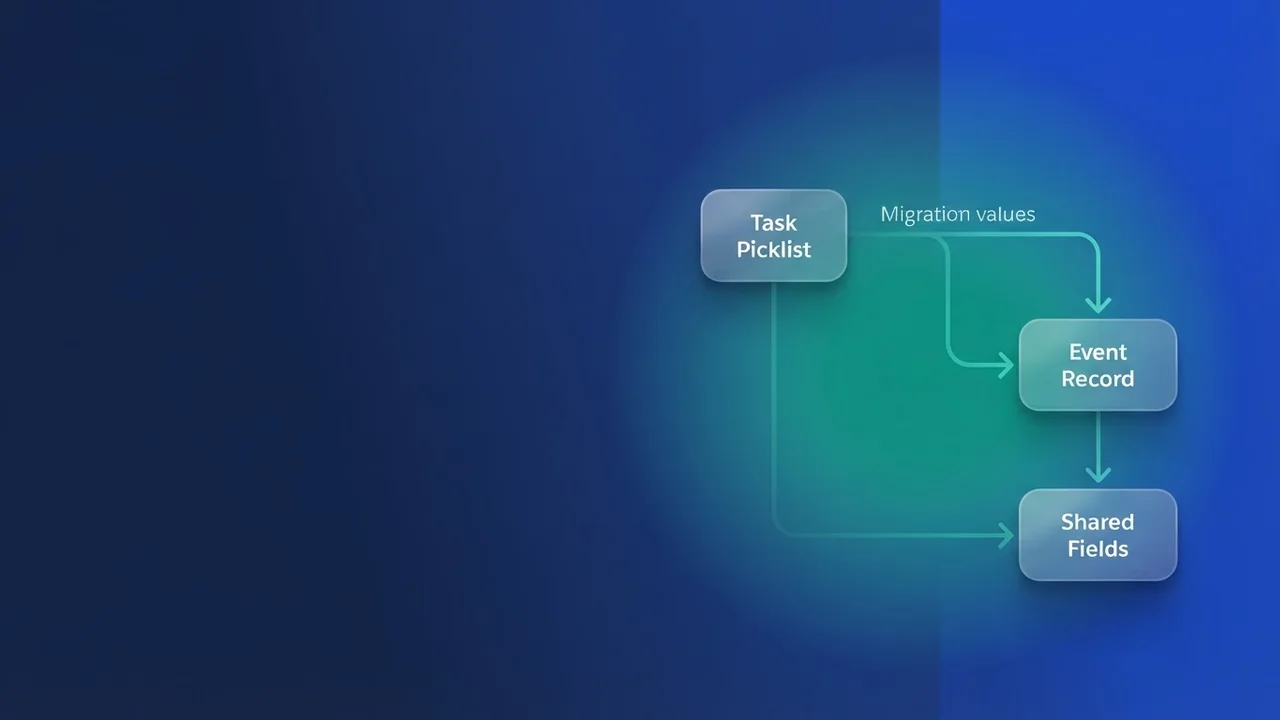
Anyone who works with Activities hits this eventually. You add a picklist field to the Task object, and it shows up on Event records too. That is not a bug, it is a direct consequence of how Salesforce structures Activities. Here is why it happens, and what you can do to get field visibility back under control.
The core of the issue: the unified Activity object
Salesforce Activities sit on one underlying object, Activity. Task and Event are record types of that shared object rather than distinct objects of their own. So any custom field you add to Activity, picklists included, is visible on both Tasks and Events, whatever you had in mind when you created it. When you create a custom field on Task or Event through the setup UI, Salesforce is really creating it on the parent Activity object and then making it available to both record types.
That unification simplifies some of your data management and gets in the way the moment you want a field to behave or appear differently on Tasks than on Events. Picklist values are stored at the object level on Activity, not at the record type level, which is what makes them turn up everywhere.
Solution 1: record types for granular control
The most straightforward route, and the one usually recommended, is to define record types explicitly for both Tasks and Events. Once both have their own record types, Salesforce can manage picklist values independently for each.
Create record types:
- Go to Setup.
- In the Quick Find box, enter
Record Typesand select Record Types under Objects and Fields > Objects. The exact path shifts a little between editions and UI configurations, but it lives under Object Manager. - Select the Task object, click New, and create a Task record type (
Sales_Call,Follow_up). - Select the Event object, click New, and create an Event record type (
Meeting,Webinar).
Assign picklist values to record types:
- With the record types in place, associate the picklist field with them.
- Go back to the Task object fields in Object Manager.
- Find your picklist field and click its name.
- Scroll down to Record Type Assignments.
- Click Edit, and select which picklist values each Task record type gets. Make sure the field is assigned to the Task record types you care about.
- Do the same on the Event object. Its field list holds the same picklist field, because it is one field at the
Activityobject level, and you assign values to the Event record types there. This is where you can give Tasks and Events different sets of values, or keep certain values off Events entirely.
A few things to watch here. If you want a picklist to carry the same values on both Task and Event record types, you configure them by hand for each record type assignment on both objects; Salesforce does not mirror the assignments for you. Users need to know which record type they are on and how that changes their picklist choices, so labelling and a bit of training matter. And when you deploy record types and picklist assignments, include all the relevant metadata or your environments will drift apart.
Solution 2: Dynamic Forms and field-level visibility (UI only)
If all you want is the picklist gone from the Event user interface, and you do not need the data model altered or strict validation at the Event record type level, Dynamic Forms and layout assignment rules will do it. The field stays on Activity; only its visibility changes.
Dynamic Forms let you define field-level visibility inside the Lightning App Builder, which is finer-grained than traditional page layouts.
- Enable Dynamic Forms:
- Check that your Lightning record pages for Tasks and Events are set up for Dynamic Forms. Go to Setup > Lightning App Builder, open the record page, and confirm the component is configured for it.
- Configure field visibility:
- Open the record page in the Lightning App Builder.
- Select the Record Detail component.
- In the right-hand pane, pick the picklist field you want to control.
- Click Set Conditional Visibility.
- Build a filter: Record Type | Equals | [Your Task Record Type Name]. The field then appears only when the record type is a Task.
- You can add a second filter for Event record types to hide it explicitly, or leave it out of the Event component altogether if you are using separate components per record type on the same page.
You can get the same UI-level hiding with page layouts and field-level security, with less flexibility. In Object Manager, open Page Layouts and create or edit a layout for your Event record types, then drag the picklist field off the layout. It will not appear on the page, even though the field still exists on the Activity object. For firmer control, set FLS on the field through profiles or permission sets: Visible for the Task-related profiles and permission sets, Read-Only or Not Visible for the Event-related ones.
Two caveats with any UI-only fix. The field still exists on Event records, so an integration or automation that populates it will store the data whether or not a user can see it. And the field is still available in reports on Activity, where it can be filtered or included, which means Events can surface values you did not expect unless you manage it carefully.
Solution 3: the hidden picklist and automation approach
This one adds a hidden picklist that tracks the intended type of Activity, populates it with automation, and drives picklist dependency from it. More moving parts, and much more precise control.
Create a Source Type picklist:
- Go to Setup > Object Manager > Activity.
- Create a new custom picklist field, say
Activity_Source_Type__c. - Give it the values
TaskandEvent. - Keep it hidden from users on both the Task and Event page layouts.
Implement automation:
- For Tasks, write a Record-Triggered Flow or an Apex Trigger on Task creation (
before insertorafter insert) that setsActivity_Source_Type__ctoTask. - For Events, do the same on Event creation and set the field to
Event.
Conceptually:
trigger ActivitySourceTrigger on Activity (before insert) { for (Activity act : Trigger.new) { if (act.IsTask) { act.Activity_Source_Type__c = 'Task'; } else { act.Activity_Source_Type__c = 'Event'; } } }- For Tasks, write a Record-Triggered Flow or an Apex Trigger on Task creation (
Create the dependency. This part is optional, but it is where the precision comes from.
- Say you have another picklist,
Task_Specific_Status__c. You can make its values dependent onActivity_Source_Type__c. - Go to Setup > Object Manager > Activity > Fields & Relationships.
- Find your original picklist,
Task_Specific_Status__c. - Click Field Dependencies, then New.
- Set
Activity_Source_Type__cas the controlling field andTask_Specific_Status__cas the dependent field. - Configure the values so only the relevant
Task_Specific_Status__coptions are available whenActivity_Source_Type__cisTask.
- Say you have another picklist,
Reach for this when you need highly specific data segmentation and picklist logic that standard record type assignments cannot handle, or when you want to enforce strict data entry rules based on whether an Activity is fundamentally a Task or an Event. The cost is the extra automation and metadata you now own, plus the obligation to keep Activity_Source_Type__c populated correctly in every scenario that creates an Activity.
Key takeaways
Picklist fields turn up on both Tasks and Events because both sit on the shared Activity object. Once you know that, you have three routes: record types for distinct sets of picklist values, Dynamic Forms and page layouts for UI-level control, or a hidden picklist with automation for granular data segmentation. Pick the one that balances data integrity, user experience and administrative overhead for your org.


Leave a Comment