

I've spent a lot of time lately helping clients move away from static sites and toward Salesforce web portals that actually talk to their data in real time. It's one thing to have a login page, but it's another thing entirely to give your customers a personalized dashboard that changes based on who they are. If you've ever felt like your current portal is just a glorified "Contact Us" form, you're not alone.
Most teams I talk to want the same thing: a way to show CRM data to the outside world without making it a security nightmare. That's where dynamic portals come in. They aren't just websites; they're windows into your Salesforce org that adapt to the user. Let's break down how this works in the real world.
Why Salesforce web portals need to be dynamic
A dynamic portal is basically a site that thinks for itself. Instead of showing the same "About Us" page to everyone, it uses server-side logic and your CRM data to decide what a user sees. If I'm a customer with an overdue invoice, I should see a big red notification the second I log in. If I'm a partner with a high lead conversion rate, maybe I see a different set of resources. Look, the old way of building static pages just doesn't cut it anymore. People expect their data to be current, and they expect the experience to be tailored to them.
In my experience, the best portals share a few core traits:
- Personalized dashboards that pull directly from user profiles.
- Secure login paths that respect your Salesforce roles vs profiles settings.
- Interactive bits like chatbots, feedback forms, and real-time record updates.
- Self-service tools so customers can track orders or update their address without calling you.
- A direct line to your CRM data so there's zero lag between an update in Salesforce and what the user sees.
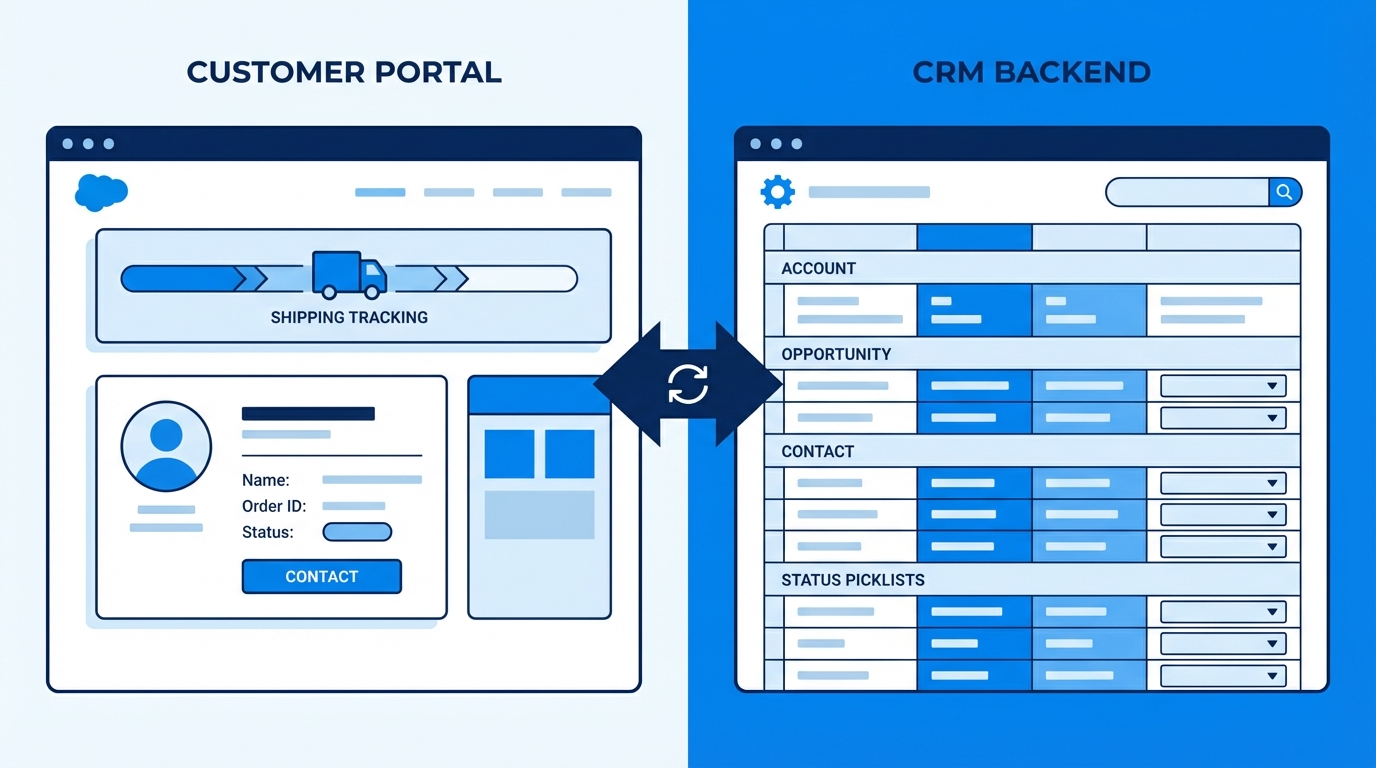
A side-by-side comparison of a customer-facing web portal and a Salesforce CRM record page showing real-time data synchronization.
Common ways to use Salesforce web portals
I've seen these pop up in almost every industry, and the use cases are usually pretty similar. The most common one is definitely customer service. Instead of burning your support team's time on "Where is my order?" calls, you just give the customer a portal where they can see it themselves. But it goes way beyond that. E-commerce teams use them to show custom pricing for B2B clients, and schools use them to track student progress and learning paths.
Here's the thing: you don't need to build everything at once. Start with the one thing that's causing your team the most manual work. Is it ticket tracking? Is it lead registration for partners? Focus there first. One thing that trips people up is trying to boil the ocean on day one. Don't do that. Pick a high-value use case and get it right before moving on.
The biggest mistake I see? Trying to show everything. Just because you have 50 fields on an Object doesn't mean your customer needs to see them all. Keep it clean and only show what helps them finish their task.
How tools like Titan help
Building these from scratch can be a massive headache if you're trying to code every single LWC by hand. This is why I'm a big fan of low-code tools like Titan. It sits right on top of Experience Cloud and lets you drag and drop components without needing a full dev team for every minor change. You get pre-built templates for things like case management or profile updates, which saves a ton of time. Plus, it handles the data sync back to Salesforce automatically, so you aren't stuck writing custom API integrations.
Best practices for building Salesforce web portals
If you're getting ready to start a project, here are a few things I've learned the hard way. First, you have to know your personas. Who is logging in? What is the one thing they want to do? If you can't answer that, your portal will end up cluttered and confusing. Also, please don't ignore mobile users. Most people are going to check their status on their phone while they're grabing coffee, so if your portal looks like a 1998 spreadsheet on a small screen, they won't use it.
Security is the other big one. You need to be extremely careful about what data you're exposing. Only surface the fields that are absolutely necessary. And once you're live, don't just walk away. You should be setting up GA4 for Experience Cloud or using internal dashboards to see what people are actually clicking on. If nobody is using your "Knowledge Base" but everyone is hitting the "Chat" button, that tells you exactly where to focus your next update.
Quick implementation checklist
- Identify your users and what they actually need to do.
- Map out your Salesforce objects and make sure your sharing rules are tight.
- Pick a tool - whether it's native Experience Cloud or something like Titan.
- Build a prototype and let a few real users break it.
- Set up your automations using Salesforce Flow best practices to handle the back-end logic.
- Launch, monitor the metrics, and keep tweaking.
Key Takeaways
- Dynamic portals use real-time CRM data to change content for each user.
- Self-service is the goal - it saves your team time and makes customers happier.
- Low-code tools like Titan can speed up the build process significantly.
- Security and mobile-responsiveness are non-negotiable.
At the end of the day, building Salesforce web portals is about making life easier for your users. Whether that's a customer trying to pay a bill or a partner trying to close a deal, the portal should get out of their way and let them get it done. Start small, keep your data clean, and don't be afraid to use tools that do the heavy lifting for you. It's a much better way to work than trying to custom-code your way out of every problem.




Leave a Comment