

Why You Should Use the Salesforce Flow Transform for Aggregations
If you've spent any time building complex automations, you know the "Loop-Assign-Add" dance. You get a bunch of records, loop through them, and use an assignment element just to count them or sum up a field. It's messy and it clutters your canvas. But the Salesforce Flow Transform element changes that by letting you aggregate data without all those extra steps.
I've seen teams build flows with dozens of elements that could have been handled with just three or four. Every loop you add is another chance for a mistake and another bit of technical debt to maintain. By using the Salesforce Flow Transform, you're basically telling Flow to handle the math in the background. It keeps your diagrams clean and makes life easier for the next person who has to touch your automation. Let's be honest, that person is usually you six months from now.
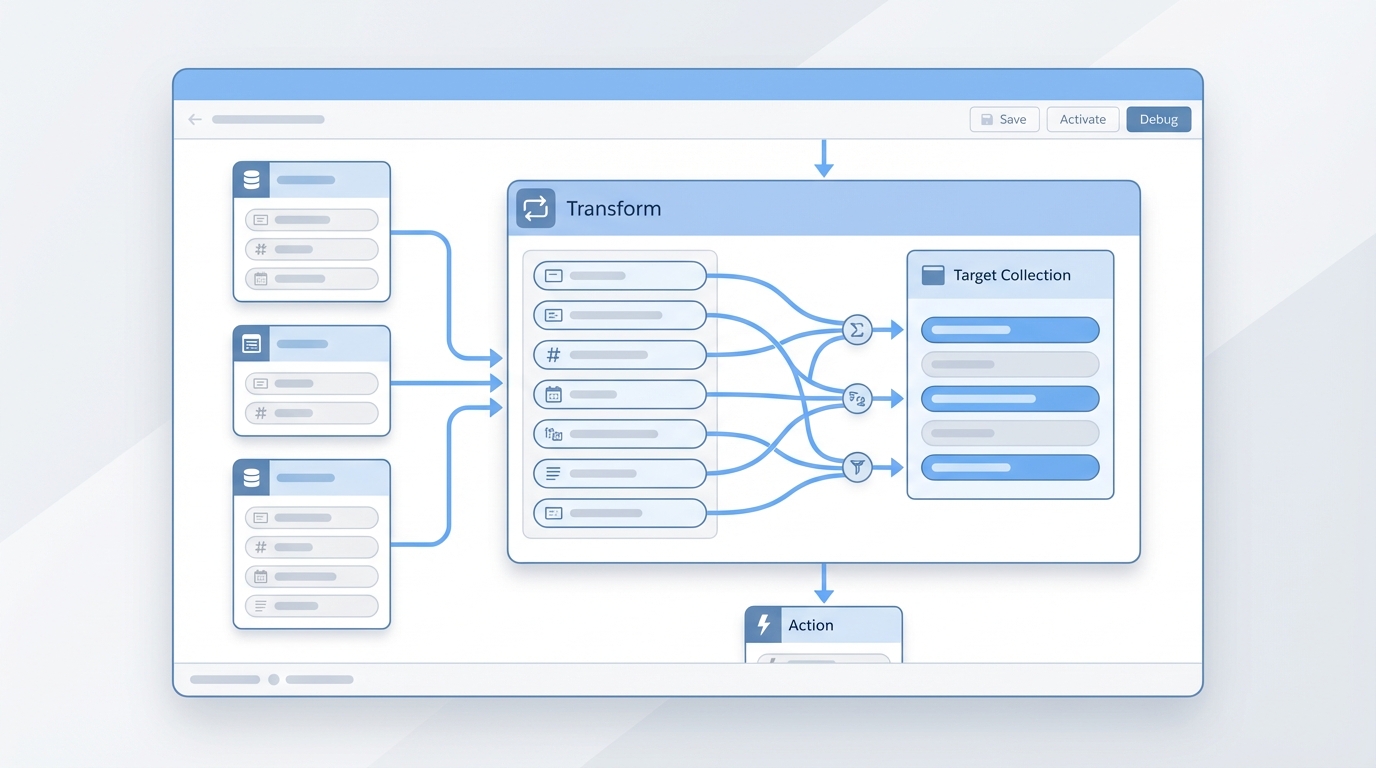
A detailed UI mockup of the Salesforce Flow Builder interface showing a data transformation and aggregation step in a clean automation workflow.
Setting Up Your Salesforce Flow Transform Step-by-Step
So how do we actually do this? Look, it's simpler than it sounds, even if you aren't a hardcore coder. The secret sauce is a tiny bit of Apex that acts as a container for your data. One thing that trips people up is thinking they need a full-blown trigger or a complex service class. You don't. You just need a wrapper.
The Apex Wrapper
First, you'll need a simple class. This is where you define what you want to calculate - like a total amount or a record count. You'll need to understand why we use the @AuraEnabled annotation here, because that's what makes these fields visible inside the Flow builder. Here is a basic example:
public with sharing class FlowAggregationResult {
    @AuraEnabled public Decimal totalAmount;
    @AuraEnabled public Integer recordCount;
}
That's it. That's the whole class. Once you save this in your org, the Salesforce Flow Transform can use it to store the results of your calculations.
Mapping the Values in Flow
Now, head over to your Flow. After you use a "Get Records" element to grab your collection, add the Transform element. Here's where it gets interesting. Instead of a standard record, you'll choose "Apex-Defined" as your target and pick the class we just created. Now you can map your collection fields directly to those Apex properties using the Sum or Count operations. No loops required.
In my experience, this is the best way to handle totals for things like Order Line Items or related Account headcounts. It's much faster than building a loop and feels like a much cleaner architectural choice.
When to Keep It Simple
But wait - should you use this for everything? Probably not. If you're just counting a few records, a simple Assignment element using the "Equals Count" operator might be enough. But when you need to sum up currency fields or perform multiple calculations at once, the Salesforce Flow Transform is the way to go. It's all about choosing between Apex and Flow logic based on what's easiest to maintain. If your flow starts looking like a bowl of spaghetti, it's time to look at a transform.
Key Takeaways
- The Salesforce Flow Transform replaces the need for "Loop and Add" logic.
- You need a simple Apex class with
@AuraEnabledproperties to store your totals. - It significantly reduces the number of elements on your Flow canvas.
- It's better for performance when dealing with larger record collections.
- Always check for null values in your numeric fields before running the transform to avoid errors.
At the end of the day, our job is to build things that don't break and are easy to fix. Moving away from manual loops for simple math is a huge step in that direction. Give the Salesforce Flow Transform a try on your next project - your future self will thank you for the cleaner automation.




Leave a Comment