
Why the Marketing User checkbox is the first thing you should check
If you've got a user who can't create campaigns even though their profile looks perfect, you're likely missing the Marketing User checkbox. I can't tell you how many times I've seen experienced admins pull their hair out over this one. You've double-checked the "Create" permission on the profile, you've looked at the permission sets, and everything says they should be good to go. But the "New" button just won't show up.
Here's the thing: Campaigns are a bit of an outlier in Salesforce. Unlike most standard objects where a profile or permission set is enough, Campaigns require a specific feature license. That license is toggled by that one little Marketing User checkbox sitting on the User record itself. Without it, the user can see campaigns, but they can't create or manage them.
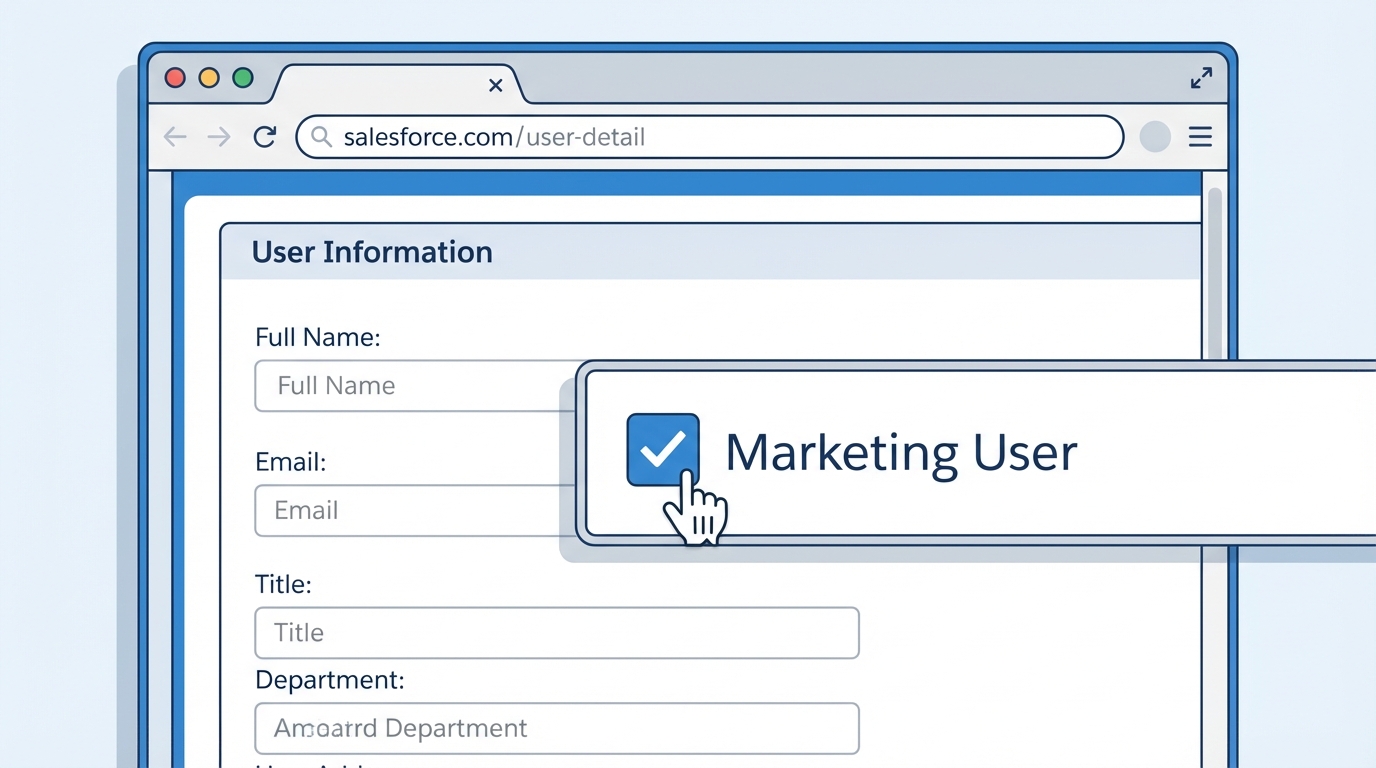
A realistic screenshot of a Salesforce user detail page focusing on the Marketing User checkbox field being enabled.
How to enable the Marketing User checkbox
Fixing this is usually a ten-second job. You just need to head over to the User record in Setup. Look for the Marketing User checkbox on the right-hand side of the user detail page and make sure it's checked. Once you hit save, the user should see that "New" button immediately. It's one of those legacy Salesforce quirks that hasn't gone away yet.
In my experience, if a user can't see the "New" button but has the right permissions, it's almost always a license or a feature flag issue. Don't waste an hour auditing their profile until you've checked the user record first.
When the Marketing User checkbox isn't the only problem
Now, if the Marketing User checkbox is already checked and they still can't create records, you'll need to dig a little deeper. Sometimes the issue is buried in the UI or the license type itself. For instance, if you're trying to figure out Salesforce roles vs profiles and how they interact, remember that profiles handle the "what" (object access) while licenses handle the "can" (feature access).
- License Limitations - If the user is on a Platform license or a Chatter Free license, they simply can't create Campaigns. No amount of clicking the checkbox will fix a license that doesn't support the object. They need a full Salesforce license.
- Tab Visibility - Is the Campaign tab set to "Tab Hidden"? If they can't see the tab, they might think they can't create the record. Use one of the top 5 Chrome extensions for Salesforce to quickly peek at their effective permissions.
- Record Types - If you've got multiple record types for Campaigns, make sure at least one is assigned to the user's profile. If none are assigned, the "New" button might just vanish into thin air.
Checking for automation blockers
But what if they can click "New", fill out the form, but it fails when they hit save? That's a different story. Usually, that points to a validation rule or a Flow that's tripping them up. I've seen teams build complex automation that assumes every user has a certain field filled out on their own record. If that's missing, the save will fail with a generic error.
Check the debug logs. If a Flow is failing, it'll tell you exactly which element is the problem. It's much better than guessing. Also, make sure they have Field-Level Security (FLS) for any required fields on the page layout. If they can't see a required field, they can't fill it in, and the save won't work. It's a simple thing, but it's easy to overlook when you're rushing.
Key Takeaways
- The Marketing User checkbox is required for creating and managing Campaigns, regardless of profile permissions.
- Confirm the user has a full Salesforce license; Platform licenses don't support Campaigns.
- Ensure the Campaigns tab is set to "Default On" so the user can actually find the "New" button.
- Check for record type assignments if your org uses them for Campaigns.
- Look at validation rules and Flows if the record fails during the save process.
Next time a user complains about Campaign access, don't jump straight into the profile. Start with the User record. Check that Marketing User checkbox, verify the license, and you'll probably have the problem solved in under a minute. It saves a lot of frustration for both you and the user. Trust me, it's the little things that usually break the most.




Leave a Comment