

Why you might need an Apex user IP address
If you've ever had to debug a weird security issue or tried to show a specific banner to users in a certain region, you know that having the Apex user IP address handy is a life-saver. I've worked on projects where we needed to log exactly where a request was coming from to satisfy some pretty strict audit requirements. It's one of those things that seems simple until you actually try to find the right class to call.
But why stop at just the IP? Salesforce actually stores a decent amount of geographic data behind the scenes. If you combine the IP with login history, you can get the city, state, and even the postal code without needing an external service. It's a great way to build a Salesforce Universal Logging Framework that actually tells you something useful about your users.
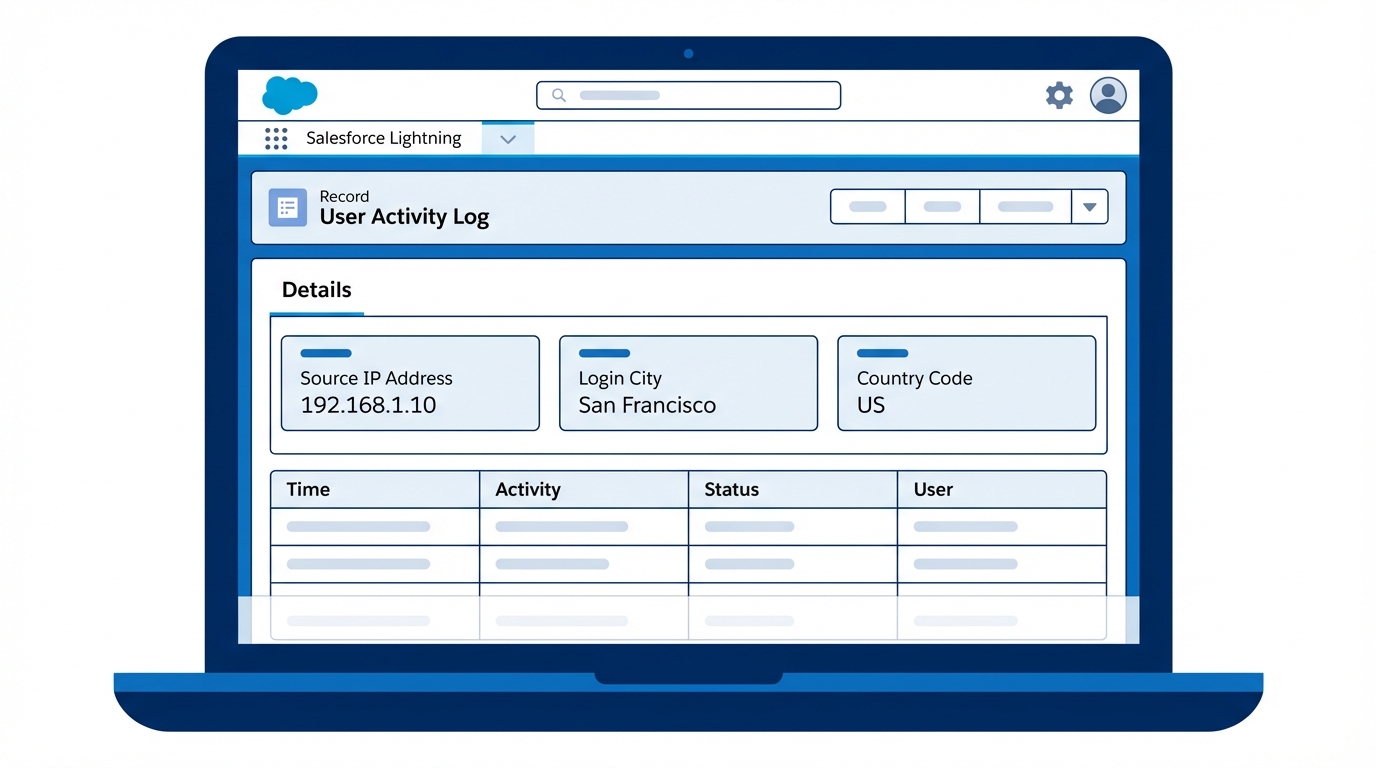
A realistic Salesforce Lightning interface showing a log entry with user IP address and geographic location details.
How to fetch the Apex user IP address and location
So how do we actually get this data? The short answer is Auth.SessionManagement. This class is your best friend when it comes to session details. But here's the thing: you can't just grab the IP and call it a day if you want the location. You have to hop from the session to the login history, and then to the geo-location table.
One thing that trips people up is that this data isn't always there. If a user is using a VPN or if Salesforce hasn't mapped that specific IP range yet, your geo-location fields will come back empty. Always plan for nulls. Honestly, most teams get this wrong and end up with NullPointerExceptions in their logs because they assumed every IP has a city attached to it.
Step 1: Grabbing the session IP
The first step is grabbing the Apex user IP address from the current session map. We use the SourceIp key for this. I usually wrap this in a check for Test.isRunningTest() because, let's be real, unit tests don't have active sessions and your code will break immediately without a guard.
Step 2: Finding the Geo-Location data
Once you have the LoginHistoryId from the session, you can query the LoginHistory object. This object holds a lookup to LoginGeo, which is where the real magic happens. This table contains the subdivision (usually the state or province), city, and country. It's surprisingly accurate for most office-based users.
The Apex implementation
public void captureUserSessionData(List
String ipAddress = !Test.isRunningTest() ? sessionAttributes.get('SourceIp') : '1.1.1.1';
String loginId = !Test.isRunningTest() ? sessionAttributes.get('LoginHistoryId') : null;

if (String.isBlank(loginId)) return;

// We need to jump from History to Geo
List<LoginHistory> history = \[SELECT LoginGeoId FROM LoginHistory WHERE Id = :loginId LIMIT 1\];

if (history.isEmpty() || history\[0\].LoginGeoId == null) return;

LoginGeo geo = \[SELECT City, Subdivision, Country, PostalCode
                FROM LoginGeo
                WHERE Id = :history\[0\].LoginGeoId
                LIMIT 1\];

// Now we stamp the data onto our records
for (Account acc : records) {
    acc.User\_IP\_Address\_\_c = ipAddress;
    acc.User\_Location\_\_c = geo.City + ', ' + geo.Subdivision + ' ' + geo.Country;
}
}
Quick tip: Don't run this query inside a loop. I've seen developers put this logic inside a trigger for-loop and hit SOQL limits within minutes of going live. Fetch the session data once at the start of your service class and then reuse it.
Best practices for handling IP data
Now, just because you can track an Apex user IP address doesn't always mean you should. Privacy is a big deal. Before you start stamping IP addresses on every record in your org, check with your legal team. Between GDPR and CCPA, storing PII (Personally Identifiable Information) like a specific IP can be a compliance headache.
Another thing to consider is choosing the right tool for the job. If you only need this for a specific screen, maybe a simple LWC is better. But if you need to persist this data during a complex transaction, Apex is the way to go. Just make sure you bulkify your logic if you're processing multiple records at once.
Key Takeaways
- Use
Auth.SessionManagement.getCurrentSession()to get the Apex user IP address. - The
LoginGeoobject is where the city and country data lives. - Always use
Test.isRunningTest()guards since sessions don't exist in test context. - Be mindful of privacy laws like GDPR before storing location data permanently.
- Check for nulls at every step - not every login has a geo-record.
At the end of the day, getting the Apex user IP address is a straightforward way to add a layer of security or personalization to your org. It's a tool I keep in my back pocket for any project involving sensitive data or regional business logic. Just keep your code clean, watch your limits, and always respect user privacy.




Leave a Comment