


Why a Salesforce logging framework matters
If you've ever spent hours digging through the Developer Console only to find the log you need was truncated, you know why a proper Salesforce logging framework is a lifesaver. I've been there, and honestly, most teams wait until a production crisis to realize they need a better way to track errors. Relying on standard debug logs is fine for a quick fix, but it won't help you when a customer reports a bug that happened three days ago.
The goal here is simple: one place that catches everything. A failing Apex trigger, a buggy LWC, a Flow that's hitting limits, all in a unified view. With a centralized framework you can look up what happened instead of guessing at it.
Setting up your Salesforce logging framework
So, how do we actually build this? We start with a custom object. I usually call it Application_Log__c. You'll want fields for the log level (like DEBUG or ERROR), the source of the log, the specific message, and a long text area for stack traces. I've seen teams try to use standard objects for this, but trust me, a custom object gives you much more control over reporting and retention.
One thing that trips people up is the transaction ID. You want to generate a unique ID at the start of a request and pass it through every log entry. This lets you see the entire journey of a single user action, from the UI click down to the final database update. In a busy org it's the only way the logs make sense.
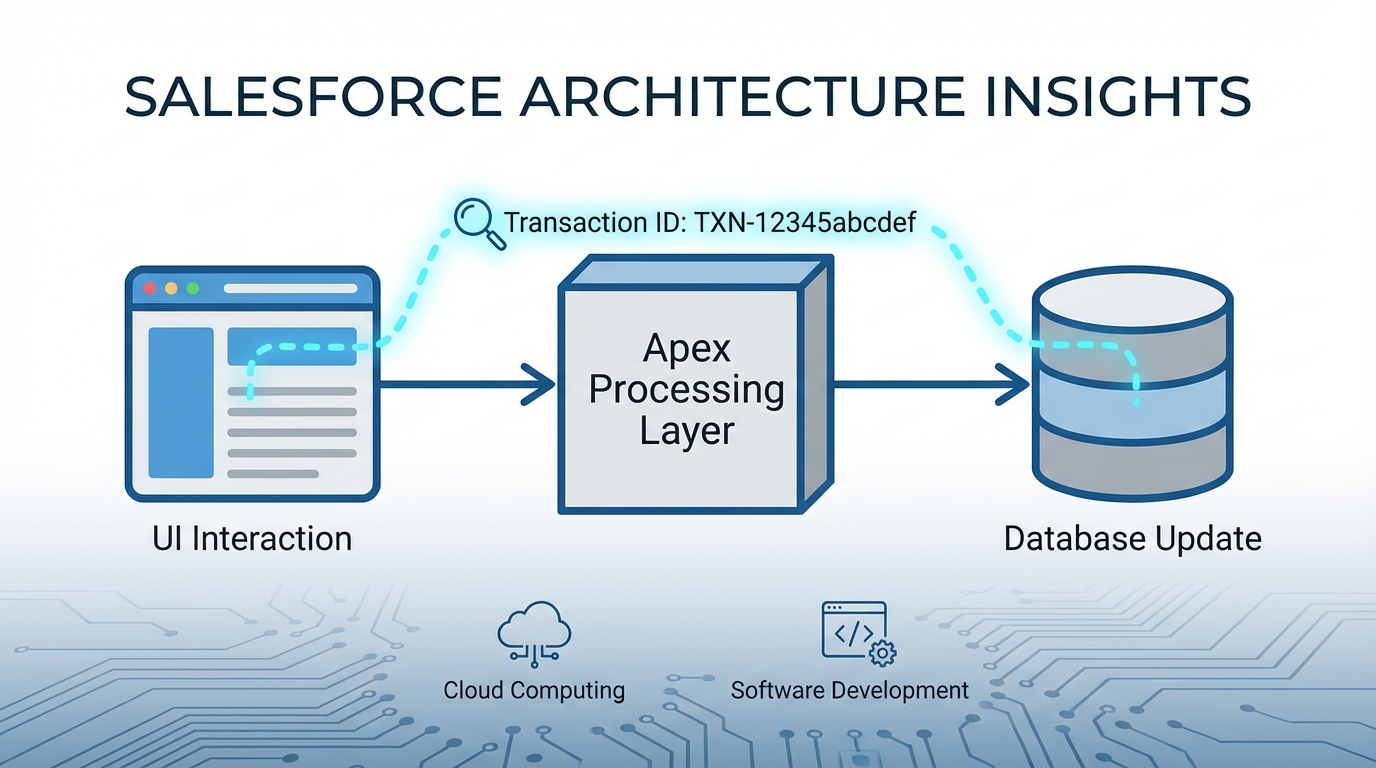
The path of a transaction ID from the user interface through Apex logic to the database.
Apex and Flow integration
For Apex, you'll want a utility class that handles the heavy lifting. Don't just insert a record every time you call the logger; that's a fast track to hitting DML limits. Use a buffer instead. Collect the logs in a static list and insert them all at once when the transaction finishes. This is especially important when you're following best practices for Salesforce Flow and calling Apex actions.
public class ExampleUsage {
    public void runProcess() {
        Logger.info('Starting the engine');

        try {
            // Your logic here
            doWork();
        } catch (Exception e) {
            // This captures the whole stack trace automatically
            Logger.error('Something went sideways', e);
        } finally {
            // Write everything to the database
            Logger.flush();
        }
    }
}
Flows are just as important. You can create an Invocable Method that lets your admins log errors directly from a Fault Path. It's a huge step up from just sending an automated "Flow Fault" email that nobody ever reads.
Logging in LWC and Aura
Don't forget the front end. If an LWC fails because of a weird browser state, you'll never see it in a standard debug log. By adding a client-side logger, you can send those errors back to Salesforce. Just be careful with how often you call the server. You don't want your UI performance to tank because you're logging every single mouse movement.
import logger from 'c/logger';

export default class MyComponent extends LightningElement {
    handleError(err) {
        logger.error('UI Component Failure', err);
    }
}
Getting the most out of your Salesforce logging framework
Once the data is flowing in, you need to manage it. If you're logging every INFO message in a high-volume org, you're going to hit storage limits faster than you think. I usually recommend setting a "Minimum Log Level" in a Custom Metadata Type. In production, keep it at WARN or ERROR. If you're trying to track down a specific bug, you can flip it to DEBUG for a few hours and then turn it back off.
Another tip? Use a background job to clean up. Nobody needs error logs from three years ago. Set up a scheduled class to delete records older than 30 or 60 days. If you need to keep them longer for compliance, look into exporting them to a data lake or an external tool via API. Choosing Apex vs Flow for this cleanup usually depends on the volume, but Apex is generally safer for bulk deletions.
Always mask PII. I've seen developers accidentally log credit card numbers or passwords because they just dumped a whole JSON object into the log message. Don't be that person.
Log levels at a glance
| Level | When to use it |
|---|---|
| DEBUG | Granular details for developers only. |
| INFO | General milestones in a process. |
| WARN | Something looks off, but the process continued. |
| ERROR | A process failed but the system stayed alive. |
| FATAL | Total shutdown or critical data integrity issue. |
Key takeaways
- A Salesforce logging framework should cover Apex, Flow, and LWC for full visibility.
- Use a Transaction ID to link related logs across different layers of the platform.
- Buffer your DML operations to avoid hitting governor limits during high-volume processing.
- Control log volume with Custom Metadata so you don't blow out your storage.
- Automate your cleanup to keep the
Application_Log__cobject lean and fast.
When a stakeholder asks why a specific record didn't update, you shouldn't have to spend an hour trying to reproduce the issue. You should be able to run a simple SOQL query, find the transaction, and see exactly what happened. It takes a little effort to set up, and the first time it helps you catch a silent failure in production, you'll be glad you did it.

Leave a Comment