


CRM Analytics applies a default limit of 255 characters to text fields imported through the SFDC_LOCAL connection, which truncates Long Text Area and Rich Text Area data on dashboards. You can override this limit by editing the field's precision setting in Data Manager up to 131,072 characters and re-running your data sync. Setting a realistic precision between 2,000 and 5,000 characters displays your full text while keeping dataset processing fast.
It is a frustrating surprise. You know the data is in Salesforce. You can see the full text on the record page. But in your Analytics table, everything stops dead at exactly 255 characters.
Why you are hitting the CRM Analytics character limit
Salesforce Long Text Area and Rich Text Area fields are massive. They can hold up to 131,072 characters. But when CRM Analytics pulls that data in through the SFDC_LOCAL connection, it does not just grab everything by default. It tries to be efficient with storage.
If you do not tell the system otherwise, it assumes a standard text length. This CRM Analytics character limit of 255 is the "safe" default the platform uses to keep your datasets lean. Plenty of people assume it is a bug. It is just a very conservative setting that most of us forget to change during the initial setup.
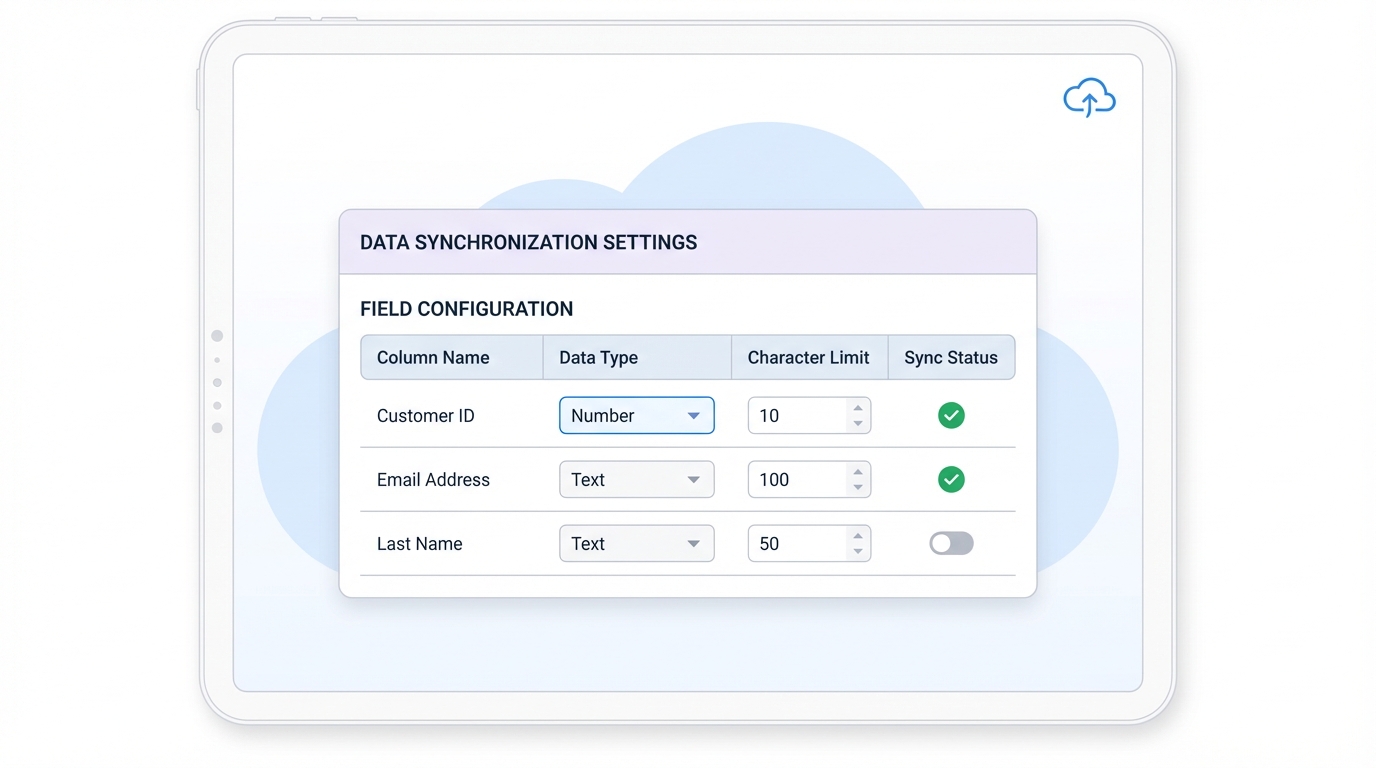
A software interface showing data field settings and character limit configuration options.
How to fix the CRM Analytics character limit in Data Manager
The fix is actually pretty simple, but you have to know exactly where to click. You do not need to change anything on the Salesforce object itself. You just need to tweak the sync settings in the Data Manager.
- Open up Data Manager from your Analytics Studio.
- Head over to the Connections tab on the left.
- Find your SFDC_LOCAL connection and click on the object that is giving you trouble (like Case or Opportunity).
- Scroll through the field list until you find your Long Text field. Click that little pencil icon to edit it.
- Look for the Precision box and enter the number of characters you actually want to see (like 5,000 or 32,768).
- Save your changes and, this part is vital, re-run your data sync.
Once the sync finishes and your recipe or dataflow runs again, that annoying 255-character wall will be gone. Your table widgets will now show the full text up to the limit you just set.
A quick word on performance
I have seen teams get excited and set every single text field to the maximum 131k limit. Don't do that. While it is tempting to just "set and forget" it, remember that every extra character you store takes up space and can slow down your data processing. I usually recommend setting the CRM Analytics character limit to something reasonable that covers 95% of your use cases.
In my experience, 2,000 to 5,000 characters is usually more than enough for most dashboard notes. If you really need more, just be mindful of how it impacts your overall data volume.
If you are worried about how this affects your org at scale, you might want to check out my guide on Managing Salesforce Large Data Volumes to keep things running fast.
When to use Rich Text mapping
If your field in Salesforce has bold text, lists, or colors, you are probably using a Rich Text Area. If you want to keep that formatting in your dashboards, make sure you check the mapping type in the Data Manager. Sometimes increasing the CRM Analytics character limit isn't enough on its own if the users want to see the original markup. Just keep in mind that Rich Text adds even more "hidden" characters because of the HTML tags, so you might need a slightly higher Precision value than you think.
Key takeaways
- The 255-character cap is a default sync setting, not a permanent platform restriction.
- You must manually update the Precision field in the Data Manager connection settings.
- Always re-run your data sync after making changes to field metadata.
- Only increase the CRM Analytics character limit for fields that actually need it to save on storage.
That is really all there is to it. It is a quick five-minute fix that saves you from a lot of "the data is missing" emails from your stakeholders. Next time you are onboarding a new object into Analytics, make it a habit to check those Long Text fields right away. It saves a lot of headache down the road.



Leave a Comment