

When you're first getting your feet wet in the ecosystem, you'll quickly realize that Salesforce Objects are the bread and butter of the entire platform. If you've ever worked with an Excel spreadsheet or a traditional SQL database, you already know more than you think. An object is basically a table, but in Salesforce, it comes with a lot of built-in logic that makes our lives as developers and admins much easier.
I like to think of them as the containers for your business data. An object defines how that data behaves and how it relates to everything else in your org.
Standard vs. custom Salesforce Objects
Salesforce gives us a head start by providing a bunch of pre-built tables right out of the box. We call these Standard Objects. You've probably seen them already: Accounts, Contacts, Leads, and Opportunities. They're designed to handle the typical stuff every business needs, like tracking customers and sales deals. You can't delete them, but you can definitely tweak them to fit your needs.
Every business has something the standard set doesn't cover. I've worked with companies that needed to track everything from "Delivery Trucks" to "Subscription Licenses." That's where Custom Salesforce Objects come in. You build these from scratch, and you'll know one when you see it in the API because it always ends with __c. For example, if you create an object to track invoices, its API name will be Invoice__c.
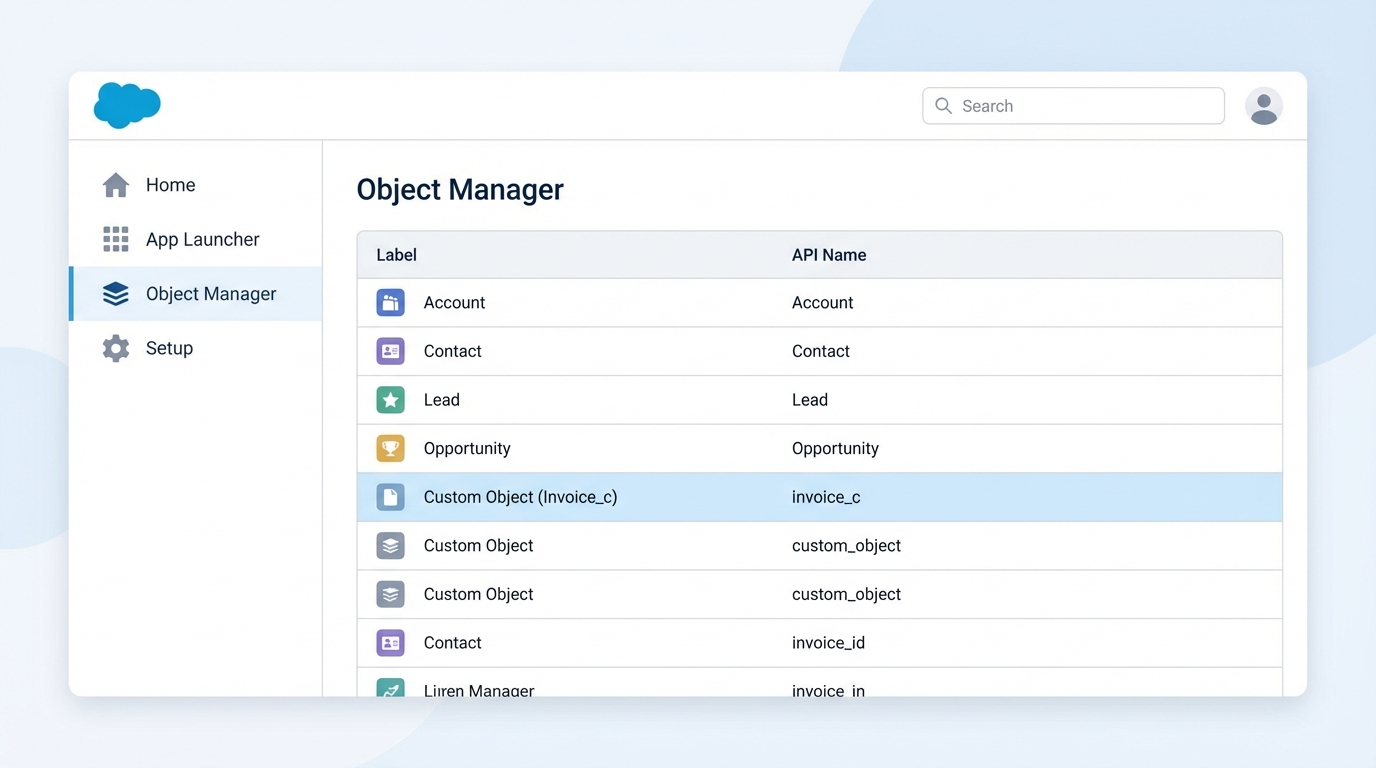
Object Manager lists every table in the org next to its API name.
What sits inside a Salesforce Object
An object has a specific structure that keeps everything organized. In my experience, most data issues come from not setting these pieces up correctly at the start.
- Fields: these are your columns. They define the specific data points you're collecting, like a "Phone Number" or an "Email Address."
- Records: these are your rows. Every time you save a new customer, you're creating a record.
- Validation rules: this is how you keep your data clean. You can set rules so users can't save a record if the data doesn't look right.
- Page layouts: this is the UI. It controls what fields your users actually see when they open a record.
Pro Tip: Before you go and build a brand new custom object, always check if a standard one can do the job. Salesforce builds a ton of automation into standard objects that you'll have to recreate from scratch if you go custom.
Connecting objects with relationships
Data is rarely useful in a vacuum. You need to connect your objects. Maybe a "Project" belongs to an "Account," or a "Bug Report" is linked to a "Software Version." We use Lookups and Master-Detail relationships for this. Lookups are casual, the "nice to have" kind of connection. Master-Detail is much more serious: if you delete the parent, the child record goes away too. Just be careful with your limits. There is a specific Salesforce lookup limit you need to keep in mind when designing complex schemas.
Best practices for designing Salesforce Objects
I've seen plenty of orgs turn into a "spaghetti mess" because people just started adding objects and fields without a plan. Don't be that person. You want to keep your data model as lean as possible. Every field you add is something you'll have to maintain later, and it can eventually slow down your performance.
One thing that trips people up is deciding whether to use code or clicks to handle logic. When you're thinking about Apex vs Flow, remember that your object structure dictates how easy that automation will be. If your objects are logically connected, Flow can handle most things. If they're disconnected, you're going to be writing a lot of messy Apex to bridge the gap.
Working with SObjects in Apex
For the developers in the room, everything in Salesforce is an SObject. This is the generic type for any record. You can write code that works on any object, or you can use concrete types if you know exactly what you're dealing with. Here is a quick look at how we handle this in code:
// Creating a record in Apex
Invoice__c myInv = new Invoice__c();
myInv.Name = 'INV-1001';
myInv.Amount__c = 500.00;
insert myInv;
And if you need to get data out, you'll use SOQL. It looks like SQL, but it's built specifically for querying Salesforce Objects, and it lets you pull exactly the fields you need without grabbing the whole table.
Key takeaways
- Salesforce Objects are the foundation of your entire data model.
- Standard objects are built-in; custom objects are the ones you build (ending in
__c). - Relationships (Lookup and Master-Detail) are how you link data together.
- Keep it simple. Don't build a custom object if a standard one works.
- Every object is an
SObjectwhen you start writing Apex code.
Next time you're asked to build a new feature, start with the data model. Map out your objects, figure out how they relate, and make sure you aren't duplicating something that already exists. A clean object structure is what lets a system survive the next round of changes instead of breaking every time you update it. Go open Schema Builder and look at how your current org is actually wired; it's usually pretty eye-opening.



Leave a Comment