


If you've spent more than five minutes looking at a marketing-heavy org, you know that Salesforce lead merging is a daily necessity. We've all seen those duplicate records piling up from web-to-lead forms or messy imports. It seems simple on the surface, and if you don't know what's happening under the hood, you can end up with missing data or broken automation.
What actually happens during Salesforce lead merging?
Merging is a fancy way of cleaning house. You take up to three Lead records and squash them into one "master" record. Underneath, Salesforce performs a delete operation on the duplicate records and an update operation on the master. So if you've got triggers or flows running on those events, they're going to fire.
When you use the standard UI, you get to pick which record stays and which field values are the "winners." Once you hit that merge button, the losing records are sent straight to the Recycle Bin. They'll sit there for 15 days, just in case you realize you made a massive mistake and need to bring them back. But keep in mind, restoring a lead doesn't always perfectly undo the merge logic for related items.
The fate of field values and related lists
One thing that trips people up is how fields are handled. In the UI, you're the boss. You pick the email from record A and the phone number from record B. But if you're doing this via the API or Apex, the master record's values are what stick unless you've written specific code to pull data from the duplicates first. It's a classic "gotcha" for developers who expect Salesforce to magically pick the most recent data.
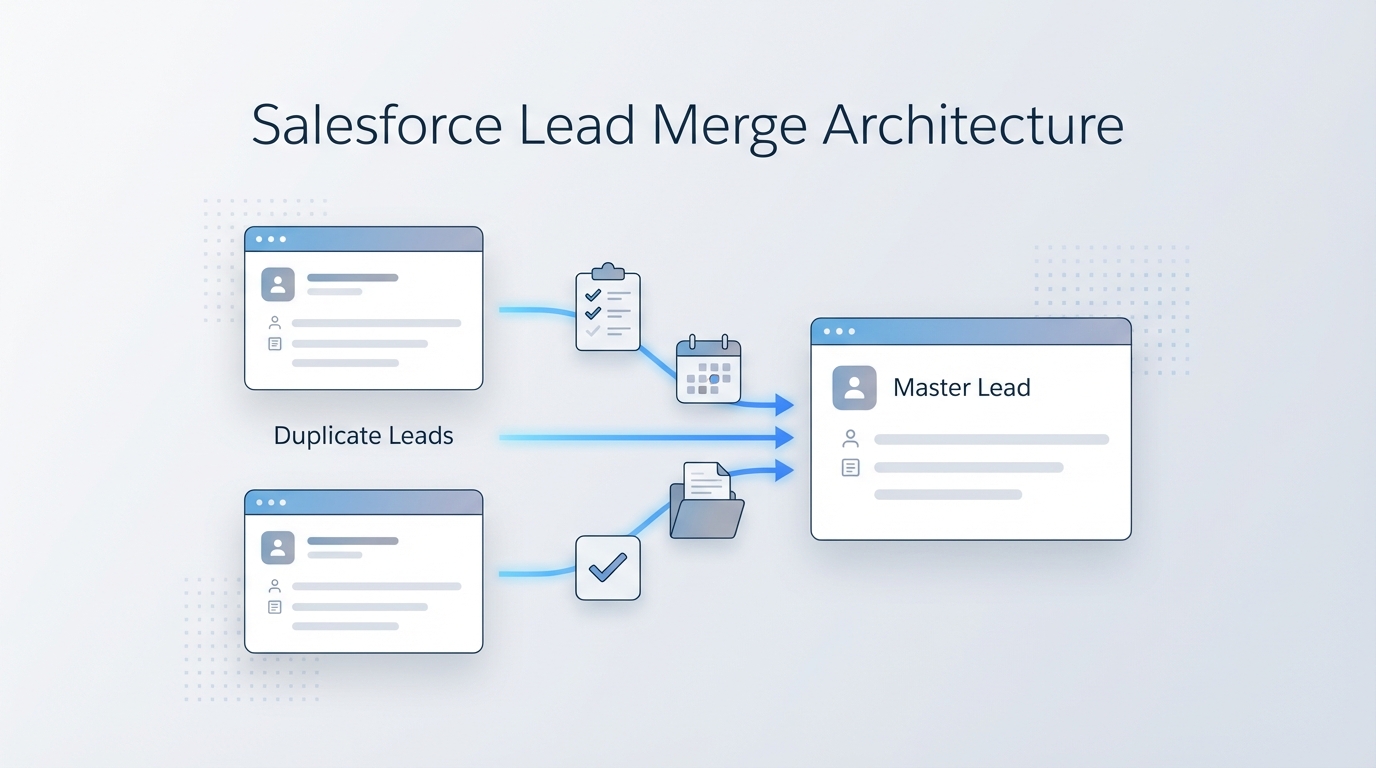
Diagram showing duplicate Salesforce lead records merging into a single master record, with tasks and events re-parented.
Now, what about the "child" records? Most related items, like your tasks, events, and campaign history, get re-parented to the master record automatically. Your sales team won't lose the history of their calls or emails just because you cleaned up a duplicate. Even custom objects with a lookup to the Lead will usually follow the master, provided there aren't weird sharing constraints or required field issues in the way.
If you're dealing with massive amounts of duplicates, you might want to check out my guide on managing Salesforce large data volumes to keep things snappy. Merging thousands of records at once can hit limits faster than you'd think.
Technical gotchas with Salesforce lead merging
Because a merge is technically an update and a delete, your automation is going to go nuts if you aren't prepared. The master record will fire "before update" and "after update" triggers. The losing records will fire "before delete" and "after delete" triggers.
I've seen teams accidentally trigger a whole chain of welcome emails because the master record update met some criteria they forgot about. Deciding whether to handle your cleanup logic in a trigger or a flow? I've written about Apex vs Flow which covers exactly when to use each for this kind of scenario.
Pro tip: Always check your validation rules before a big merge project. If the master record fails a validation rule during the update phase of the merge, the whole thing will fail. There is nothing more frustrating than trying to merge 50 leads and having half of them bounce because of a "Required Field" rule that wasn't there when the lead was created.
Using Database.merge() in Apex
If you're automating this, you'll be using the Database.merge() method. It's pretty straightforward, but you have to be intentional. You pass in the master record and a list of the IDs you want to kill off. Here's a quick look at how that looks in the real world:
Lead masterLead = [SELECT Id, Company FROM Lead WHERE Id = :masterId];
Lead duplicateLead = [SELECT Id FROM Lead WHERE Id = :dupId];

// You can manually sync fields here before the merge
masterLead.Company = 'The Correct Company Name';

Database.MergeResult result = Database.merge(masterLead, duplicateLead);
The MergeResult is your friend here. It'll tell you if the merge actually worked or if a trigger or validation rule blocked it. Don't just assume it worked. Check those results in your logs.
Key takeaways for Salesforce lead merging
- Master vs. loser: the master record is updated; the others are deleted and moved to the Recycle Bin.
- Automation: both update and delete triggers will fire. Be ready for that.
- Reparenting: activities and Campaign Members move to the master record automatically.
- Permissions: you need the "Delete" permission on Leads to perform a merge. No delete permission, no merge.
- UI limit: you can only merge 3 records at a time through the standard Salesforce interface.
Salesforce lead merging isn't the most glamorous part of being a consultant, but getting it right saves you a massive headache later. My advice? Test your merge logic in a sandbox first. See how your flows react. Check if your third-party integrations (like Marketo or HubSpot) freak out when a record they're tracking suddenly disappears into the Recycle Bin. A little testing now prevents a lot of data cleanup later.



Leave a Comment