


How to clean up your account data with a Salesforce validation rule
I've seen a lot of integrations break because of messy data, and a solid Salesforce validation rule is usually the cheapest fix. One of the most common requests I get from clients is to enforce a specific format for Customer IDs, especially when they're syncing with an ERP or an external billing system. If the ID doesn't match the expected pattern, the whole sync fails, and you're stuck cleaning up hundreds of errors by hand.
You tell the sales team to use a specific format, and someone still enters "US 12345" instead of "US-12345678". So we build the guardrail declaratively: a custom field, a formula, and a Salesforce validation rule that makes every ID follow the "Country Code-8 Digits" pattern.
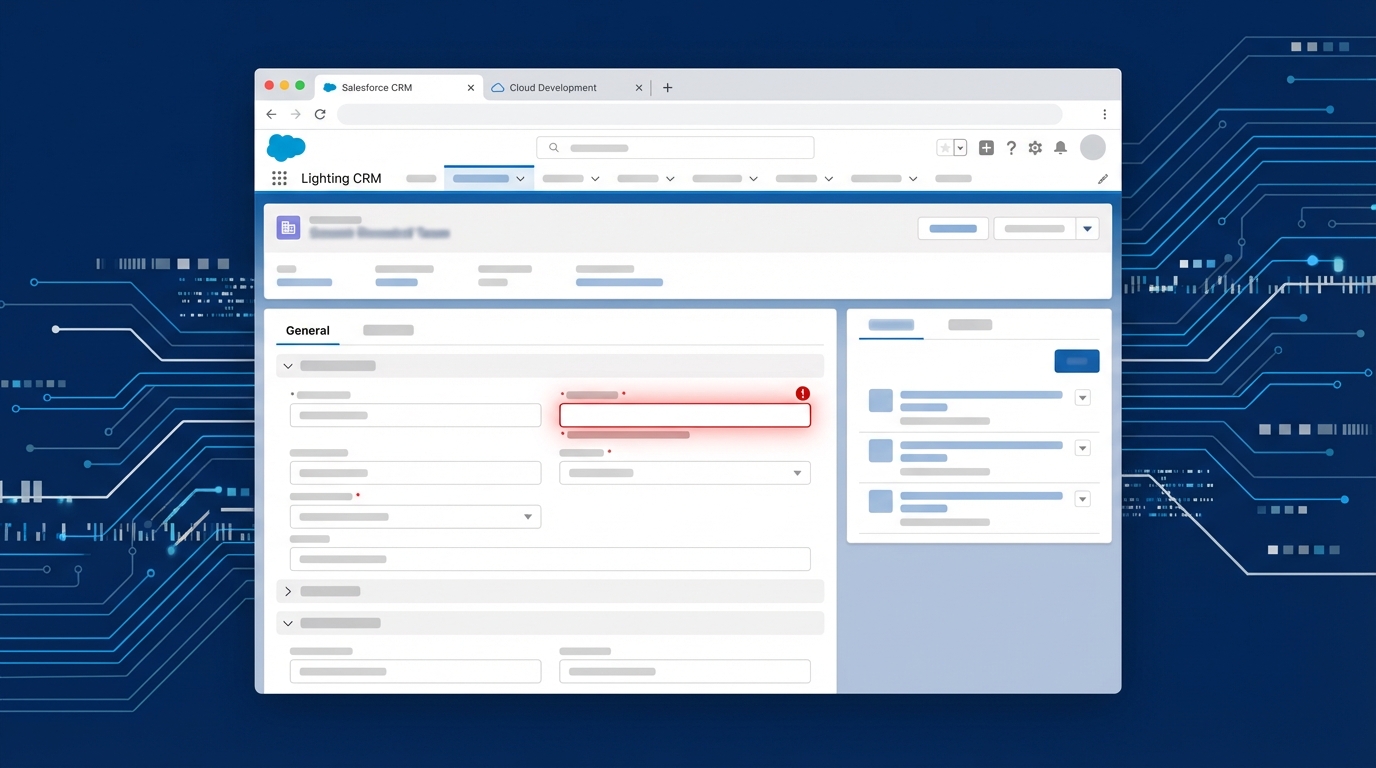
What the user sees when the ID doesn't match the pattern.
Setting up the custom fields
First we need somewhere to put the ID. Create a custom text field on the Account object called Customer_ID__c, set the length to exactly 11 characters, and check the "Unique" box. People skip that checkbox constantly, and it's the thing that stops two accounts from carrying the same ID, which is a nightmare for any Salesforce API integration later on.
Next we need the country code. If you're using standard State and Country picklists, a formula field can grab that two-letter ISO code. I usually name mine Billing_Country_Code__c. Here is the formula:
TEXT(BillingCountryCode)
If you aren't using the standard picklists, a formula reading the BillingCountry text field can do the same job. Whatever you use, make sure it consistently returns that two-letter code like "US", "CA", or "GB".
Building the Salesforce validation rule logic
Now for the fun part. The rule has to check two things: does the ID start with the correct country code, and does the rest of the string follow the "dash plus eight digits" format? The usual mistakes are forgetting to account for the dash, or writing a regex loose enough to let anything through.
Go to the Account object, hit Validation Rules, and create a new one. Use this formula:
AND(
    NOT(ISBLANK(Customer_ID__c)),
    OR(
        LEFT(Customer_ID__c, 2) != Billing_Country_Code__c,
        NOT(REGEX(Customer_ID__c, "^[A-Z]{2}-\\d{8}$"))
    )
)
Reading it back: the first part keeps the rule quiet when the field is empty. The second checks whether the first two letters match your billing country. The REGEX does the heavy lifting, insisting on two uppercase letters, a hyphen, and exactly eight numbers. If any of that is off, Salesforce blocks the save.
In my experience, it's always better to be strict with IDs. If you allow lowercase letters now, you'll just end up writing a batch job to fix them six months from now when the finance team complains.
Testing your Salesforce validation rule
Test this before you push it to production. I've seen people forget that REGEX is case sensitive by default. If a user types "us-12345678" instead of "US-12345678", the validation rule fires. That's usually what you want, but it's worth knowing it happens.
Try these scenarios in a sandbox:
- Enter an ID with a space instead of a dash. (Should fail)
- Enter an ID with only 7 digits. (Should fail)
- Enter an ID where the country code is "FR" but the billing address is "US". (Should fail)
- Enter a perfectly formatted ID. (Should pass)
One thing that trips people up is a blank Billing Country. If your business process allows for empty addresses, you might need to adjust the formula to handle those cases so you don't lock users out of saving records. It's all about how you ensure data integrity without making the system impossible to use.
Key takeaways
- Always mark integration IDs as "Unique" at the field level to prevent duplicates.
- Use
REGEXin your Salesforce validation rule for complex patterns; it's much cleaner than nestedMIDorLEFTfunctions. - Ensure your formula for the country code matches the format your users actually enter.
- Make the error message helpful. Don't just say "Invalid ID": tell them exactly what "XX-NNNNNNNN" means.
Final thoughts on data quality
A Salesforce validation rule like this takes maybe ten minutes to set up, and it saves hours of troubleshooting down the road. It's a low-code way to keep the data clean. If you're worried about users getting frustrated, spend a little longer on the error message so it spells out the format they need.



Leave a Comment