

Ever been in a situation where you need to switch a master-detail to lookup relationship, but the "Change Field Type" button is just... gone? It's frustrating, especially when you're in the middle of a refactor and everything seems to be at a standstill. I've seen plenty of admins and devs hit this wall, and it's almost always because Salesforce is protecting you from breaking something important.
The short answer? Salesforce hides that button when it detects dependencies that would break if the relationship changed. Since a master-detail relationship controls things like security, deletion behavior, and data aggregation, you can't just flip a switch without cleaning up first. Let's break down why this happens and how to fix it.
Why the Master-detail to lookup button disappears
Look, Salesforce isn't being difficult on purpose. It's just that master-detail relationships are "heavy" compared to lookups. When you try to move from a master-detail to lookup, you're telling the system to stop enforcing strict parent-child ownership and to stop allowing roll-up summaries. If those things are still active, the button stays hidden.
One thing that trips people up is the sheer number of places a field can be referenced. I've seen teams spend hours hunting down a single validation rule that was blocking the whole project. Before you panic, check the common culprits listed below. Most of the time, it's one of these three things.
- Roll-up Summary Fields: This is the number one reason. If the parent object has a field calculating the sum, min, max, or count of the child records, you're stuck until those are gone.
- Managed Packages: If you're working with a field that came from an AppExchange package, you usually can't change it. Salesforce locks those down to prevent you from breaking the vendor's logic.
- Metadata Dependencies: This includes everything from Apex classes and triggers to Flows and Reports. If the field is "baked in" to your automation, Salesforce won't let you touch the underlying structure.
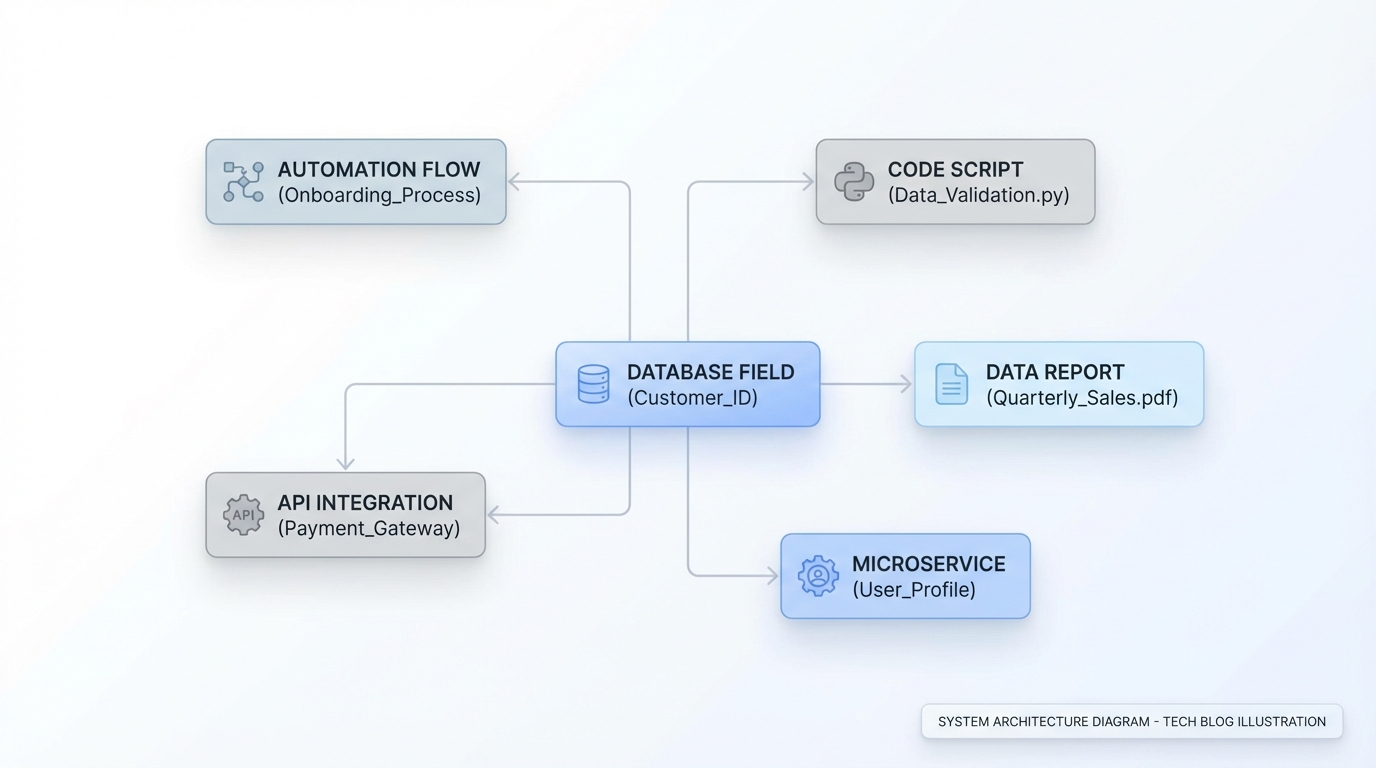
A technical dependency map illustrating how a central database field is connected to various system components like automation and reports.
Common Blockers for Master-detail to lookup conversions
So what does this actually mean in practice? It means you need to do some detective work. In my experience, the "Where is this used?" button in Setup is your best friend here, but it doesn't always catch everything. Sometimes you have to go deeper into the metadata to find the hidden links.
For example, if you're managing Salesforce large data volumes, you might have specific sharing settings or indexing tied to that master-detail relationship. Converting it could significantly change how those records are accessed and processed. Salesforce knows this, so it forces you to acknowledge those risks by manually removing the dependencies first.
Pro Tip: If you really need to keep roll-up functionality after the conversion, look into a tool like DLRS (Declarative Lookup Roll-up Summaries). It lets you keep the math without the strict master-detail requirements.
1. The Roll-up Summary Trap
If you have even one roll-up summary field on the parent object that points to your child object, the "Change Field Type" button won't show up. You have to delete these fields entirely. Don't just remove them from the page layout - they need to be gone from the object definition. You can always recreate them as formulas or use Flow once you've finished the master-detail to lookup transition.
2. Namespace and Package Ownership
Check the API name of your field. Does it have a prefix like Acme__? If it does, it's part of a managed package. In this case, you're out of luck. You can't convert these because the package developer owns that metadata. Your only real option here is to create a new lookup field and migrate the data, which is a bit of a pain, but often necessary.
3. Active Code and Automation
Apex triggers and classes are notorious for blocking field changes. If your code references the field, the system won't let you change its type. You'll need to comment out the code or update it to handle a lookup relationship before the button reappears. The same goes for Apex vs Flow decisions - if a Flow is looking for a master-detail relationship, it might fail once the field becomes a lookup.
How to perform the change
Now, let's get into the actual steps. I always recommend doing this in a sandbox first. Honestly, doing this directly in production is just asking for a long weekend of fixing broken reports. You should also check out Salesforce sandbox types to make sure you have enough data to test the change properly.
- Audit the Parent Object: Go to the parent object and find every roll-up summary field. Delete them. (Write down the logic first so you can rebuild it later!)
- Search for References: Use the "Where is this used?" button on the field itself. Then, do a global search in VS Code or the Developer Console for the field's API name.
- Clear the Dependencies: Remove the field from reports, validation rules, and Flows. If it's in Apex, you'll need to deploy a version of the code that doesn't use the field.
- Convert the Field: Once everything is clean, go back to the child object. The "Change Field Type" button should be there. Select "Lookup Relationship" and save.
- Rebuild and Test: Re-add your automation and reports. Remember that lookups don't support roll-up summary fields, so you'll need a different way to handle that logic.
Key Takeaways
- The missing button is a safety feature, not a bug.
- Roll-up summary fields on the parent are the most common blockers for a master-detail to lookup change.
- Managed package fields cannot be converted; you'll have to build a new field instead.
- Always check your Apex, Flows, and Reports for references before trying to switch the type.
- Sharing and ownership behavior will change once the field becomes a lookup, so plan your security model accordingly.
Here's the thing: converting a field type feels like it should be a two-minute task, but in a mature org, it's a project. Take the time to map out your dependencies first. Once you clear those roll-ups and code references, that button will pop right back up. Just make sure you have a plan for how to handle the data and sharing changes that come with a lookup relationship.




Leave a Comment