

Why Salesforce Flow performance actually matters
Look, we all love how fast we can build things now, but Salesforce Flow performance is something you can't afford to ignore. I've seen too many orgs crawl to a halt because someone put a Get Records inside a loop, and honestly, it's a headache for everyone involved. When your flows are slow, your users get frustrated, your CPU limits spike, and eventually, things just start breaking.
In my experience, most performance issues don't come from one massive mistake. It's usually a "death by a thousand cuts" situation where several small, inefficient habits add up. If you want your automation to scale, you've got to think like a developer even when you aren't writing code. Let's break down how to keep your flows lean and mean.
Choose the right trigger for the job
One thing that trips people up is picking the wrong type of record-triggered flow. Here's the rule of thumb: if you're just updating fields on the same record that triggered the flow, use a "Fast Field Update" (before-save). These are significantly faster because they happen before the record even hits the database. I've seen teams cut their execution time in half just by switching simple field updates away from after-save flows.
But what if you need to create a related record or send an email? That's when you use an after-save flow. Just remember that these run after the initial save, so they're naturally heavier on the system. If you don't need the record ID or the committed data yet, stay in the before-save lane.
Improving Salesforce Flow performance with bulkification
The short answer to most limit errors? Bulkify everything. I can't stress this enough. If you are doing a query or an update inside a loop, you're asking for trouble. Salesforce has strict governor limits, and hitting a SOQL limit because of a loop is a classic rookie mistake that we've all made at least once.
Instead of hitting the database every time the loop runs, use a collection variable. Grab all the data you need upfront with one Get Records element, loop through it to make your changes in memory using Assignment elements, and then do one single Update Records at the very end. This is the single best way to protect your Salesforce Flow bulkification and overall org health.
Pro tip: If you find yourself doing complex math or heavy data filtering in a loop, check out the Transform element. It's a much cleaner way to map data between collections without the overhead of multiple assignment steps.
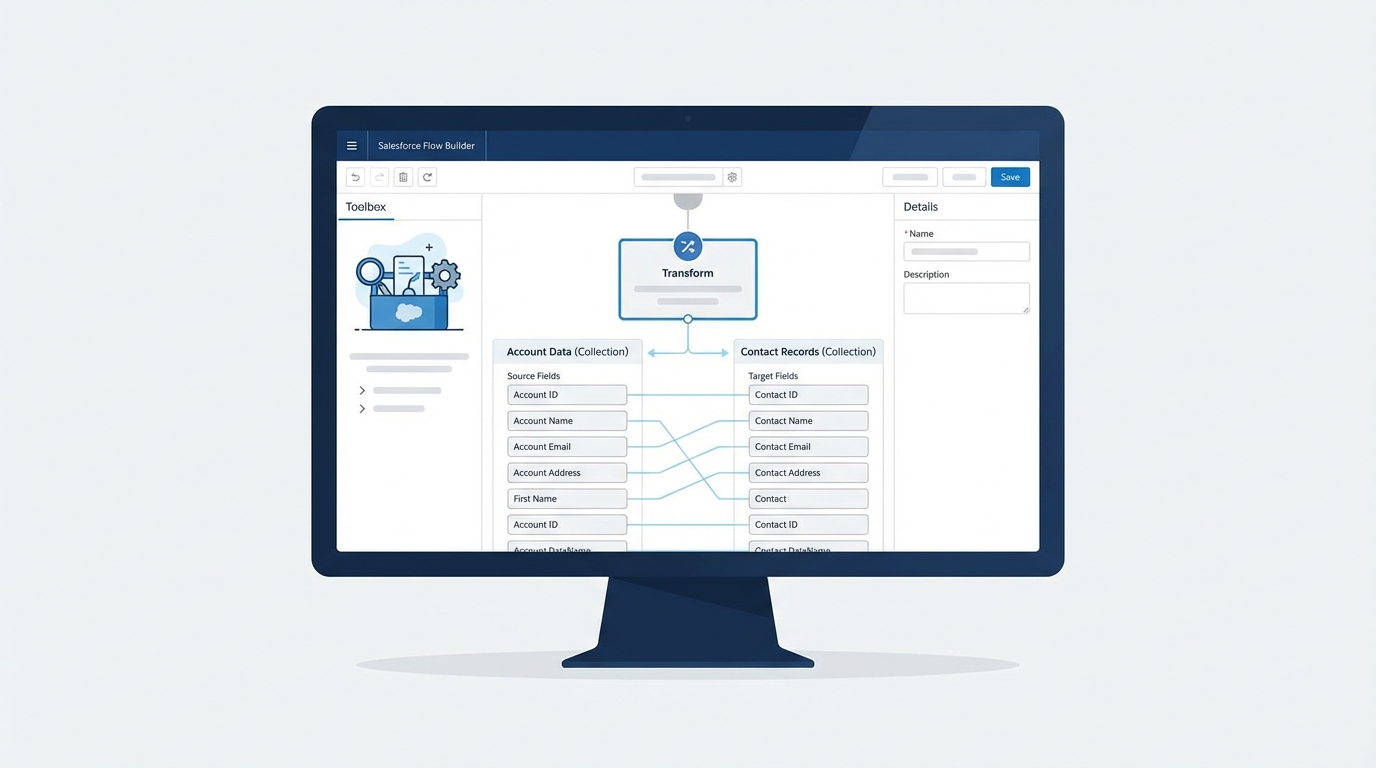
A realistic UI mockup of the Salesforce Flow Builder showing a Transform element used to map data between two collections.
Be picky with your Get Records
When you use a Get Records element, don't just grab everything. If you only need the Account Name and the Industry, tell the flow to only store those fields. Bringing back 50 fields when you only need two is a waste of memory. Also, use your filters wisely. The more specific your filter, the less work the database has to do.
If you know you only need one specific record, make sure you select "Only the first record." It sounds simple, but I've seen flows get bogged down because they were pulling entire lists of records into memory when they only needed one ID. It's all about being intentional with your data.
When to move logic to Apex
Here's the thing: Flow is great, but it isn't always the right tool. For really heavy lifting or complex logic that involves thousands of records, Apex is still king. I usually look at Apex vs Flow based on the volume of data. If you're hitting CPU timeouts or the logic is getting so messy that the canvas looks like a bowl of spaghetti, it's time for an Invocable Method.
Apex handles bulk processing much more efficiently than Flow elements. You can write your heavy logic in a class and just call it from the flow. It gives you the best of both worlds: the ease of a flow trigger with the raw power of code.
Don't forget to monitor and debug
You can't fix what you can't see. I always tell people to use the Flow Debugger, but don't stop there. Check your debug logs in the Developer Console to see exactly how much CPU time and how many SOQL queries your flow is eating up. If a flow takes 200ms to run now, how will it behave when you have ten times the data? You've got to measure this stuff before it hits production.
Also, plan for when things go wrong. Use fault paths to catch errors and log them to a custom object. This is way better than letting a flow fail silently or sending a confusing "unhandled fault" email to an admin who might not see it for days. Proper error handling is part of a high-performing system.
Key Takeaways for Salesforce Flow performance
- Use before-save flows for any field updates on the triggering record to save CPU time.
- Never put Get or Update elements in a loop. Use collections and assignments instead.
- Filter your queries tightly and only pull the fields you actually need.
- Consider Scheduled Flows for massive data updates that don't need to happen in real-time.
- Move to Apex if the logic gets too complex or the data volume is too high for the flow engine.
At the end of the day, Salesforce Flow performance comes down to being disciplined. It's tempting to just drag and drop elements until the flow works, but taking an extra ten minutes to bulkify your logic or refine your queries will save you hours of troubleshooting later. Go take a look at your most active flows today - I bet there's at least one loop you can optimize right now.




Leave a Comment