


Why Salesforce Flow performance actually matters
Flow makes it fast to build things, which is exactly why Salesforce Flow performance gets ignored until it hurts. I've seen too many orgs crawl to a halt because someone put a Get Records inside a loop, and it turns into a headache for everyone involved. Slow flows frustrate your users, spike your CPU limits, and eventually start breaking things.
In my experience, most performance issues don't come from one massive mistake. It's usually a "death by a thousand cuts" situation where several small, inefficient habits add up. If you want your automation to scale, you've got to think like a developer even when you aren't writing code.
Choose the right trigger for the job
One thing that trips people up is picking the wrong type of record-triggered flow. If you're just updating fields on the same record that triggered the flow, use a "Fast Field Update" (before-save). These are significantly faster because they happen before the record even hits the database. I've seen teams cut their execution time in half just by switching simple field updates away from after-save flows.
Creating a related record or sending an email is a different job, and that's what after-save flows are for. Just remember that they run after the initial save, so they're naturally heavier on the system. If you don't need the record ID or the committed data yet, stay in the before-save lane.
Improving Salesforce Flow performance with bulkification
Bulkify everything. I can't stress this enough. If you are doing a query or an update inside a loop, you're asking for trouble. Salesforce has strict governor limits, and hitting a SOQL limit because of a loop is a classic rookie mistake that we've all made at least once.
Instead of hitting the database every time the loop runs, use a collection variable. Grab all the data you need upfront with one Get Records element, loop through it to make your changes in memory using Assignment elements, and then do one single Update Records at the very end. That one habit does more for Salesforce Flow bulkification and overall org health than anything else on this list.
Pro tip: If you find yourself doing complex math or heavy data filtering in a loop, check out the Transform element. It's a cleaner way to map data between collections without the overhead of multiple assignment steps.
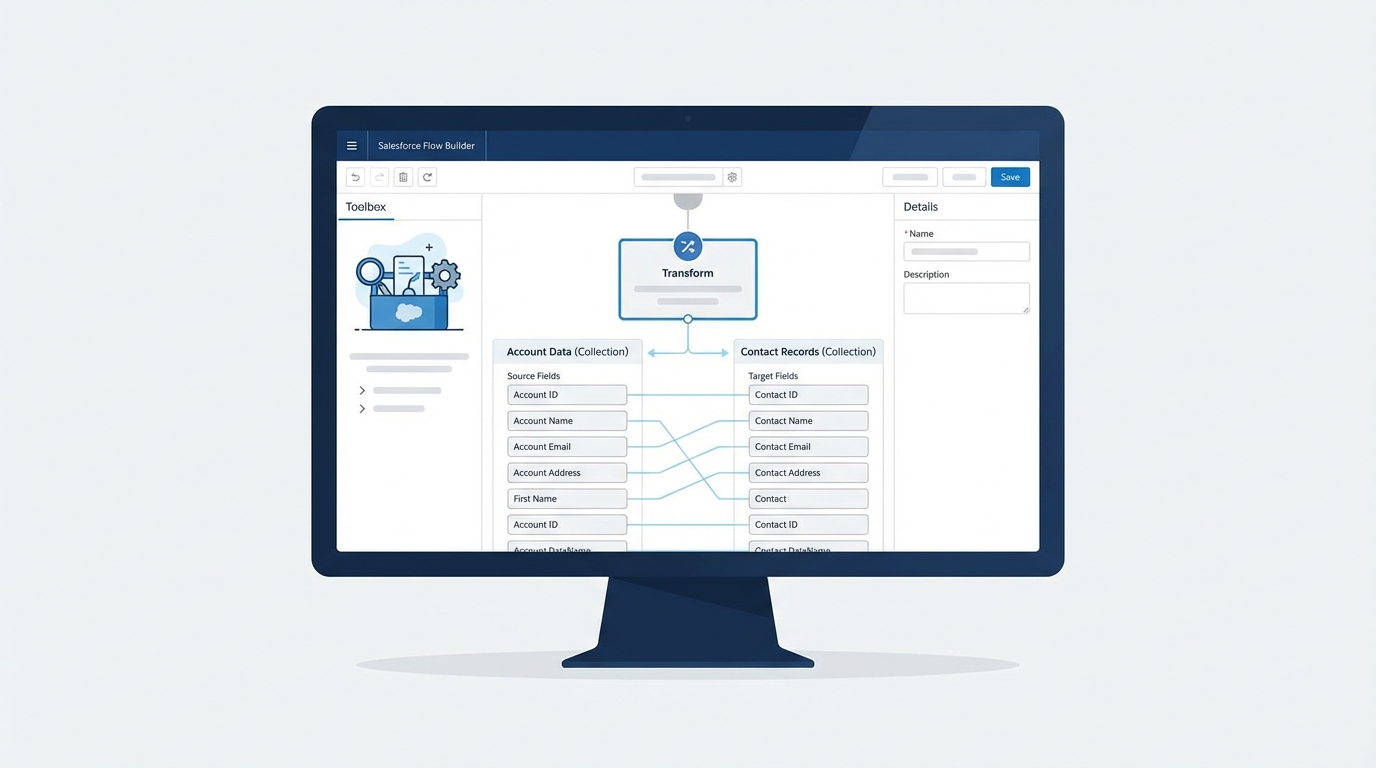
A realistic UI mockup of the Salesforce Flow Builder showing a Transform element used to map data between two collections.
Be picky with your Get Records
When you use a Get Records element, don't just grab everything. If you only need the Account Name and the Industry, tell the flow to store only those fields. Bringing back 50 fields when you only need two is a waste of memory. Use your filters wisely too. The more specific your filter, the less work the database has to do.
If you know you only need one specific record, make sure you select "Only the first record." It sounds simple, but I've seen flows get bogged down because they were pulling entire lists of records into memory when they only needed one ID. Be intentional with your data.
When to move logic to Apex
Flow is great, but it isn't always the right tool. For really heavy lifting or complex logic that involves thousands of records, Apex is still king. I usually look at Apex vs Flow based on the volume of data. If you're hitting CPU timeouts or the logic is getting so messy that the canvas looks like a bowl of spaghetti, it's time for an Invocable Method.
Apex handles bulk processing much more efficiently than Flow elements. You can write your heavy logic in a class and just call it from the flow, so you keep the ease of a flow trigger with the raw power of code behind it.
Don't forget to monitor and debug
I always tell people to use the Flow Debugger, but don't stop there. Check your debug logs in the Developer Console to see exactly how much CPU time and how many SOQL queries your flow is eating up. If a flow takes 200ms to run now, how will it behave when you have ten times the data? You've got to measure this stuff before it hits production.
Also, plan for when things go wrong. Use fault paths to catch errors and log them to a custom object. That is way better than letting a flow fail silently or sending a confusing "unhandled fault" email to an admin who might not see it for days.
Key takeaways for Salesforce Flow performance
- Use before-save flows for any field updates on the triggering record to save CPU time.
- Never put Get or Update elements in a loop. Use collections and assignments instead.
- Filter your queries tightly and only pull the fields you actually need.
- Consider Scheduled Flows for massive data updates that don't need to happen in real time.
- Move to Apex if the logic gets too complex or the data volume is too high for the flow engine.
Salesforce Flow performance comes down to being disciplined. It's tempting to just drag and drop elements until the flow works, but taking an extra ten minutes to bulkify your logic or refine your queries will save you hours of troubleshooting later. Go take a look at your most active flows today. I bet there's at least one loop you can optimize right now.



Leave a Comment