

Ever had to share a bunch of records with a specific team and realized you didn't want to click forty different names manually? That's where a Salesforce Public Group comes in. I've spent years cleaning up messy sharing models, and honestly, groups are the secret sauce to keeping your sanity as an admin or dev. They're simple, but if you don't use them right, your security settings can turn into a nightmare pretty quickly.
How a Salesforce Public Group actually works
Think of a Salesforce Public Group as a flexible bucket. You can throw individual users, roles, or even other groups into it. Instead of managing access person by person, you just point your sharing rules or folders at the bucket. It's much easier to add or remove one person from a group than it is to update ten different sharing rules every time someone gets hired or leaves the company.
I've seen teams try to manage everything through the role hierarchy, but that's a mistake. Roles are great for manager-subordinate visibility, but they aren't always great for cross-departmental projects. If you have a "Strike Team" with people from Sales, Marketing, and Product, you won't find them in the same branch of the hierarchy. That is exactly when you need a group.
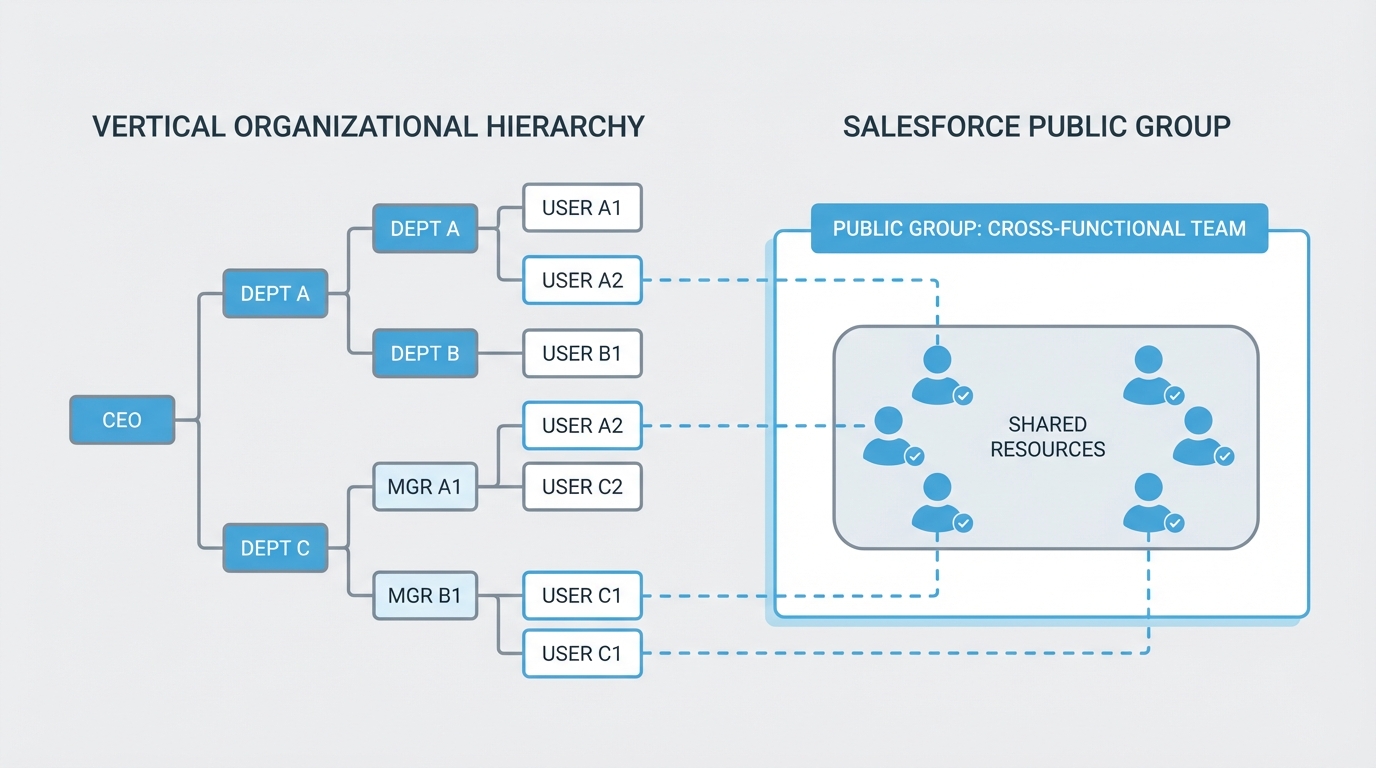
A technical diagram illustrating how a Salesforce Public Group gathers members horizontally from different branches of a vertical organizational hierarchy.
When to choose a Salesforce Public Group over a Role
This is probably the most common question I get from junior admins. So what does this actually mean in the real world? Roles are strict and vertical. A Salesforce Public Group is horizontal and flexible. You use groups for things like report folders, dashboard access, and list views. If you're looking for more depth on how these pieces fit together, check out this Salesforce roles vs profiles breakdown.
Here's a quick list of when I usually reach for a group:
- Sharing Rules: When you need to open up record access to a specific set of people who don't share a role.
- Folder Access: Giving a team access to a specific set of reports or email templates.
- Manual Sharing: When a user needs to share a single record with a whole team at once.
- Approval Processes: When you need a group of people to be able to see or approve a record, but not necessarily own it.
Pro tip: Don't over-nest your groups. You can put a group inside another group, but if you go three or four levels deep, troubleshooting "why can't Bob see this record?" becomes a two-hour investigation. Keep it simple.
The developer side: Group and GroupMember
Now, if you're writing code, you aren't just clicking around in Setup. You're dealing with the Group and GroupMember objects. I've had to automate group assignments plenty of times, especially during large migrations. Here is a simple SOQL query to find a specific group:
SELECT Id, Name, Type FROM Group WHERE Type = 'Regular' AND Name = 'Project_Alpha_Team'
And if you need to add a user to a group via Apex, it looks something like this. It's a standard DML operation on the GroupMember object. This comes in handy when you're building custom onboarding tools.
Group g = [SELECT Id FROM Group WHERE Name = 'Project_Alpha_Team' LIMIT 1];
GroupMember membership = new GroupMember();
membership.GroupId = g.Id;
membership.UserOrGroupId = someUserId;
insert membership;
Public Groups vs Queues
One thing that trips people up is the difference between a group and a queue. The short answer? Ownership. A queue can actually own a record - like a Lead or a Case - while a group cannot. A Salesforce Public Group is strictly for visibility and sharing. If you're prepping for a Salesforce developer interview, make sure you can explain that distinction clearly. Interviewers love to see if you understand the "why" behind the tool.
In my experience, most teams get this wrong by using queues when they really just need a group for visibility. If nobody needs to "pick up" the work from a list, you probably don't need a queue. Just use a group and a guide to Salesforce sharing rules to grant the right access.
Best practices for staying organized
- Use clear naming conventions: Avoid names like "Test Group" or "New Group". Use something like "DEPT_Marketing_Read_Only".
- Audit regularly: People leave companies or change departments. Stale group memberships are a security risk.
- Document the "Why": Use the Description field in Salesforce. Future you will thank you when you're trying to remember why the "Yellow Jacket" group exists.
- Avoid individual users: Whenever possible, add Roles to your groups instead of individual people. It makes the group self-maintaining as people move in and out of roles.
Key Takeaways
- A Salesforce Public Group is a collection of users, roles, and other groups used to simplify sharing.
- Groups handle horizontal sharing, while roles handle vertical hierarchy.
- Use groups for report folders, sharing rules, and list views.
- Queues are for record ownership; groups are for record visibility.
- Programmatic access is done through the Group and GroupMember objects.
At the end of the day, using a Salesforce Public Group is about making your life easier. It's about building a system that doesn't break every time someone changes their job title. Start grouping your users logically, keep your naming clean, and you'll find that managing even the most complex sharing models becomes a lot less painful. If you're just starting out, try moving one manual sharing process into a group this week and see how much time it saves you.




Leave a Comment