


Ever had to share a pile of records with a specific team and realized you didn't want to click forty different names by hand? That's what a Salesforce Public Group is for. I've spent years cleaning up messy sharing models, and groups are usually what keeps an admin or a dev sane. They're simple, but used carelessly your security settings turn into a nightmare pretty quickly.
How a Salesforce Public Group actually works
Think of a Salesforce Public Group as a flexible bucket. You can throw individual users, roles, or even other groups into it. Instead of managing access person by person, you point your sharing rules or folders at the bucket. Adding or removing one person from a group is far easier than updating ten different sharing rules every time someone gets hired or leaves.
I've seen teams try to run everything through the role hierarchy, and that's a mistake. Roles are great for manager-subordinate visibility. They aren't always great for cross-departmental projects. If you have a "Strike Team" with people from Sales, Marketing, and Product, you won't find them in the same branch of the hierarchy. That is exactly when you need a group.
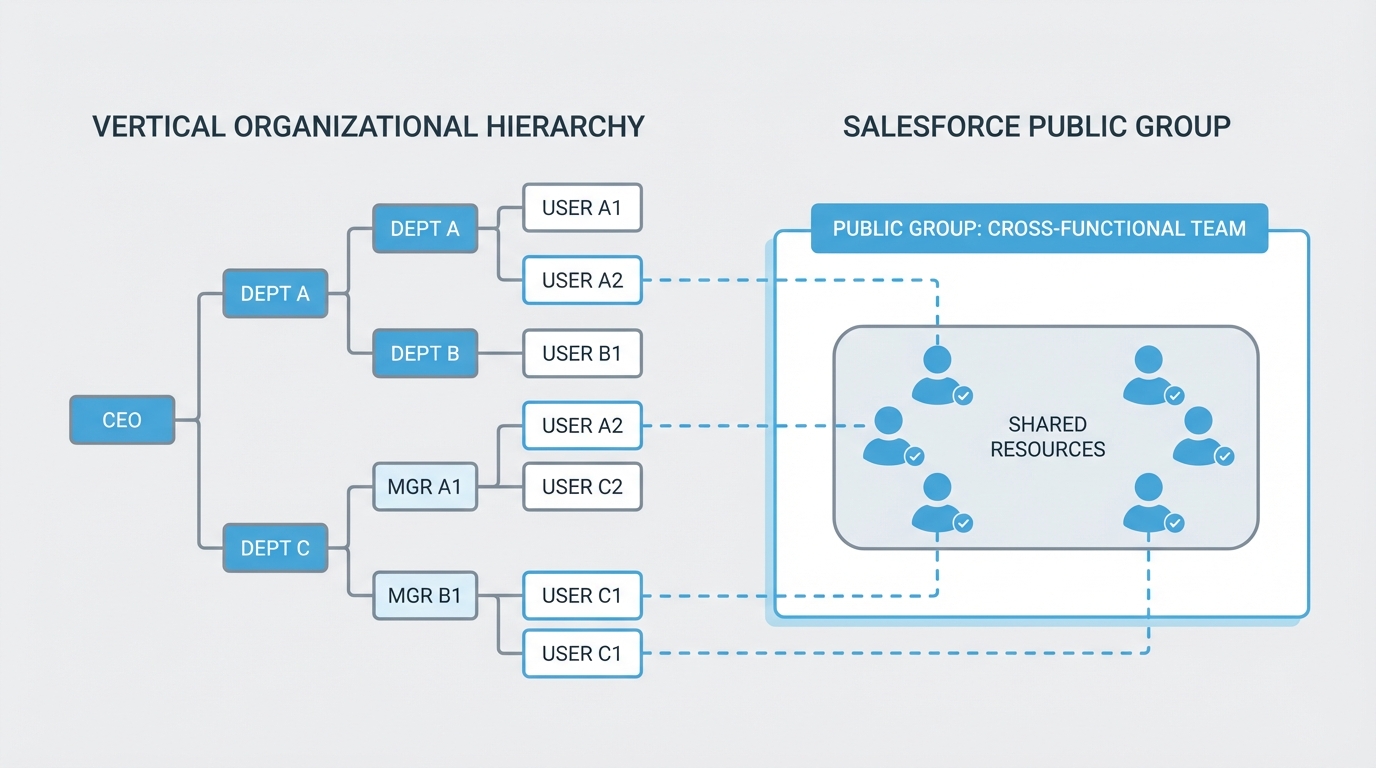
A group pulls members sideways across the hierarchy, from branches that never meet.
When to choose a Salesforce Public Group over a Role
This is probably the most common question I get from junior admins. Roles are strict and vertical. A Salesforce Public Group is horizontal and flexible. You use groups for report folders, dashboard access, and list views. If you want more depth on how these pieces fit together, check out this Salesforce roles vs profiles breakdown.
Here's a quick list of when I usually reach for a group:
- Sharing rules, when you need to open up record access to a specific set of people who don't share a role.
- Folder access, to give a team a specific set of reports or email templates.
- Manual sharing, when a user needs to share a single record with a whole team at once.
- Approval processes, when a group of people has to see or approve a record without owning it.
Pro tip: don't over-nest your groups. You can put a group inside another group, but go three or four levels deep and troubleshooting "why can't Bob see this record?" becomes a two-hour investigation.
The developer side: Group and GroupMember
If you're writing code, you aren't clicking around in Setup. You're dealing with the Group and GroupMember objects. I've had to automate group assignments plenty of times, especially during large migrations. Here is a simple SOQL query to find a specific group:
SELECT Id, Name, Type FROM Group WHERE Type = 'Regular' AND Name = 'Project_Alpha_Team'
Adding a user to a group via Apex is a standard DML operation on the GroupMember object. This comes in handy when you're building custom onboarding tools.
Group g = [SELECT Id FROM Group WHERE Name = 'Project_Alpha_Team' LIMIT 1];
GroupMember membership = new GroupMember();
membership.GroupId = g.Id;
membership.UserOrGroupId = someUserId;
insert membership;
Public Groups vs Queues
One thing that trips people up is the difference between a group and a queue. The short answer is ownership. A queue can actually own a record (a Lead or a Case, say) while a group cannot. A Salesforce Public Group is strictly for visibility and sharing. If you're prepping for a Salesforce developer interview, make sure you can explain that distinction clearly. Interviewers love to see if you understand the "why" behind the tool.
In my experience, most teams get this wrong by using queues when they really just need a group for visibility. If nobody needs to "pick up" the work from a list, you probably don't need a queue. Use a group and sharing rules to grant the right access.
Best practices for staying organized
- Use clear naming conventions. Avoid names like "Test Group" or "New Group". Use something like "DEPT_Marketing_Read_Only".
- Audit regularly. People leave companies or change departments, and stale group memberships are a security risk.
- Document the "why" in the Description field. Future you will thank you when you're trying to remember why the "Yellow Jacket" group exists.
- Avoid individual users. Wherever possible, add Roles to your groups instead of people. That way the group maintains itself as people move in and out of roles.
Key takeaways
- A Salesforce Public Group is a collection of users, roles, and other groups used to simplify sharing.
- Groups handle horizontal sharing, while roles handle vertical hierarchy.
- Use groups for report folders, sharing rules, and list views.
- Queues are for record ownership; groups are for record visibility.
- Programmatic access is done through the Group and GroupMember objects.
A Salesforce Public Group is really about building a sharing system that doesn't break every time someone changes their job title. Group your users logically, keep your naming clean, and even the ugliest sharing models get a lot less painful. If you're just starting out, try moving one manual sharing process into a group this week and see how much time it saves you.


Leave a Comment