


What is a Salesforce Queue and why should you care?
Ever had a client ask why they can't just assign every new lead to a single person? A Salesforce Queue is a digital holding pen for records that haven't found a permanent home yet. It's one of those foundational tools that keeps a busy org from turning into a total mess, because a team can share the workload without records falling through the cracks.
Think of it as a bucket. Instead of a record sitting on one person's desk while they're out on vacation, it sits in the bucket where anyone on the team can grab it. Simple enough, but set it up carelessly and you get some serious ownership confusion.
When you should actually use a Salesforce Queue
You don't need a queue for everything. But when a group of people all do the same job, a support desk or a sales dev team, a queue does that work for you. I've seen teams manage it instead by manually reassigning records all day, which is a waste of everyone's time.
Here are the common spots where a queue makes sense:
- New leads. Leads that come in from a web form and need to be claimed by the first available SDR.
- Support cases. A tier-1 support team triaging incoming tickets.
- Operations tasks. Records that need a "ready for review" status before a human takes over.
- Custom objects. Any custom process where a team owns the work before an individual does.
A queue is about ownership. If you only want people to be able to see records, you're looking for sharing rules instead. Mix the two up and your security model will get messy fast.
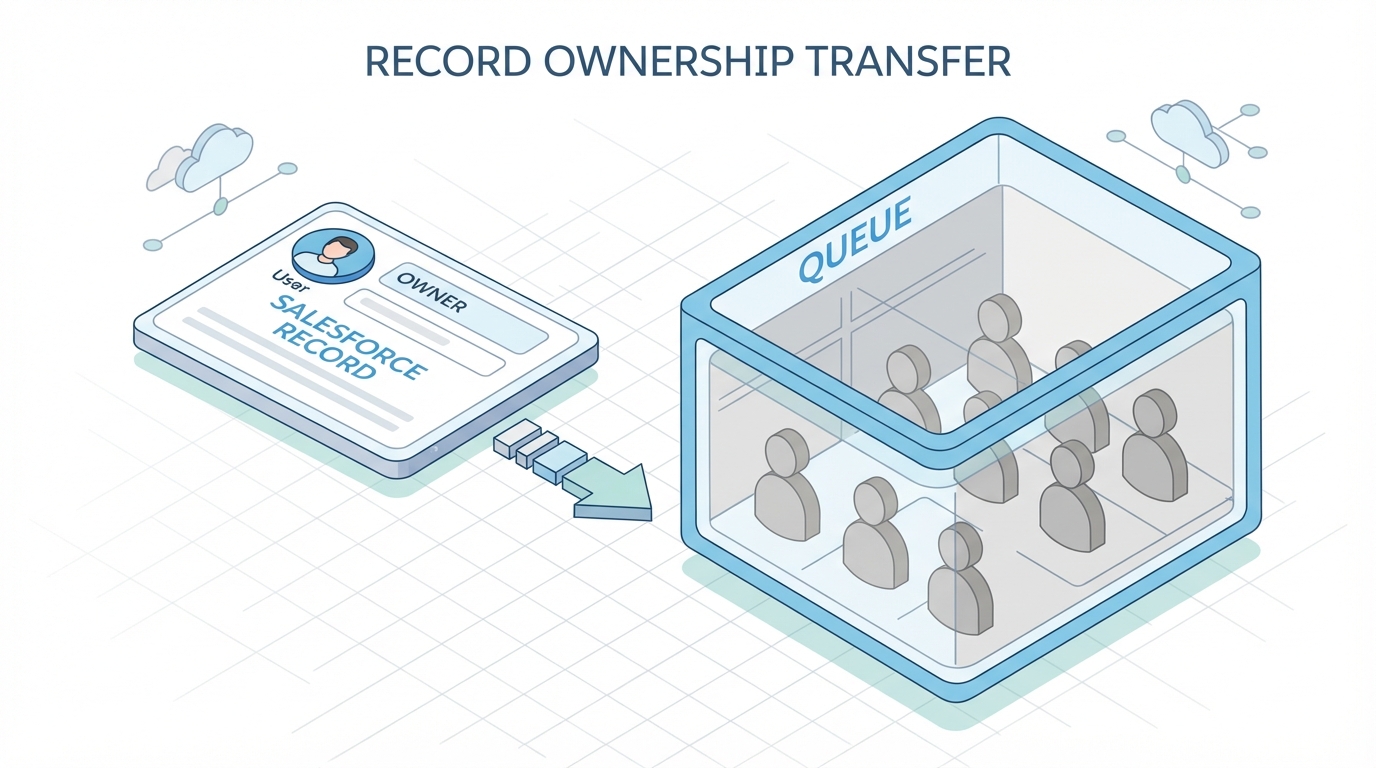
A Salesforce record moving from individual user ownership into a group-based queue container.
The technical bits of a Salesforce Queue
In the database, a queue is a record in the Group object. When a record is "in" a queue, the OwnerId field on that record is set to the ID of that Queue Group. It's a bit of a shift if you're used to records always being owned by a User, but it works perfectly well with most automation.
Queue vs Public Group
This is a classic point of confusion for new admins. Both hold users, and they do different things. A Public Group is for sharing and visibility. A Salesforce Queue is for ownership. You can't assign a Lead to a Public Group, but you can definitely assign it to a Queue.
How to get it running
Setting one up is straightforward. Head to Setup, search for Queues, and hit New. You'll pick your members, which can be individual users, roles, or even public groups. The part people skip is choosing which objects the queue supports. Leave the "Case" box unchecked and you won't be able to send cases to that queue.
Working with a Salesforce Queue in code
If you're a developer, you'll eventually need to query or assign these via Apex or SOQL. Since queues live in the Group table, you have to filter by the 'Queue' type. I've seen people forget this and accidentally try to assign records to a regular Public Group, which throws an error every time.
Querying a Queue
// Find your queue by developer name
Group supportQueue = [SELECT Id FROM Group WHERE Type = 'Queue' AND DeveloperName = 'Support_Tier_1' LIMIT 1];
Assigning a record in Apex
When you're writing triggers or services, you just treat the Queue ID like a User ID. Whether you land on Apex vs Flow for your automation, the logic stays the same: update the OwnerId.
// Quick example of assigning a new case to a queue
Case newTicket = new Case(
    Subject = 'Printer is on fire',
    OwnerId = supportQueue.Id
);
insert newTicket;
Best practices from the field
I've worked in orgs with hundreds of queues, and things get ugly without a plan. Here's how to keep it clean:
- Naming. Don't just call it "Queue 1". Use something like "US - Sales Leads" so people know exactly what's inside.
- Membership. If someone leaves the company, get them out of the queue. Better yet, use Roles or Public Groups as queue members so you don't have to update the queue every time someone gets hired.
- Volume. A queue holding 5,000 unassigned leads is a queue your team is ignoring. Use list views to keep an eye on the backlog size.
Pro tip: enable the "Send Email to Members" option cautiously. With 50 people in a queue and 100 leads a day coming in, you're just spamming your team. Use it for low-volume, high-priority queues only.
Key takeaways
- A Salesforce Queue acts as a temporary owner for records like Leads and Cases.
- Queues are stored in the Group object with a Type of 'Queue'.
- Public Groups can't own records; Queues can.
- You must enable specific objects for each queue in the Setup menu.
- Use assignment rules or Flow to route records to queues automatically.
A queue is there to make sure work gets done. It moves the focus from "who owns this?" to "is this work finished?". If you're building for a team that needs to collaborate on a pile of incoming records, a queue is almost always the right answer. Keep your naming conventions tight and your membership lists updated, and it will stay that way.



Leave a Comment