

Why LWC lazy loading is a must for complex pages
We have all been there. You build a beautiful Lightning page, but it takes forever to load because you have packed it with heavy components and massive data tables. It is frustrating for you and even worse for your users. This is where LWC lazy loading comes in to save your user experience.
Essentially, LWC lazy loading is the art of waiting. Instead of dumping everything onto the page at once, you only load resources-like components, images, or data-when they are actually needed. It keeps your initial bundle size small and your page snappy. I have seen teams cut their load times in half just by being smart about what they load up front.
So why should you care? Well, it reduces memory usage and stops you from making unnecessary API calls. If a user never clicks on the third tab of your component, why waste the server's time fetching that data? It just makes sense.
1. Conditional rendering: The easiest win
The simplest way to start is by using conditional templates. Don't let the DOM engine work harder than it has to. If a component is hidden behind a button or a toggle, use a template guard to keep it out of the lifecycle until the user asks for it.
// parentComponent.html
<template>
  <button onclick={handleShow}>Load Heavy Content</button>
  <template if:true={showChild}>
    <c-heavy-component></c-heavy-component>
  </template>
</template>

// parentComponent.js
import { LightningElement } from 'lwc';
export default class ParentComponent extends LightningElement {
  showChild = false;
  handleShow() {
    this.showChild = true; // The component is created only now
  }
}
One thing that trips people up is thinking that lwc:if or if:true just hides the element with CSS. It doesn't. It actually prevents the component from being instantiated. That is a huge difference for performance.
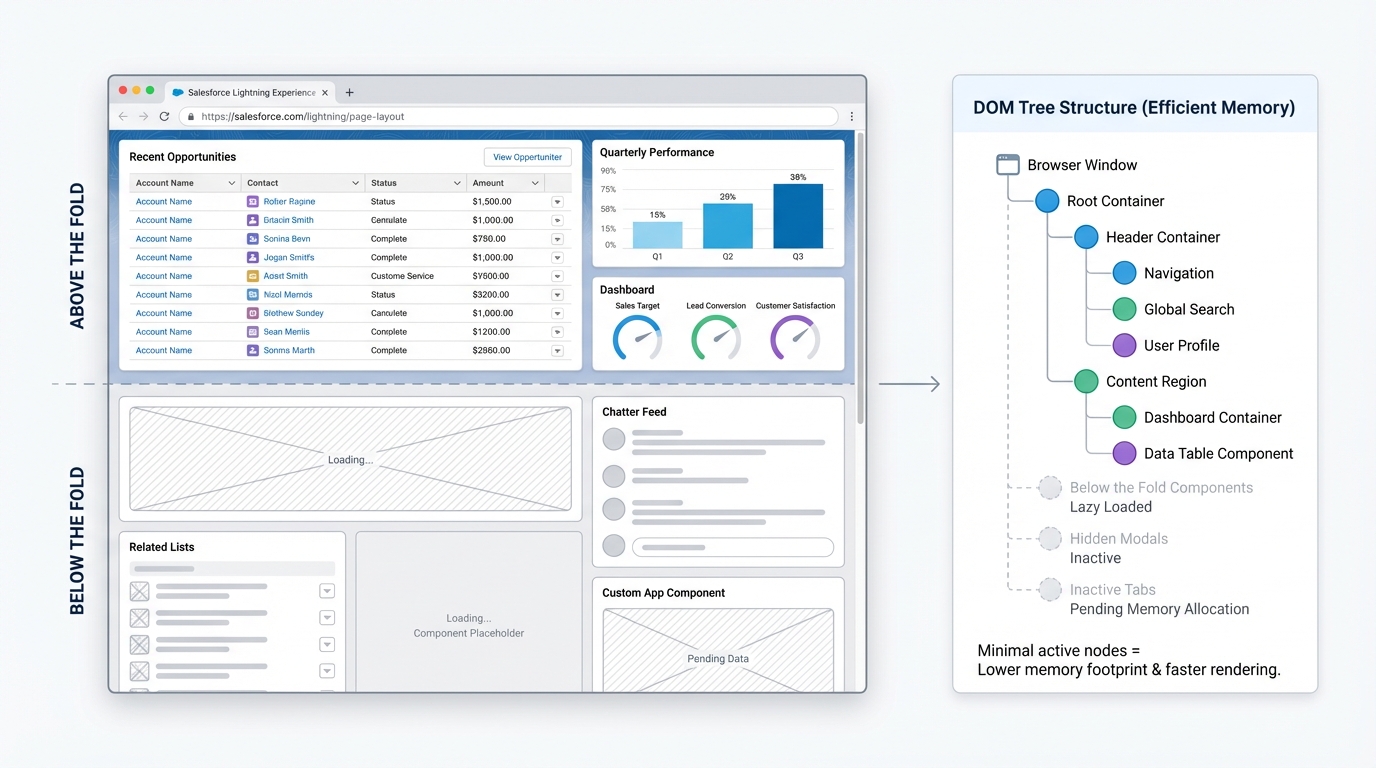
A technical illustration showing a Salesforce page where components below the fold are not yet instantiated in the DOM to save memory and improve performance.
Implementing LWC lazy loading with IntersectionObserver
Now, here is where it gets interesting. Sometimes you have a long list of items or a heavy chart that sits "below the fold." You don't want to load it until the user scrolls down to see it. I've seen people try to use scroll listeners for this, but honestly, that's a performance nightmare because they fire way too often.
Instead, use the IntersectionObserver API. It lets you know exactly when an element enters the viewport. It is much cleaner and easier on the browser's CPU. If you're already familiar with LWC element scrolling, you'll find this fits right into your toolkit.
// lazyLoader.js
renderedCallback() {
  if (this.observer) return;

  const options = { root: null, threshold: 0.1 };
  this.observer = new IntersectionObserver((entries) => {
    entries.forEach(entry => {
      if (entry.isIntersecting && !this.loaded) {
        this.loaded = true;
        this.fetchMyData();
        this.observer.disconnect();
      }
    });
  }, options);

  const anchor = this.template.querySelector('.load-anchor');
  if (anchor) this.observer.observe(anchor);
}
Look, this is probably the most overlooked feature in Salesforce development. By using an "anchor" div at the bottom of a list, you can trigger the next batch of records automatically. This works perfectly when you are streaming large datasets with Apex Cursors to keep the UI responsive.
2. Deferring scripts and images
Third-party libraries are notorious for slowing down Salesforce pages. If you are using a heavy charting library or a complex text editor, don't load it in the connectedCallback. Wait until the user actually needs to see that widget.
Use loadScript or loadStyle inside a method that triggers on a user action. And don't forget about images. For simple images, just use the native loading="lazy" attribute in your HTML. It's a one-word change that saves bandwidth for everyone.
A quick tip from my experience: Always show a loading spinner or a skeleton screen when lazy loading. If the content just pops in out of nowhere, it can jump the page around and annoy your users.
3. Tab-based triggers
If you are using lightning-tabset, you've got a built-in opportunity for LWC lazy loading. Most people fetch all the data for every tab as soon as the page loads. Don't do that. Listen for the onactive event on the tabs and only fire your Apex wire or imperative call when that specific tab is clicked.
Key Takeaways for LWC performance
- Use conditional rendering to keep heavy components out of the DOM until they are needed.
- IntersectionObserver is your friend for loading data as the user scrolls.
- Native lazy loading works for images and is supported by most modern browsers.
- Measure first. Don't over-complicate small components; focus on the ones that actually slow down your page.
- Accessibility matters. Make sure your lazy-loaded content doesn't break the experience for screen readers.
At the end of the day, LWC lazy loading is about being respectful of your user's time and their device's resources. Start with conditional templates since they are the easiest to implement. Once you're comfortable with those, move on to IntersectionObserver for your long lists and heavy data grids. Your users will definitely notice the difference in speed.



Leave a Comment