


If you've ever tried to load a massive dataset into a Lightning Web Component and hit a heap limit wall, you'll want to look at Apex Cursors. We've all been there, building a high-performance UI while the platform pushes back with governor limits because we're shoving 50,000 records into memory at once.
Why Apex Cursors are a big deal for LDV
Apex Cursors let you query huge result sets without the memory overhead. Instead of loading every record into a list immediately, you get a locator that fetches chunks of data as needed. It's a much smarter way to manage large data volumes in Salesforce without crashing your user's browser or hitting server-side limits.
The old way was OFFSET in SOQL, which has a 2,000-record limit and gets slower as the offset increases. These cursors are different. They're stable, they allow forward and backward navigation, and they keep your heap usage low. I've watched teams hack around this for years, and this native approach is the one we've actually been waiting for.
Pro tip: Cursors stay active for the duration of the transaction or until the session expires. Don't just leave them hanging; make sure your UI logic knows when to stop asking for more data.
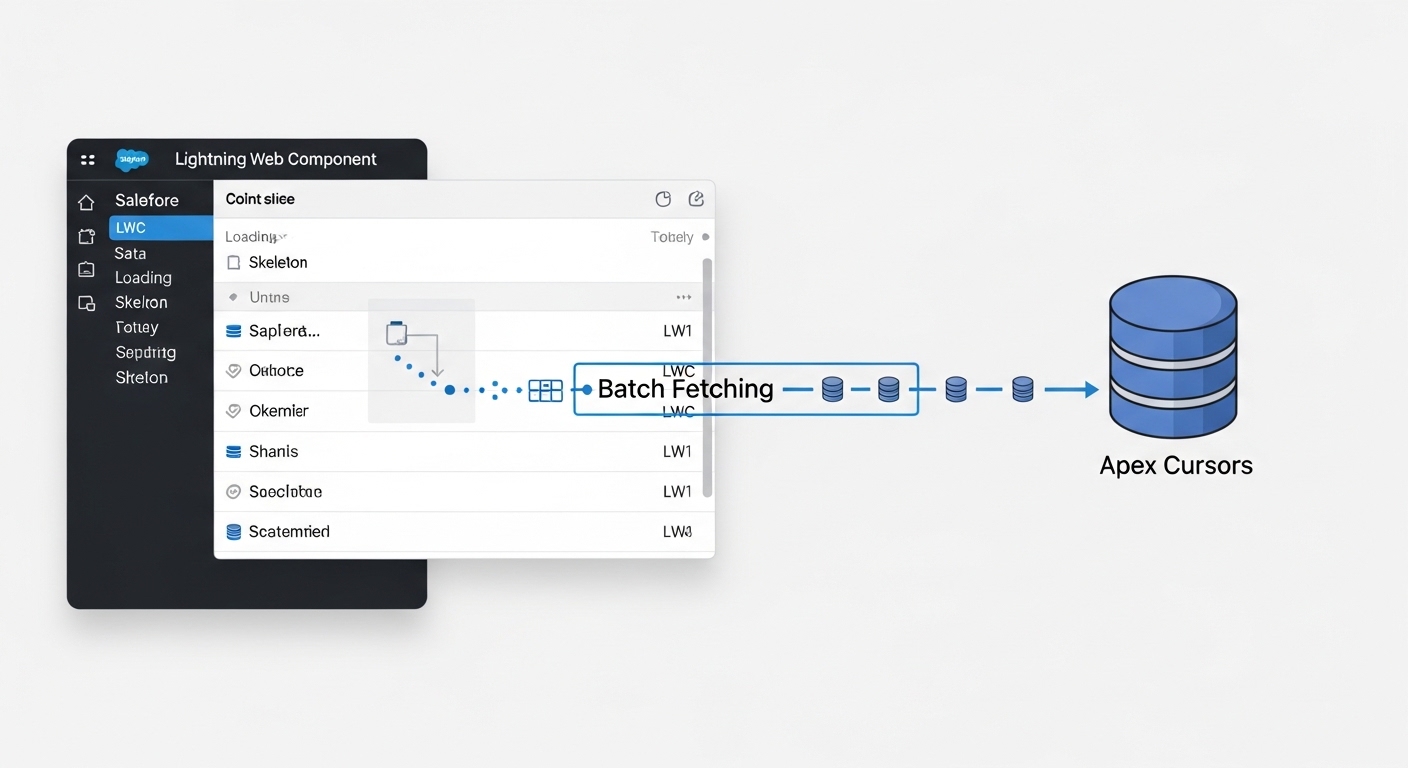
Batch-by-batch data streaming between a Salesforce LWC and an Apex Cursor on the server.
Implementing Apex Cursors in your LWC controller
To make this work in a real LWC, we need a way to pass the cursor state back and forth between the client and the server. The easiest way is a simple wrapper class holding our records, the current position, and a serialized version of the cursor locator. The feature arrived in the Salesforce Spring '26 release, so check your org's version before you start coding.
The Apex controller (CursorController.cls)
public with sharing class CursorController {

    @AuraEnabled
    public static CursorResultWrapper processCursor(CursorResultWrapper wrapper){
        try {
            Database.Cursor cursorLocator;

            // If it's the first call, start a new cursor
            if(wrapper.stringlocator == null){
                cursorLocator = Database.getCursor('SELECT Id, Name FROM Contact ORDER BY Name');
            } else {
                // Otherwise, bring back the existing cursor from the serialized string
                cursorLocator = (Database.Cursor)JSON.deserializeStrict(wrapper.stringlocator, Database.Cursor.class);
            }

            // Grab the next chunk of records
            wrapper.records = cursorLocator.fetch(wrapper.position, wrapper.batchSize);

            // Save the state for the next call
            wrapper.stringlocator = JSON.serialize(cursorLocator);
            wrapper.position += wrapper.records.size();

            return wrapper;
        } catch (Exception e) {
            throw new AuraHandledException(e.getMessage());
        }
    }

    public class CursorResultWrapper {
        @AuraEnabled public Integer position {get;set;}
        @AuraEnabled public Integer batchSize {get;set;}
        @AuraEnabled public List<Contact> records {get;set;}
        @AuraEnabled public String stringlocator {get;set;}
    }
}
The LWC logic
On the LWC side we just keep track of that wrapper. Every time the user clicks "Next" or scrolls to the bottom, we send the wrapper back to Apex and it hands us the next set of records. If you're building an infinite scroll UI, my guide on mastering element scrolling in LWC covers making that feel smooth.
import { LightningElement, track } from 'lwc';
import processCursor from '@salesforce/apex/CursorController.processCursor';

export default class ProcessLargeDataset extends LightningElement {
    @track cursorWrapper = {
        position : 0,
        batchSize : 50,
        records : [],
        stringlocator: null
    };

    connectedCallback() {
        this.loadMoreData();
    }

    async loadMoreData() {
        try {
            const result = await processCursor({ wrapper: this.cursorWrapper });
            // We append the new records to our existing list
            this.cursorWrapper = {
                ...result,
                records: [...this.cursorWrapper.records, ...result.records]
            };
        } catch (error) {
            console.error('Error fetching cursor data:', error);
        }
    }
}
Handling the UI (cursorLWC.html)
The HTML is straightforward. We iterate over the records and provide a way to trigger the next fetch. In a real app you'd probably use a datatable or a virtualized list, but a simple loop does the trick here.
<template>
    <lightning-card title="Data Streamer" icon-name="custom:custom67">
        <div class="slds-m-around_medium">
            <template for:each={cursorWrapper.records} for:item="contact">
                <p key={contact.Id} class="slds-border_bottom">{contact.Name}</p>
            </template>

            <div class="slds-m-top_medium">
                <lightning-button label="Load More" onclick={loadMoreData}></lightning-button>
            </div>

            <p class="slds-text-color_weak slds-m-top_small">
                Showing {cursorWrapper.position} records
            </p>
        </div>
    </lightning-card>
</template>
Things to keep in mind
Apex Cursors are powerful, but they aren't a magic wand. Keep your batch sizes reasonable: fetching 2,000 records at a time might still lag the browser's main thread. I usually find 50 to 200 is the sweet spot for a snappy UI.
Cursors also count against your limits. There's a maximum number of open cursors per user, so if you're opening them and never finishing the process, you might run into issues. Always plan for an "end of data" scenario where the fetch returns zero records, so you can disable your "Load More" button.
Key takeaways
- Apex Cursors keep your memory usage flat, even with huge datasets.
- Use a wrapper class to pass the cursor's serialized state between LWC and Apex.
- Small batch sizes (50-100) usually provide the best user experience.
- Keep an eye on the official docs, as limits and behavior can shift while this is in Beta.
Building for scale is one of the hardest parts of being a Salesforce developer, and tools like these take a lot of the pain out of the "can you show me all 100,000 rows?" request. Try the pattern in your next project and see how your components hold up.


Leave a Comment