

Why the Salesforce Utility Bar is a lifesaver for Service Console agents
If you’ve ever worked in a high-volume call center, you know the pain. An agent picks up a call, the Service Console starts churning, and they’re stuck waiting five seconds for the Contact record to load. By the time the screen is ready, the customer has already explained half the problem. That’s where the Salesforce Utility Bar comes in to save the day.
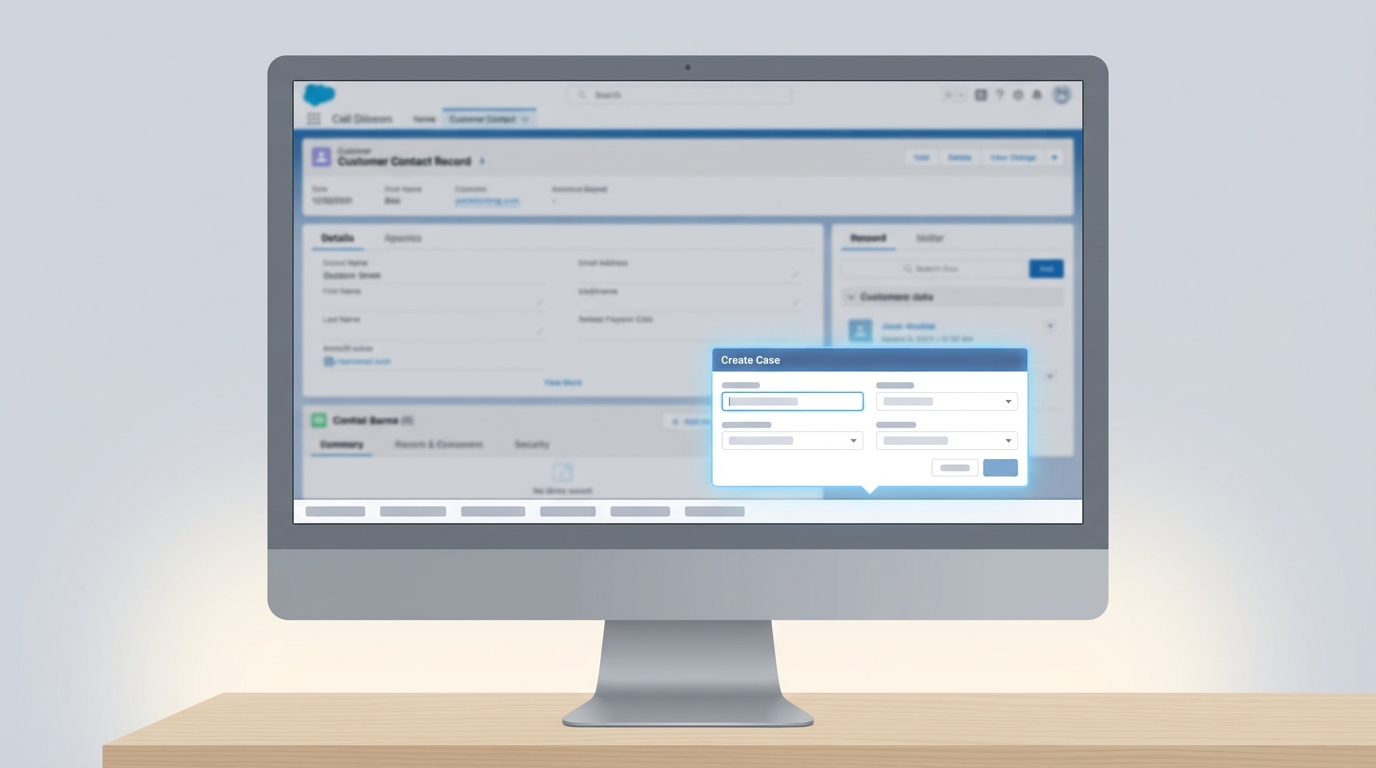
I’ve seen teams struggle with data accuracy because agents are scribbling notes on post-its while waiting for the UI to catch up. By putting a case-capture tool directly into the Salesforce Utility Bar, you’re giving them a way to start typing the second the phone rings. It doesn’t matter if the main page is still loading; the utility is right there, ready to go.
But it’s not just about speed. It’s about making sure that data actually ends up in the right place. When you build this correctly, you can automatically grab the recordId of the page the agent is looking at, ensuring the new Case is linked to the right Contact without them having to search for it. Honestly, this is probably the most overlooked feature for improving agent experience.
Building the Salesforce Utility Bar component: The Aura and LWC mix
Now, I know what you’re thinking. “Why are we still talking about Aura?” Look, I’m the first person to advocate for LWC, but the console can be a bit finicky. Sometimes an LWC sitting in the Salesforce Utility Bar doesn’t grab the recordId as reliably as we need when an agent is jumping between tabs.
In my experience, wrapping your LWC in a thin Aura component is the safest bet. Aura has a long-standing relationship with force:hasRecordId and lightning:utilityItem that just works. It acts as the “glue” that catches the ID from the workspace and hands it off to your modern LWC. Since we’re often choosing code over automation for these high-performance UI pieces, getting the plumbing right is step one.
The Aura Wrapper
This is a simple pass-through. We’re just telling Salesforce that this component belongs in the utility bar and it needs to be aware of which record is currently active. Here is the markup you’ll need:
<aura:component implements="force:hasRecordId,flexipage:availableForAllPageTypes,lightning:utilityItem">
    <aura:attribute name="recordId" type="String" />
    <c:createCaseUtility contactId="{!v.recordId}"/>
</aura:component>
And the controller just helps us keep an eye on things. One thing that trips people up is forgetting that the utility bar lives “outside” the main page context, so logging the ID during doInit is a lifesaver for debugging. This is a basic example of LWC component communication where the parent Aura container feeds data down to the child.
({
    doInit: function (component, event, helper) {
        var recordId = component.get("v.recordId");
        if (!recordId) {
            console.warn("No Record ID found yet. This is normal if no tab is active.");
        }
    }
});
The LWC and Apex Logic
Here’s where it gets interesting. The LWC handles the actual UI – the text boxes, the picklists, and the save logic. We use a setter on the contactId property so that every time the agent switches tabs, the component knows exactly which Contact it’s dealing with.
Quick tip: Always validate the ID prefix. If your utility is meant for Contacts, check for that ‘003’ prefix before you let the agent hit save. It prevents a lot of “mystery cases” from appearing in your org.
When the agent hits save, we call a simple Apex method. We’re using the @AuraEnabled annotation to make our controller method visible to the LWC. It’s a straight-up insert, but you’ll want to add your own error handling to make sure the agent knows if something went sideways.
// Simplified LWC Save Logic
handleSave() {
    if (!this.currentRecordId || !this.currentRecordId.startsWith('003')) {
        this.showToast('Error', 'You need to be on a Contact record to create a case.', 'error');
        return;
    }

    const caseRecord = {
        Subject: this.subject,
        Description: this.description,
        ContactId: this.currentRecordId
    };

    createCase({ cse: caseRecord })
        .then(() => {
            this.showToast('Success', 'Case created!', 'success');
            this.resetForm();
        })
        .catch(error => {
            this.showToast('Error', error.body.message, 'error');
        });
}
Key Takeaways
- Beat the lag: Use the Salesforce Utility Bar to let agents work while the main record page is still loading.
- Use the Wrapper: Don’t fight with LWC recordId detection in the utility bar; a thin Aura wrapper is more reliable here.
- Validate early: Check record prefixes in your JS before hitting the server to keep your data clean.
- Keep it simple: The utility bar is for “quick” actions. If the form gets too long, it defeats the purpose.
Final Thoughts
At the end of the day, our job is to make the CRM feel less like a chore and more like a tool. Small tweaks like this might seem minor to a developer, but for an agent who handles eighty calls a day, it’s a massive win. If you haven’t looked at the Salesforce Utility Bar as a place for custom productivity tools lately, you’re missing out on some of the easiest UX wins in the Service Console. Give it a shot and see how much your support team appreciates the speed.