

Why Screen Flow validation matters for date logic
I was working on a project recently where the business had some really specific rules about when orders could be submitted. We needed a solid Screen Flow validation to stop users from picking the first Monday or the last Friday of any given month. It sounds like a niche request, but these types of scheduling "blackout dates" come up more often than you'd think in payroll or logistics apps.
Now, you could try to handle this with a bunch of Get Records elements or even a custom Apex action. But honestly, that's overkill. Most of the time, you can handle this with a simple formula resource. It keeps your flow clean and means you don't have to worry about maintaining extra code. Here's how I usually tackle it.
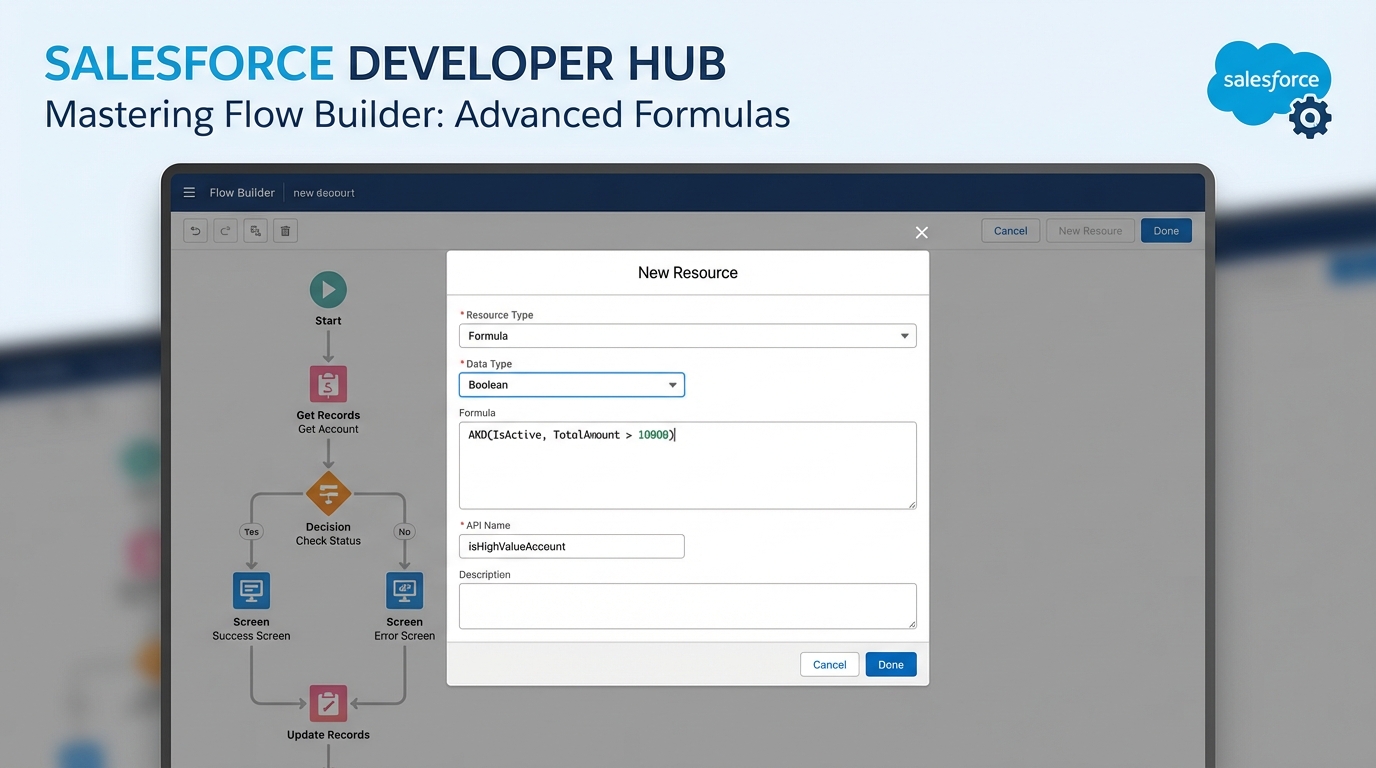
A realistic interface mockup of the Salesforce Flow Builder showing the creation of a new formula resource.
What you'll need to get started
Before we jump into the math, make sure you have your Screen element ready. You'll need a Date input component (let's call it SelectedDate). You'll also need a Formula resource that returns a Boolean value. This formula is what tells Salesforce whether the date is "good" or "bad" based on your business rules.
If you're still getting comfortable with the basics, checking out some best practices for Salesforce Flow can help you keep your logic organized before things get too complex.
Building the Screen Flow validation formula
Here is where it gets interesting. We need to find the first day of the month, figure out when that first Monday hits, and then do something similar for the last Friday. It's a bit of a head-scratcher if you haven't done date math in Salesforce before, but the logic is actually pretty consistent.
I've seen teams try to solve this by hardcoding dates in a custom object. Don't do that. A formula is much more reliable because it handles every month and year automatically without you ever having to touch it again.
Look at the logic below. You can copy this into a Formula resource in your Flow. Just make sure the return type is set to Boolean so the Screen Flow validation knows how to read it.
/* Logic to block 1st Monday and Last Friday */
/* Replace {!SelectedDate} with your actual screen component name */

/* 1. Calculate the First Monday */
(
  DATE(YEAR({!SelectedDate}), MONTH({!SelectedDate}), 1) +
  MOD(9 - WEEKDAY(DATE(YEAR({!SelectedDate}), MONTH({!SelectedDate}), 1)), 7)
) != {!SelectedDate}

&&

/* 2. Calculate the Last Friday */
(
  IF(MONTH({!SelectedDate}) = 12,
    DATE(YEAR({!SelectedDate}) + 1, 1, 1),
    DATE(YEAR({!SelectedDate}), MONTH({!SelectedDate}) + 1, 1)
  ) - 1 -
  MOD(WEEKDAY(IF(MONTH({!SelectedDate}) = 12,
    DATE(YEAR({!SelectedDate}) + 1, 1, 1),
    DATE(YEAR({!SelectedDate}), MONTH({!SelectedDate}) + 1, 1)
  ) - 1) - 6 + 7, 7)
) != {!SelectedDate}
So what does this actually mean? The formula returns "True" if the selected date is NOT the first Monday and NOT the last Friday. In the world of Screen Flow validation, "True" means the input is valid and the user can move to the next screen. If it's "False," the error message pops up.
Applying the logic to your screen component
Once your formula is ready, go back to your Screen element. Click on your Date input and look for the "Validate Input" section on the right-hand sidebar. In the Formula field, just reference the Boolean formula you just created. Don't forget to add a helpful error message like, "Sorry, we don't accept submissions on the first Monday or last Friday of the month."
One thing that trips people up is the difference between doing this in Flow versus Apex. While a formula is great here, there are times when code is better. If you're curious about where that line is, I wrote a bit about Apex vs Flow that might clear things up.
Testing and common pitfalls
Don't just build this and walk away. You've got to test it across different months. For example, check a month where the 1st is a Monday, and check a month where the 1st is a Tuesday. The WEEKDAY() function in Salesforce can be a little finicky depending on your locale settings, so always double-check your work in a Sandbox first.
Also, keep an eye on time zones. If your users are spread across the globe, a date might look like a Monday for one person but still be Sunday for another. For simple date fields, this usually isn't a problem, but it's something to keep in the back of your mind for more complex Screen Flow validation scenarios.
Key Takeaways
- Use a Boolean formula resource to keep your Screen Flow validation logic declarative.
- The
WEEKDAY()function is your best friend for finding specific days of the week. - Always provide a clear error message so users know exactly why their date was rejected.
- Testing across multiple months is non-negotiable to ensure your math holds up.
By keeping this logic inside the flow, you're making life easier for the next admin who has to manage this. It's clean, it's fast, and it gets the job done without extra overhead. If you run into any weird errors with the date math, just reach out or drop a comment-I've probably hit those same walls before.




Leave a Comment