


Why Screen Flow validation matters for date logic
I was working on a project recently where the business had some very specific rules about when orders could be submitted. We needed a solid Screen Flow validation to stop users from picking the first Monday or the last Friday of any given month. It sounds niche, but these scheduling "blackout dates" come up more often than you'd think in payroll or logistics apps.
You could handle this with a bunch of Get Records elements or even a custom Apex action. That's overkill. Most of the time a simple formula resource does it, which keeps your flow clean and leaves you with no extra code to maintain.
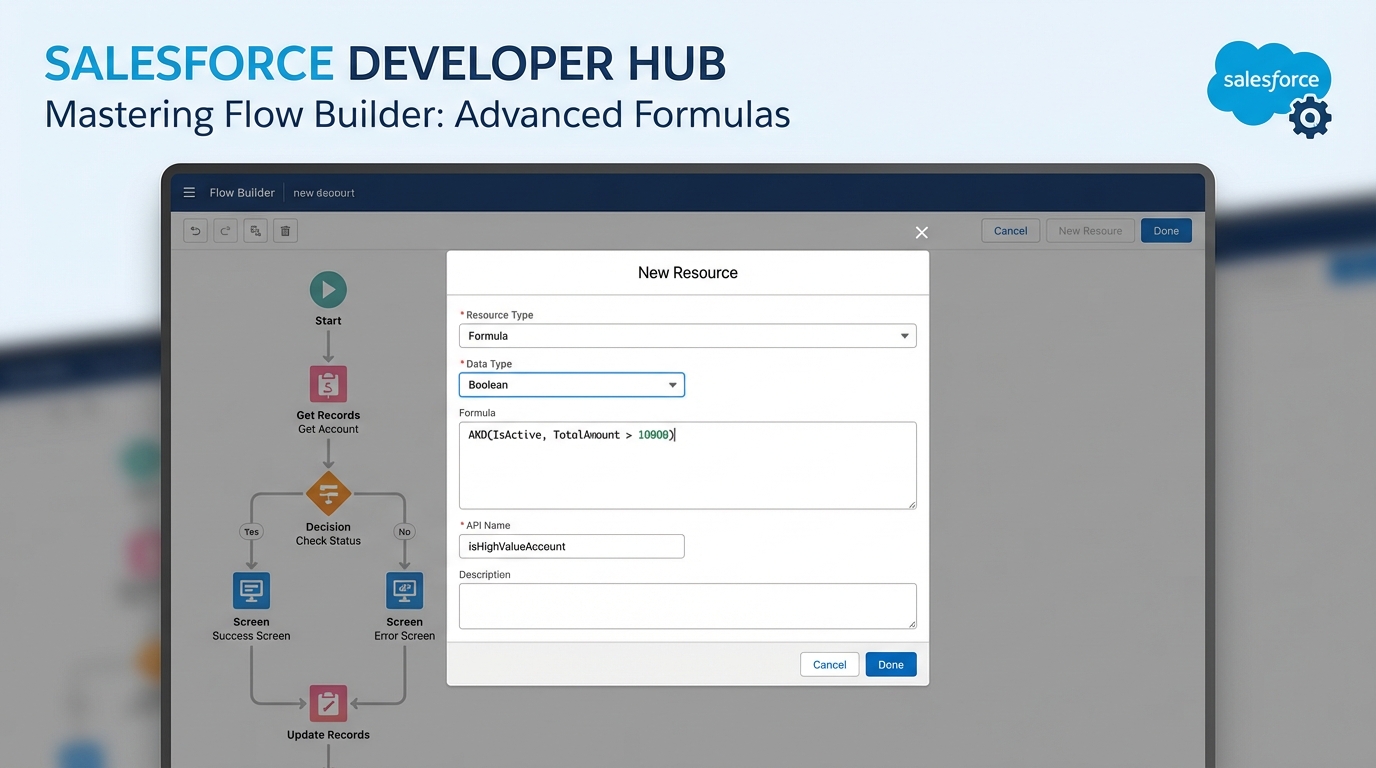
Creating the formula resource that the Date component will validate against.
What you'll need to get started
Before we jump into the math, make sure your Screen element is ready. You'll need a Date input component (let's call it SelectedDate). You'll also need a Formula resource that returns a Boolean value. That formula is what tells Salesforce whether the date is "good" or "bad" against your business rules.
If you're still getting comfortable with the basics, some best practices for Salesforce Flow will help you keep the logic organized before things get complex.
Building the Screen Flow validation formula
We need to find the first day of the month, work out when that first Monday lands, then do something similar for the last Friday. It's a head-scratcher if you haven't done date math in Salesforce before, but the logic is pretty consistent.
I've seen teams try to solve this by hardcoding dates in a custom object. Don't do that. A formula is much more reliable because it handles every month and year automatically without you ever having to touch it again.
Copy the logic below into a Formula resource in your Flow. Just make sure the return type is set to Boolean so the Screen Flow validation knows how to read it.
/* Logic to block 1st Monday and Last Friday */
/* Replace {!SelectedDate} with your actual screen component name */

/* 1. Calculate the First Monday */
(
  DATE(YEAR({!SelectedDate}), MONTH({!SelectedDate}), 1) +
  MOD(9 - WEEKDAY(DATE(YEAR({!SelectedDate}), MONTH({!SelectedDate}), 1)), 7)
) != {!SelectedDate}

&&

/* 2. Calculate the Last Friday */
(
  IF(MONTH({!SelectedDate}) = 12,
    DATE(YEAR({!SelectedDate}) + 1, 1, 1),
    DATE(YEAR({!SelectedDate}), MONTH({!SelectedDate}) + 1, 1)
  ) - 1 -
  MOD(WEEKDAY(IF(MONTH({!SelectedDate}) = 12,
    DATE(YEAR({!SelectedDate}) + 1, 1, 1),
    DATE(YEAR({!SelectedDate}), MONTH({!SelectedDate}) + 1, 1)
  ) - 1) - 6 + 7, 7)
) != {!SelectedDate}
The formula returns "True" if the selected date is NOT the first Monday and NOT the last Friday. For Screen Flow validation, "True" means the input is valid and the user can move to the next screen. If it's "False," the error message pops up.
Applying the logic to your screen component
Once your formula is ready, go back to your Screen element. Click your Date input and look for the "Validate Input" section in the right-hand sidebar. In the Formula field, reference the Boolean formula you just created. Don't forget a helpful error message, something like "Sorry, we don't accept submissions on the first Monday or last Friday of the month."
One thing that trips people up is the difference between doing this in Flow versus Apex. A formula is great here, but there are times when code is better. If you're curious about where that line sits, I wrote a bit about Apex vs Flow that might clear it up.
Testing and common pitfalls
Don't build this and walk away. You've got to test it across different months. Check a month where the 1st is a Monday, and a month where the 1st is a Tuesday. The WEEKDAY() function in Salesforce can be a little finicky depending on your locale settings, so always double-check your work in a Sandbox first.
Keep an eye on time zones too. If your users are spread across the globe, a date might look like a Monday for one person but still be Sunday for another. For simple date fields this usually isn't a problem, but it's worth keeping in the back of your mind for more complex Screen Flow validation scenarios.
Key takeaways
- Use a Boolean formula resource to keep your Screen Flow validation logic declarative.
- The
WEEKDAY()function is what you lean on to find specific days of the week. - Always provide a clear error message so users know exactly why their date was rejected.
- Test across multiple months, or you won't know whether your math holds up.
Keeping this logic inside the flow makes life easier for the next admin who inherits it. It's clean, it's fast, and there's no extra code to maintain. If you run into weird errors with the date math, reach out or drop a comment. I've probably hit those same walls before.



Leave a Comment