
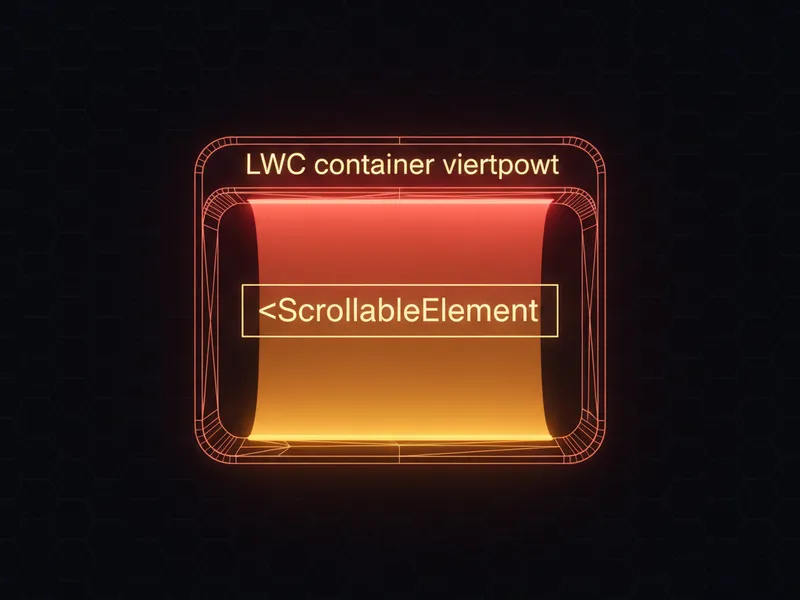
Ever built a long Salesforce form or a complex dashboard and realized your users are getting lost while scrolling? If you want to fix that, you need a solid LWC scroll element strategy to guide them. It is one of those small UI details that makes a massive difference in how professional your app feels, yet I see so many developers struggle with it.
I have seen teams try to over-engineer this with heavy third-party libraries or messy window-level event listeners. But here is the thing: you can do most of this with native web APIs that are already built into the browser. Let's look at how to handle this without breaking your component's performance.
Implementing the LWC scroll element with scrollIntoView
The scrollIntoView() method is your best friend here. It is a standard web API that works beautifully inside the Shadow DOM of a Lightning Web Component. When you need to jump a user to a specific section - like a validation error at the top of a page or a specific record detail - this is the way to go.
One thing that trips people up is how to actually grab the element. I always recommend using data attributes instead of classes for your queries. Classes change when CSS gets refactored, but a data attribute like data-id is usually a safer bet for your JavaScript logic.
The basic setup
In this example, we have a simple container with two sections. When you click the button, the JS finds the "red" section and brings it into focus. If you are working on a parent component that needs to trigger this in a child, you might want to check out how to handle communication between Lightning web components to fire the scroll logic at the right time.
// scrollToElement.js
import { LightningElement } from 'lwc';

export default class ScrollToElement extends LightningElement {
    handleScrollClick() {
        // Use a data attribute to find your target
        const target = this.template.querySelector('[data-id="redDiv"]');

        if (target) {
            target.scrollIntoView({
                behavior: 'smooth',
                block: 'start',
                inline: 'nearest'
            });
        }
    }
}
Setting behavior: 'smooth' is non-negotiable in my opinion. Without it, the page just snaps to the position, which can be disorienting for the user. A smooth glide helps them keep their bearings.
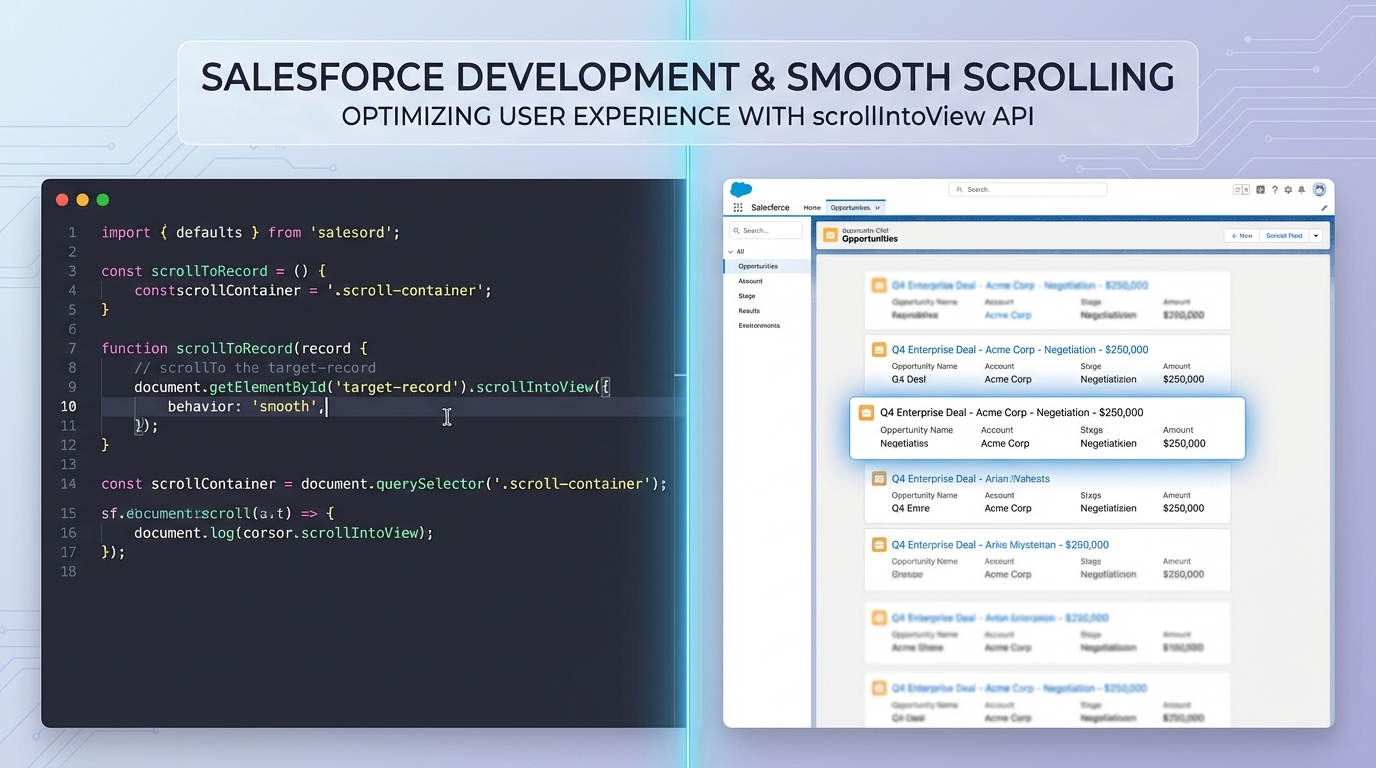
A split-screen view showing a code editor with JavaScript scroll logic next to a Salesforce record list demonstrating a smooth scrolling transition.
Best practices for LWC scroll element performance
Now, just because you can scroll doesn't mean you should do it constantly. I've worked on projects where every little UI update triggered a scroll event, and honestly, it drove the users crazy. You have to be intentional about it.
If you are building something more complex, like a custom table with its own scrolling behavior, you might also want to look at creating a tooltip in a lightning datatable to help users see data without having to scroll back and forth constantly.
Pro Tip: If your component is inside a modal or a fixed-header container,
scrollIntoViewmight sometimes hide the element under the header. In those cases, you might need to usewindow.scrollBy()with a small offset to get it just right.
Handling scroll events
Sometimes you need to know when the user is scrolling, maybe for lazy loading or to show a "Back to Top" button. If you're going to listen for scroll events, please remember to debounce your functions. Listening to every single pixel of movement will tank your page's frame rate, especially on mobile devices.
- Use Data Attributes: Stick to
data-idfor querying elements. - Smooth Behavior: Always use
behavior: 'smooth'for a better UX. - Accessibility: If you scroll to a new section, consider moving the focus there too so screen readers know what happened.
- Mobile Testing: Viewports are small on phones. What looks good on a 27-inch monitor might feel clunky on an iPhone.
Key Takeaways for LWC Scroll Element Implementation
So what should you remember next time you are staring at a long LWC? Here is the short version:
- The
scrollIntoView()method is the cleanest way to handle an LWC scroll element requirement. - Don't forget the
block: 'start'property to ensure the element hits the top of the viewport. - Avoid querying by CSS classes; they are too fragile for DOM manipulation.
- Always test your scrolling logic inside different Salesforce containers like the Utility Bar, Modals, and Experience Cloud sites.
Look, implementing a smooth LWC scroll element isn't rocket science, but it's the difference between a "fine" app and a "great" app. Users appreciate it when the interface anticipates their needs and helps them navigate. Just keep it simple, use the native APIs, and always keep the end-user's eyes in mind. Give it a try in your next project and see how much cleaner the navigation feels.


Leave a Comment