

I've been digging into the pre-release notes, and it's clear that Salesforce Spring '26 Flow is bringing some practical changes to our automation toolkit. It's not just a list of minor tweaks this time; some of these updates will actually change how you build screens and handle files without reaching for Apex code.
What's New in Salesforce Spring '26 Flow?
One of the first things you'll notice is the new Message Screen Component. We've all been there-trying to hack together a red display text component just to show a simple error message. Now, we can show inline alerts for Info, Error, Warning, or Success states directly in the UI. But here's the catch: it currently only supports plain text. It's a great start for guiding users, but don't expect to build complex rich-text layouts in it just yet.
If you're managing massive automations, the canvas itself is getting a much-needed facelift. You can now expand or collapse Decision and Loop elements. This is a life-saver for those complex flows that look like a bowl of spaghetti. It makes troubleshooting a lot cleaner when you can hide the logic branches you aren't working on. Plus, moving around the canvas is smoother now whether you use a trackpad, mouse wheel, or the arrow keys.
Styling is another area where we're finally getting some control. You can now set background colors, border radius, and even custom button styles for hover and active states. Honestly, I think the styling options are the real sleeper hit here. It means we can finally make a screen flow look like it actually belongs in the company portal instead of looking like a generic popup.
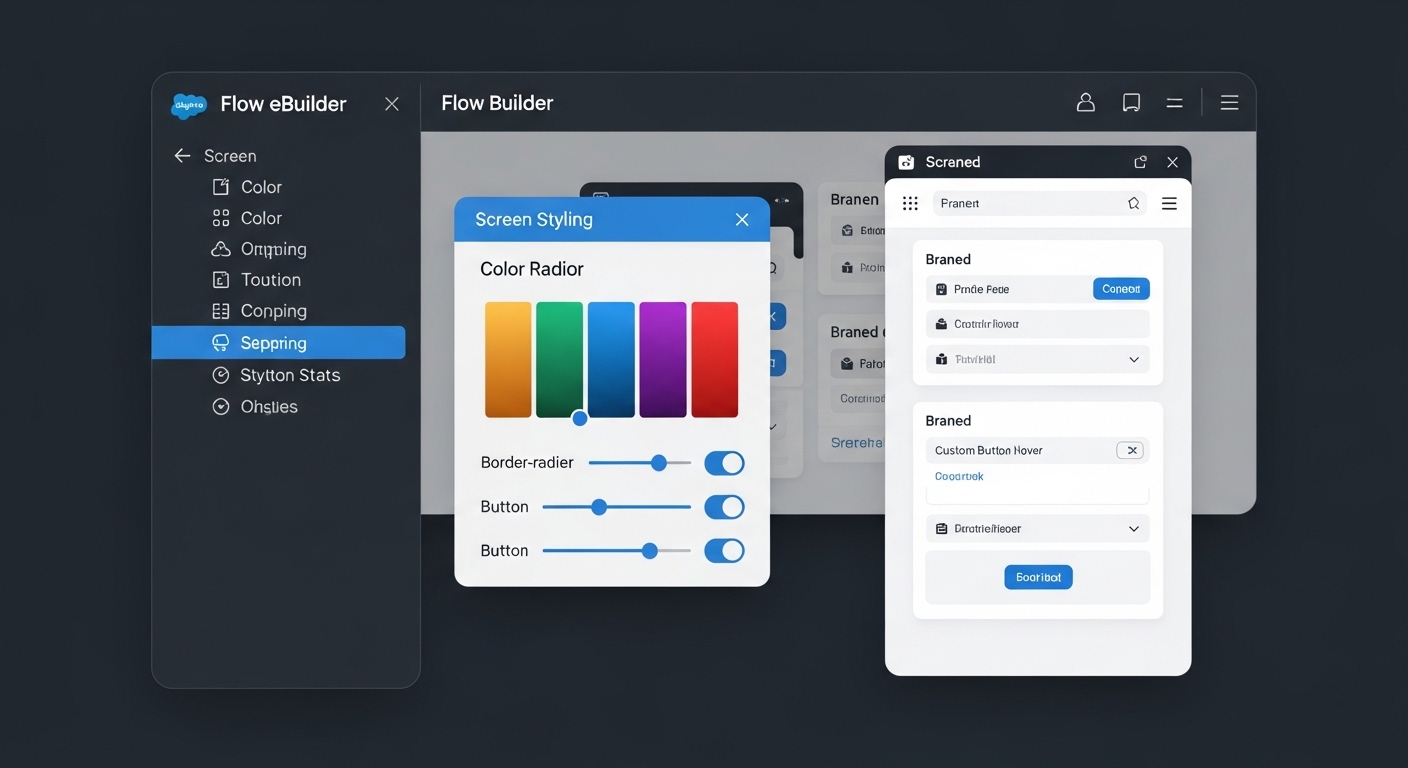
A detailed view of the Salesforce Flow Builder interface showing new screen styling options for custom colors, border radius, and button states.
Planning Your Move to Salesforce Spring '26 Flow
For the developers out there, one of the best parts of the Salesforce Spring '26 Flow update is the native support for ContentDocument and ContentVersion. In my experience, file-related automation has always been a pain because you usually needed an Apex trigger to catch when a file was uploaded or deleted. Now, you can trigger a flow directly when these records change. It's a huge win for keeping your org's logic in one place.
We're also seeing a new read-only Kanban Screen Component. It lets you show up to five fields in a visual board format. While you can't drag and drop cards yet, it's perfect for giving users a quick status summary. If you want to see how this fits with the other big updates, check out our breakdown of the new Flow Kanban and file triggers.
Here's where it gets interesting for Experience Cloud users. The new Multi-page Experience Flow type is designed to split long forms into multiple pages. This is great for reducing cognitive load on your users. If they need to see what they're uploading, you can now use the File Preview component. If you're working with multiple files, you can even put that preview inside a Repeater. I've seen teams use this for insurance claims or expense reports where previewing files directly in a screen saves the user from opening ten different tabs.
One thing that trips people up is the new Flow logging. It uses Data 360 and is great for observability, but it consumes Data Cloud credits. Before you flip the switch on everything, check your credit balance or you might get a surprise bill.
Small Wins for Daily Work
Sometimes it's the little things that matter most. For example, debugging in Salesforce Spring '26 Flow just got a little less annoying. The debug panel now remembers your input values even if you close the panel or run it again. No more re-typing the same Record ID fifty times while you're testing a fix. Sound familiar? We've also got a new LWR-based file upload component, which is essential if you're building modern sites on the Lightning Web Runtime.
If you're looking for a way to manage all these new automations, the Automation Lightning app is still the best place to keep an eye on your performance and logs. It's becoming the central hub for everything we do in the automation space.
Key Takeaways
- Use the Message Component: Stop using Display Text for simple alerts; use the new native component for better UI consistency.
- Clean up your triggers: Look for Apex triggers on ContentDocument and see if you can migrate them to record-triggered flows.
- Watch your credits: Monitor Data Cloud usage if you enable the new Data 360 logging for your flows.
- Test the UI components: Try out the Kanban and File Preview components in a sandbox before you roll them out to users.
So, what's the plan? Start by spinning up a Spring '26 pre-release org. Don't just read the notes-get in there and try to break the new styling and file triggers. The more we can move away from custom Apex for basic file handling and UI tweaks, the easier our orgs will be to maintain in the long run. Focus on the features that solve your biggest user complaints first, especially around screen navigation and file visibility.




Leave a Comment