

I’ve spent a lot of time lately digging into Salesforce Einstein Copilot, both in live environments and the Summer ’24 preview. It’s a massive step forward for the platform, but like any new tech, it’s got some quirks that’ll drive you crazy if you aren’t prepared for them.
Look, we’ve all been there where a feature looks great in a demo but acts completely different once you start building real solutions. After running into a few walls in my partner demo org and sandboxes, I wanted to share the practical “gotchas” I found. Here’s what you need to know to keep your sanity while working with Salesforce Einstein Copilot.
1. Salesforce Einstein Copilot only displays UI API supported objects
Here’s the thing: Copilot doesn’t just “see” everything in your org the same way. Its visual display is tied directly to the User Interface API. If you’re trying to show records or fields from an object that isn’t supported by the UI API, you’re going to hit a wall. Copilot simply won’t be able to render that data in its built-in interface.
So what do you do? First, check the official list of supported objects. If your object isn’t on it, you’ll need to get creative. I’ve seen teams handle this by using a wrapper object that is supported, or just returning the data as formatted text from a custom action instead of trying to show a record card. It isn’t always ideal, but it works.
Why Salesforce Einstein Copilot is picky about Apex Action outputs
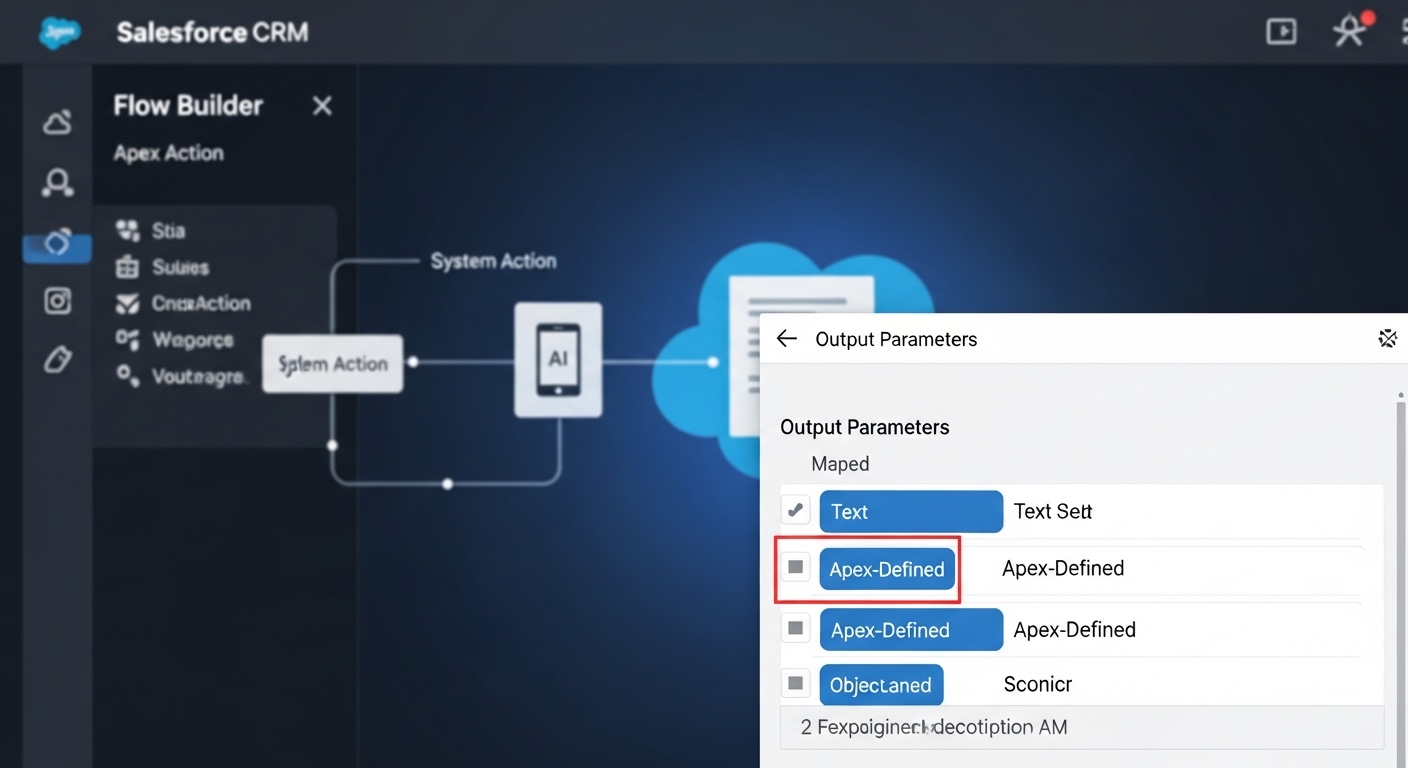
When you build an Apex-based action for Copilot, you define your output parameters. But here’s where it gets interesting: once Copilot “learns” that structure, it really doesn’t like it when you change it. If you update your Apex code to return new fields or a different data type, Copilot might just ignore the changes or silently fail without telling you why.
Pro tip: If you need to change the output of an Apex action, don’t just edit the code. Delete the Copilot action entirely and recreate it from scratch. It’s a nuisance, but it’s much faster than spending three hours debugging a silent failure.
In my experience, it’s better to design your outputs a bit more generically from the start. Use optional fields if you think you’ll need to expand later. It saves you from having to blow up your actions every time the business requirements shift.
3. Grounding logic can be “sticky” in sandboxes
If you’re working with Retrieval-Augmented Generation (RAG) or using Apex grounding for prompt templates, be careful with in-place edits. I noticed in a Summer ’24 sandbox that even simple logic changes in my grounding classes didn’t always stick. I’d update the code, but Copilot would keep acting like the old version was still there.
The workaround? Create a brand new class for your updated logic and point your prompt template to that new class. This ensures the platform actually picks up your changes. If you want to dive deeper into this, check out this guide on Agentforce RAG grounding for more context on how these retrievers work.
4. Admins might need extra permissions to compile code
This one really tripped us up. We had System Administrators who couldn’t deploy or run tests on code involving Copilot grounding classes. Even though they had the standard Admin profile, they were hitting errors related to invocable method decorators. It turns out they needed the “Prompt Template Manager” permission set to handle the compilation path for these specific features.
It isn’t documented very clearly yet, but if your devs or admins are seeing weird deployment failures on Copilot-related code, check their permissions. Don’t assume the “System Admin” checkbox covers everything in the AI world just yet.
5. Don’t forget about Apex class access for users
Since Salesforce Einstein Copilot relies heavily on Apex actions, the standard rules of Apex security still apply. If a user tries to run a Copilot action but doesn’t have access to the underlying Apex class via their profile or permission sets, it’ll fail. But here’s the catch: Copilot might not give them a “Permission Denied” error. It might just say “no results found” or act confused.
Now, whenever I’m troubleshooting a Copilot issue, the first thing I do is check the user’s class access. It’s the most common reason for an action “randomly” not working for one person while it works fine for the dev. Always test with a standard user’s permissions before you call a feature “done.”
Key Takeaways
- Stability is key: Apex outputs and grounding classes are brittle. If you change them, recreate the action to be safe.
- UI API matters: If the object isn’t supported by the UI API, Copilot won’t show the record cards.
- Permissions are tricky: Admins often need the “Prompt Template Manager” set, and users always need class access.
- Cache issues: When in doubt, version your classes or actions to force the system to see your updates.
Building with Salesforce Einstein Copilot is a lot of fun, but it definitely requires a shift in how we think about metadata and permissions. It’s still early days, and some of these integration points are a bit rough around the edges. By keeping these gotchas in mind, you’ll save yourself a lot of wasted effort and deliver a much better experience for your users. Just remember to test early, test often, and don’t be afraid to recreate an action if it starts acting weird.