

I've spent a lot of time lately digging into Salesforce Einstein Copilot, both in live environments and the Summer '24 preview. It's a big step forward for the platform, and like any new tech, it has quirks that'll drive you crazy if you aren't prepared for them.
A feature can look great in a demo and behave completely differently once you start building real solutions. After running into a few walls in my partner demo org and sandboxes, here are the practical "gotchas" I found, and what I do about each one.
1. Salesforce Einstein Copilot only displays UI API supported objects
Copilot doesn't "see" everything in your org the same way. Its visual display is tied directly to the User Interface API, so if you're trying to show records or fields from an object the UI API doesn't support, you're going to hit a wall. Copilot simply can't render that data in its built-in interface.
Check the official list of supported objects first. If your object isn't on it, you'll need to get creative. I've seen teams handle this with a wrapper object that is supported, or by returning the data as formatted text from a custom action instead of trying to show a record card. Neither is ideal, but they work.
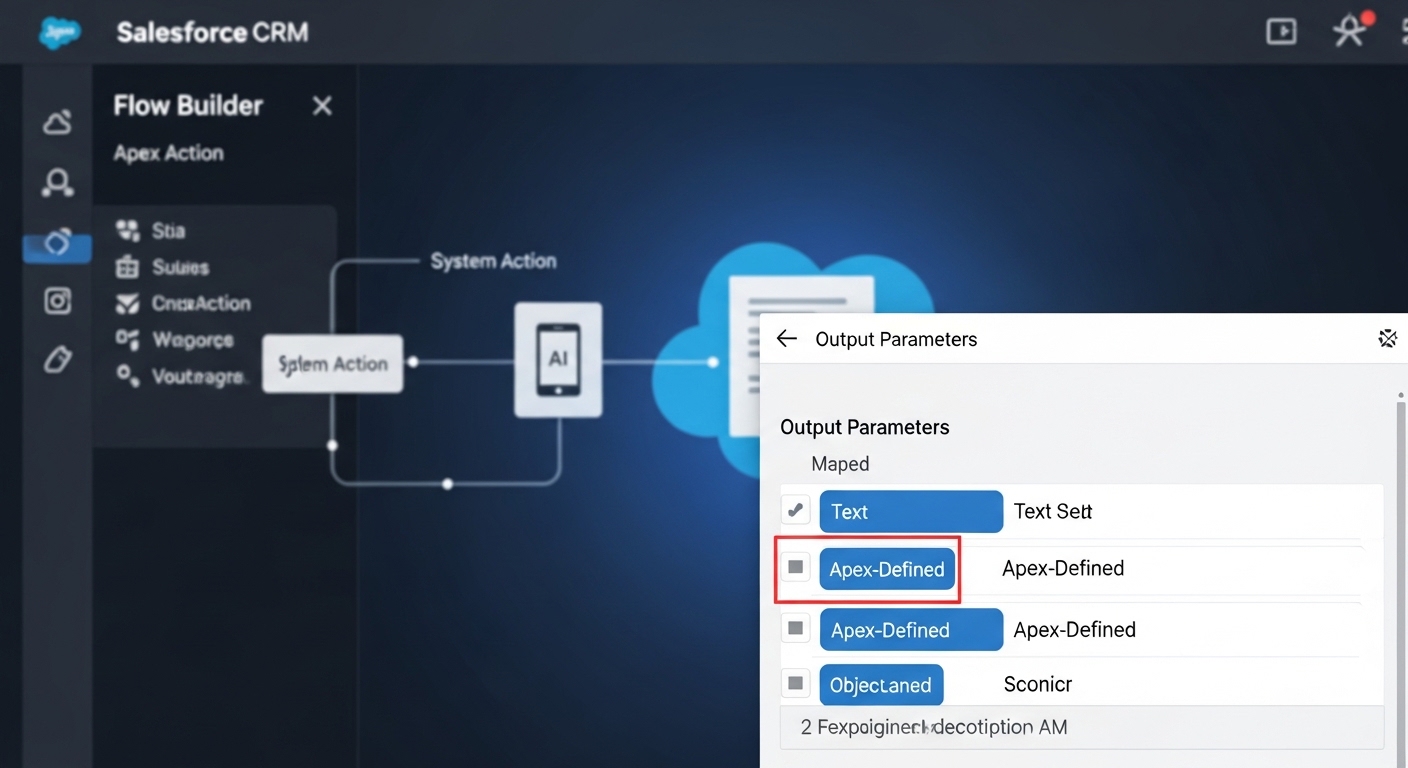
A professional software interface showing the configuration of output parameters and data mapping for a custom AI action.
Why Salesforce Einstein Copilot is picky about Apex Action outputs
When you build an Apex-based action for Copilot, you define its output parameters. Once Copilot "learns" that structure, it really doesn't like it when you change it. Update your Apex code to return new fields or a different data type and Copilot might just ignore the changes, or fail silently without telling you why.
Pro tip: If you need to change the output of an Apex action, don't just edit the code. Delete the Copilot action entirely and recreate it from scratch. It's a nuisance, and it's much faster than spending three hours debugging a silent failure.
In my experience, it's better to design your outputs a bit more generically from the start. Use optional fields if you think you'll need to expand later, and you save yourself from blowing up your actions every time the business requirements shift.
3. Grounding logic can be "sticky" in sandboxes
If you're working with Retrieval-Augmented Generation (RAG) or using Apex grounding for prompt templates, be careful with in-place edits. I noticed in a Summer '24 sandbox that even simple logic changes in my grounding classes didn't always stick. I'd update the code, and Copilot would keep acting like the old version was still there.
The workaround is to create a brand new class for your updated logic and point your prompt template to that new class, which makes the platform pick up your changes. This guide on Agentforce RAG grounding has more context on how these retrievers work.
4. Admins might need extra permissions to compile code
This one really tripped us up. We had System Administrators who couldn't deploy or run tests on code involving Copilot grounding classes. Even with the standard Admin profile, they were hitting errors related to invocable method decorators. It turned out they needed the "Prompt Template Manager" permission set to handle the compilation path for these specific features.
It isn't documented very clearly yet, so if your devs or admins are seeing weird deployment failures on Copilot-related code, check their permissions. The "System Admin" checkbox doesn't cover everything in AI just yet.
5. Don't forget about Apex class access for users
Since Salesforce Einstein Copilot relies heavily on Apex actions, the standard rules of Apex security still apply. If a user tries to run a Copilot action without access to the underlying Apex class via their profile or permission sets, it'll fail. The catch is the error they get. Copilot might not say "Permission Denied" at all. It might just say "no results found", or act confused.
Now, whenever I'm troubleshooting a Copilot issue, the first thing I do is check the user's class access. It's the most common reason for an action "randomly" not working for one person while it works fine for the dev. Always test with a standard user's permissions before you call a feature "done."
Key takeaways
- Apex outputs and grounding classes are brittle. If you change them, recreate the action to be safe.
- If the object isn't supported by the UI API, Copilot won't show the record cards.
- Admins often need the "Prompt Template Manager" set, and users always need class access.
- When in doubt, version your classes or actions to force the system to see your updates.
Building with Salesforce Einstein Copilot is a lot of fun, and it does require a shift in how we think about metadata and permissions. It's still early days, and some of these integration points are rough around the edges. Keeping these gotchas in mind saves you a lot of wasted effort and gives your users a better experience. Test early, test often, and don't be afraid to recreate an action if it starts acting weird.



Leave a Comment