


If your org forces single sign-on with the "Disable login with Salesforce credentials" checkbox and the Is Single Sign-On Enabled user permission, Salesforce is replacing both with one user permission called Single Sign-On Required. Sandboxes migrate starting January 7, 2027, and production starts February 4, 2027. Salesforce expects users to see nothing new apart from a clearer error message, and for people who already log in through your identity provider that is probably true. The risk sits in provisioning code, break-glass access and support tooling, and all of it is cheaper to fix in a sandbox in November than in production in February.
Does the require SSO release update apply to your org?
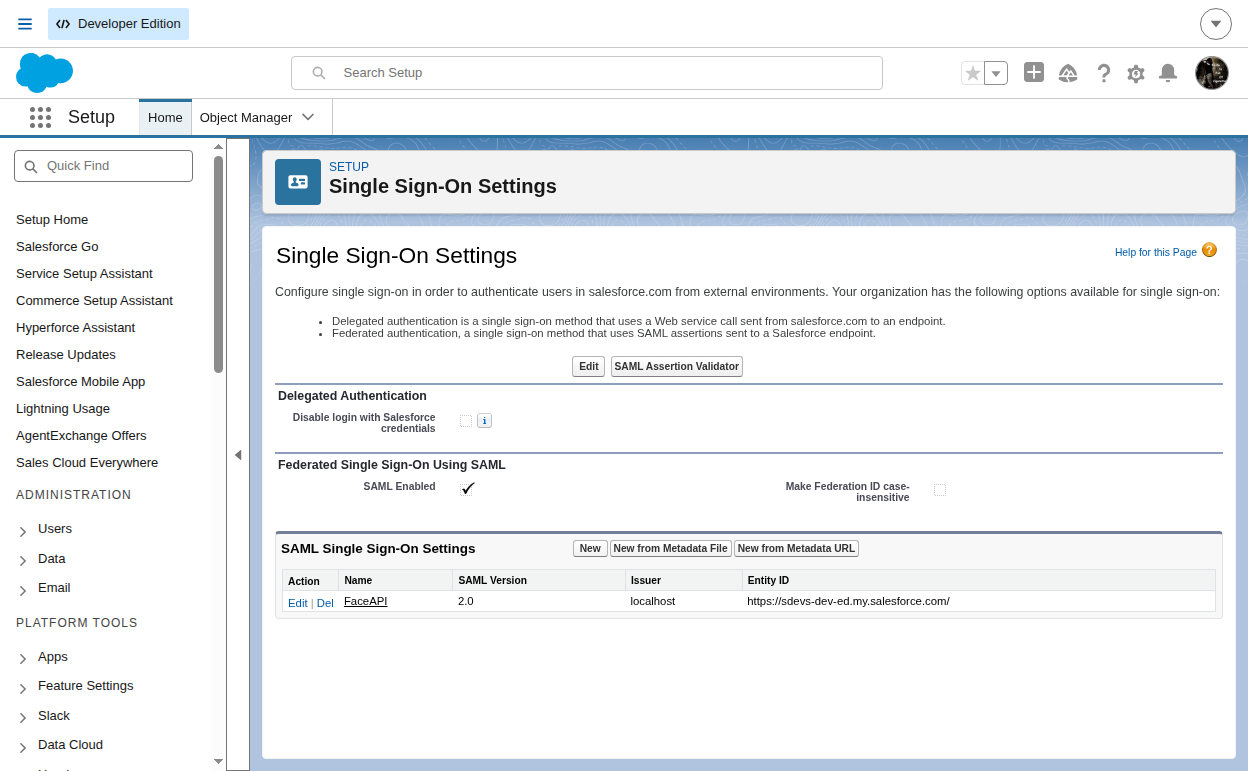
The release update card is "Migrate to an Easier Way to Require Single Sign-On". It covers Lightning and Classic in all editions. Auto-migration runs only when all of these are true:
- In Setup > Single Sign-On Settings, "Disable login with Salesforce credentials" is turned on.
- The "Delegated Gateway URL" field is empty.
- At least one user holds Is Single Sign-On Enabled.
If you use delegated authentication, or you never required SSO, the migration skips your org. Check the first two in the Delegated Authentication section of Single Sign-On Settings before you do anything else.
For orgs that qualify, this is what changes:
| Aspect | Legacy configuration | After migration |
|---|---|---|
| What makes a user SSO-only | Org checkbox plus Is Single Sign-On Enabled | Single Sign-On Required, granted through a profile or permission set |
| Org-wide checkbox | Editable (needs Customize Application and Modify All Data) | Read-only, no longer supported |
| Legacy permission | Assignable | Can't be assigned. It stays on existing profiles and permission sets, read-only |
| Error after a password login attempt | "Error: Please check your username and password. If you still can't log in, contact your Salesforce administrator." | "Your account requires you to log in using single sign-on. If you're not sure how, contact your Salesforce admin." |
| Login History status | "The Single Sign-On Gateway URL is invalid." | "Denied: Single Sign-On Required." |
During migration, Salesforce gives Single Sign-On Required to every user who held the legacy permission. It also adds the new permission to every profile and permission set that contained the legacy one. Those users still can't log in with a username and password, through either the UI or the API.
Here are the published dates, plus my own calculation of when the extension option opens:
| Milestone | Sandbox | Production |
|---|---|---|
| New permission visible in Setup | November 9, 2026 | November 13, 2026 |
| Enforcement starts | January 7, 2027 | February 4, 2027 |
| Auto-migration window | January 7 to 18, 2027 | February 4 to 20, 2027 |
| Self-service extension option appears (calculated) | About November 8, 2026 (60 days before January 7); check the card's Enforcement Details section | About December 6, 2026 (60 days before February 4) |
These dates have already moved once. On November 17, 2026, Salesforce moved migration from December 1 to 9 (sandbox) and January 4 to 22 (production) to the windows above. Check Knowledge Article 005461455 again before you book a change window.
Audit who holds Is Single Sign-On Enabled
This query lists every assignment that carries the legacy permission, including grants that come from a profile. It adds two columns that help when you go through the list with the identity team: whether the user is active and which profile they are on.
SELECT Assignee.Username, Assignee.Name, Assignee.IsActive,
       Assignee.Profile.Name, PermissionSet.Name, PermissionSet.IsOwnedByProfile
FROM PermissionSetAssignment
WHERE PermissionSet.PermissionsIsSsoEnabled = true
ORDER BY Assignee.Profile.Name, Assignee.Username
Next, list the profiles and permission sets that hold the permission. Every row returned here gets Single Sign-On Required on migration day, so any automation that assigns these permission sets or profiles should grant the new permission without a code change (confirm this in the migrated sandbox).
SELECT Id, Name, Label, IsOwnedByProfile, Profile.Name
FROM PermissionSet
WHERE PermissionsIsSsoEnabled = true
Go through the first list with the IdP owner and mark each user as staying SSO-only or not. Inactive users with the permission do no harm today, but note them: if you reactivate one after migration, that user comes back SSO-only. For everyone who stays SSO-only, confirm they can reach the IdP and know where the SSO login page is.
Break-glass admins and integration users
For the legacy setup, Salesforce advises against making administrators SSO-only, so someone can still log in when the IdP is down. Migration keeps whatever you have today. An admin who picked up the legacy permission by accident becomes an SSO-only admin under the new permission. This query finds admins who hold both permissions:
SELECT Id, Username, Name, Profile.Name, IsActive
FROM User
WHERE Id IN (SELECT AssigneeId FROM PermissionSetAssignment
             WHERE PermissionSet.PermissionsModifyAllData = true)
AND Id IN (SELECT AssigneeId FROM PermissionSetAssignment
           WHERE PermissionSet.PermissionsIsSsoEnabled = true)
If a general employee permission set carries the SSO permission and is assigned to every internal user, admins included, your break-glass account is SSO-only too, and you find out during the IdP outage you kept it for. Remove the legacy permission from your emergency accounts before the sandbox window, while you can still edit it, and test a password login with each one. Those accounts still need strong authentication of their own; Salesforce MFA Enforcement for SSO: Make IdP Logins Count covers how the IdP side interacts with Salesforce's MFA enforcement.
Integration users that hold the legacy permission already can't use a username and password over the API, and migration keeps it that way. If one shows up in the audit, find out how it authenticates now. You don't want a February incident that starts with nobody knowing why the permission was granted.
Make provisioning assign a permission set by name
Two things break after migration. Any automation that sets the PermissionsIsSsoEnabled field on a permission set, or creates a new permission set with it, will have that write rejected, because the legacy permission can no longer be assigned or edited. You will at least see that one fail. The second gives no error at all: users created after migration are not SSO-only by default, and they need Single Sign-On Required from a profile or permission set. If your JIT handler, SCIM connector, Apex service or Flow doesn't grant one, new hires can log in with a password and nothing tells you.
Grant SSO-only access through one named permission set, for example SSO_Only_Login, and through no other route. Today it contains Is Single Sign-On Enabled. On migration day Salesforce adds Single Sign-On Required to it, so code that assigns the permission set by Name should keep working through the cutover. Salesforce hasn't confirmed this, because the legacy permission stays on the set and can no longer be assigned to users. Test it in the migrated sandbox before production migrates.
public without sharing class SsoOnlyAccess {
    public static final String PERMISSION_SET_NAME = 'SSO_Only_Login';

    public static void grant(Set<Id> userIds) {
        if (userIds == null || userIds.isEmpty()) {
            return;
        }
        List<PermissionSet> sets = [
            SELECT Id FROM PermissionSet
            WHERE Name = :PERMISSION_SET_NAME
            LIMIT 1
        ];
        if (sets.isEmpty()) {
            System.debug(LoggingLevel.ERROR,
                'SsoOnlyAccess: permission set ' + PERMISSION_SET_NAME
                + ' is missing in this org; skipped users ' + userIds);
            return;
        }
        Id permSetId = sets[0].Id;

        Set<Id> alreadyGranted = new Set<Id>();
        for (PermissionSetAssignment existing : [
            SELECT AssigneeId FROM PermissionSetAssignment
            WHERE PermissionSetId = :permSetId AND AssigneeId IN :userIds
        ]) {
            alreadyGranted.add(existing.AssigneeId);
        }

        List<PermissionSetAssignment> toInsert = new List<PermissionSetAssignment>();
        for (Id userId : userIds) {
            if (!alreadyGranted.contains(userId)) {
                toInsert.add(new PermissionSetAssignment(
                    AssigneeId = userId,
                    PermissionSetId = permSetId));
            }
        }
        if (toInsert.isEmpty()) {
            return;
        }

        Database.SaveResult[] results = Database.insert(toInsert, false);
        for (Integer i = 0; i < results.size(); i++) {
            if (results[i].isSuccess()) {
                continue;
            }
            List<String> messages = new List<String>();
            for (Database.Error err : results[i].getErrors()) {
                messages.add(err.getStatusCode() + ': ' + err.getMessage());
            }
            System.debug(LoggingLevel.ERROR,
                'SsoOnlyAccess: could not assign ' + PERMISSION_SET_NAME
                + ' to user ' + toInsert[i].AssigneeId + ': '
                + String.join(messages, '; '));
        }
    }
}
The SAML JIT handler calls the helper from updateUser, which receives a user Id on every login, so returning users who are missing the assignment pick it up on their next login:
public class CorpIdpJitHandler implements Auth.SamlJitHandler {
    public User createUser(Id samlSsoProviderId, Id communityId, Id portalId,
            String federationIdentifier, Map<String, String> attributes, String assertion) {
        User newUser = new User();
        // map assertion attributes to User fields as your handler does today
        newUser.FederationIdentifier = federationIdentifier;
        return newUser;
    }

    public void updateUser(Id userId, Id samlSsoProviderId, Id communityId, Id portalId,
            String federationIdentifier, Map<String, String> attributes, String assertion) {
        // existing attribute sync stays here
        SsoOnlyAccess.grant(new Set<Id>{ userId });
    }
}
For brand new users, createUser builds the User record and returns it, so there is no Id yet to assign against. An after-insert trigger on User handles that case, and it also covers users created by SCIM, Apex or Flow:
trigger UserGrantSsoOnly on User (after insert) {
    Set<Id> ssoOnly = new Set<Id>();
    for (User u : Trigger.new) {
        if (u.UserType == 'Standard' && String.isNotBlank(u.FederationIdentifier)) {
            ssoOnly.add(u.Id);
        }
    }
    SsoOnlyAccess.grant(ssoOnly);
}
An unhandled exception in grant() would roll back the User insert, and with it every JIT, SCIM or Apex user creation that matches the filter. That is why the helper uses partial-success DML and logs failures instead of throwing. Deploy the SSO_Only_Login permission set before you deploy the trigger, and route the logged failures somewhere someone actually reads them, because a silently skipped assignment means a new user who can log in with a password.
The filter in the trigger is where your org's rule for who becomes SSO-only lives. Give emergency accounts no federation identifier and the trigger skips them.
Granting through a profile is simpler when each user population has its own profile, because nobody can forget an assignment. The cost is that you can't exempt an admin who shares that profile without cloning the profile, which is how break-glass accounts end up SSO-only. A permission set adds one assignment step and lets you exempt individual users, so a permission set is the safer default.
Sandbox Jan 7, production Feb 4: sequence the rollout
- Now, in a full or partial copy sandbox: run the audits, clean up break-glass accounts, deploy the named permission set and then the provisioning code that assigns it, and change monitoring to match both Login History statuses.
- Deploy the same provisioning and monitoring changes to production by mid-January, ahead of the production window.
- January 7 to 18: Salesforce migrates the sandbox. Confirm that the users, permission sets and profiles from your audit carry Single Sign-On Required. Log in through the IdP as a representative user, then try a password login with the same user and confirm you get the new message and the Denied: Single Sign-On Required status. Assign
SSO_Only_Loginto a new test user and confirm the assignment succeeds. If it's rejected, create a permission set that holds only Single Sign-On Required, pointPERMISSION_SET_NAMEat it, and deploy that before February 4. Create one test user through each provisioning path and check that each got the permission. - Open the card in Setup > Release Updates and review its testing and activation steps. Salesforce doesn't document whether activating the card migrates your org before the published window, so plan around the auto-migration dates. Don't rely on the new permission before migration completes: it shows in Setup from November, but it enforces nothing until then.
- February 4 to 20: production migrates. Repeat the checks from step 3.
If you can't fix provisioning in time, request an extension from the card under Enforcement Details > Request an extension. Extensions are per org, so request one in each org that needs it, and you need Manage Release Updates or Customize Application to do it. The request is recorded in Setup Audit Trail and also moves the Complete Steps By date. I would treat it as a last resort. Salesforce warns that delaying security updates leaves the org exposed, and the documentation doesn't say how long an extension lasts.
Update support scripts and monitoring
Users who try a password see the new message, and the help desk sees a new Login History status. Both are label changes; the login is denied the same way as before. Anything that matches the old text, "The Single Sign-On Gateway URL is invalid.", stops matching on migration day. That includes report filters, dashboards, SIEM rules and help desk macros.
A rule keyed to the exact old string won't error after the change. It just stops matching, and an empty alert queue looks like a quiet week. Match both strings until production has migrated, then drop the old one. The documentation writes the new status both with and without a trailing period, so match on a prefix:
SELECT UserId, LoginTime, Status, SourceIp, LoginType
FROM LoginHistory
WHERE LoginTime = LAST_N_DAYS:7
AND (Status LIKE 'Denied: Single Sign-On Required%'
     OR Status LIKE 'The Single Sign-On Gateway URL is invalid%')
ORDER BY LoginTime DESC
Give the help desk two branches. If the status is Denied: Single Sign-On Required, confirm the user is meant to have Single Sign-On Required and send them to the SSO login page. If the user did go through SSO and still can't get in, the problem is outside Salesforce's password check: look at the SAML or OpenID Connect configuration, the user mapping, and whether the user is assigned to the Salesforce app in the IdP.
To give someone back password login, remove Single Sign-On Required through your normal access request process. The user can then use whatever login methods your other authentication policies allow.
What to watch for
- The API name of the new permission on PermissionSet isn't confirmed in the documentation yet. Don't guess it in code. Describe PermissionSet in a migrated sandbox and use the field name you find there.
- After migration, the legacy permission stays visible and read-only on profiles and permission sets. Reports that filter on PermissionsIsSsoEnabled will still return rows, but they will miss anyone who gets Single Sign-On Required from a permission set or profile that never held the legacy permission.
- Whether a permission set that still holds the legacy permission can be assigned to new users after migration is not yet confirmed. Test it in the migrated sandbox and keep the fallback permission set ready.
- The new permission has no effect until your org has migrated, even though you can see it from November 9 (sandbox) or November 13 (production).
- The dates have moved once already. Check the Knowledge Article and the release update card before each window.
- If your Delegated Gateway URL has a value, this migration doesn't apply to your org. Review your delegated authentication configuration instead.


Leave a Comment