


If you've been keeping up with the latest AI releases, you've probably worked out that Salesforce Prompt Templates are the backbone of any real-world AI implementation. Playing around in a playground is one thing. Building this into the UI your users actually open is another.
I've seen plenty of teams try to hardcode their AI instructions directly into Apex strings. Please, don't do that. It's a maintenance nightmare waiting to happen. Use the Prompt Builder to manage your logic and call those templates programmatically instead. Your code stays clean, and admins can tweak the AI's "personality" without needing a deployment.
Why you should care about Salesforce Prompt Templates
Think of these templates as a central hub for your AI's brain. Instead of scattering "You are a helpful assistant" messages across ten different classes, you define it once. That matters when you start looking at practical Agentforce use cases, where the same rules have to apply everywhere.
Stick to this pattern and you set your guardrails once, pass in record IDs or other variables at runtime, and test the prompt in the builder before you write a single line of LWC code.
If the business decides the AI should sound more professional and less casual, you change it in the Prompt Builder. No code changes. No unit tests to fix.
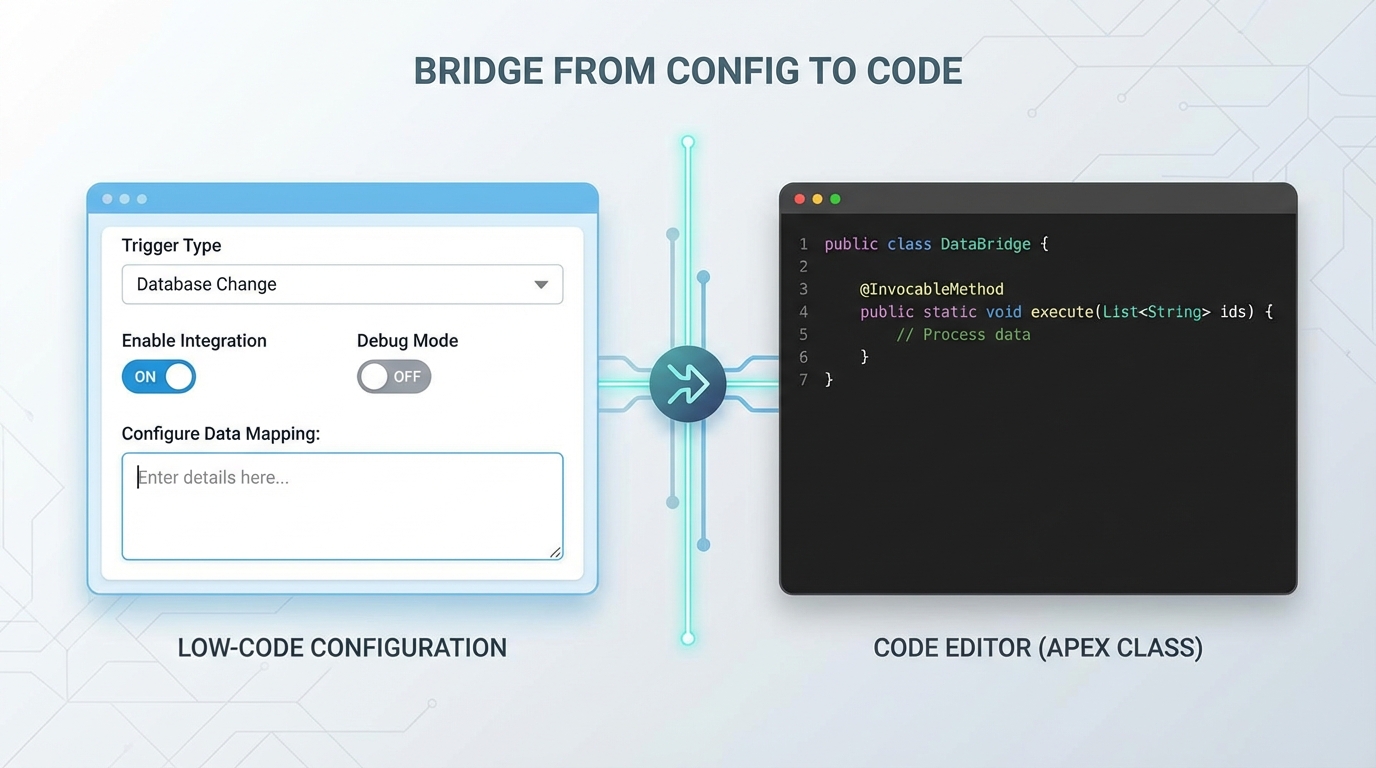
The same prompt logic seen twice: configured in the builder, called from Apex.
How to call Salesforce Prompt Templates from Apex
To trigger Salesforce Prompt Templates from code, we use the ConnectApi namespace, specifically the EinsteinLLM class. The boilerplate is wordier than a one-line method call, but once you get the pattern down it's very repeatable.
public with sharing class AIContentController {
    @AuraEnabled
    public static String generatePromotion(String recordId) {
        // We need to map our inputs to what the template expects
        Map<String, String> recordInput = new Map<String, String>();
        recordInput.put('id', recordId);

        ConnectApi.WrappedValue wrappedRecord = new ConnectApi.WrappedValue();
        wrappedRecord.value = recordInput;

        Map<String, ConnectApi.WrappedValue> inputParams = new Map<String, ConnectApi.WrappedValue>();
        inputParams.put('Input:Adventure_Activity', wrappedRecord);

        // Setting up the invocation
        ConnectApi.EinsteinPromptTemplateGenerationsInput input = new ConnectApi.EinsteinPromptTemplateGenerationsInput();
        input.additionalConfig = new ConnectApi.EinsteinLlmAdditionalConfigInput();
        input.additionalConfig.applicationName = 'PromptBuilderPreview';
        input.inputParams = inputParams;
        input.isPreview = false;

        try {
            // This is the actual call to the LLM
            ConnectApi.EinsteinPromptTemplateGenerationsRepresentation output =
                ConnectApi.EinsteinLLM.generateMessagesForPromptTemplate('Adventure_Promotion', input);

            return output.generations[0].text;
        } catch (Exception e) {
            throw new AuraHandledException('AI Generation failed: ' + e.getMessage());
        }
    }
}
One thing that trips people up is the
applicationNameparameter. In my experience, if you don't set this correctly (often to 'PromptBuilderPreview' during development) the API might throw a generic error that's hard to debug. Always double-check your config inputs first.
Breaking down the Apex logic
You'll notice we are wrapping our record ID into a ConnectApi.WrappedValue. That's because Salesforce Prompt Templates are flexible: they can take records, strings, or even integers as inputs. If you're wondering whether to use this or a standard Flow, check out my thoughts on Apex vs Flow for these types of decisions. Usually, if I need a custom UI in an LWC, Apex is the winner.
Showing the AI output in a Lightning Web Component
Once you have your Apex controller ready, the LWC side is pretty straightforward. You need a button to trigger the call and a place to show the result. I like to use a lightning-spinner because LLM responses aren't instant, and users hate staring at a frozen screen.
import { LightningElement, api, track } from 'lwc';
import generatePromotion from '@salesforce/apex/AIContentController.generatePromotion';

export default class AiPromoter extends LightningElement {
    @api recordId;
    @track responseText;
    isLoading = false;

    async handleGenerate() {
        this.isLoading = true;
        try {
            this.responseText = await generatePromotion({ recordId: this.recordId });
        } catch (error) {
            console.error('Error calling AI:', error);
        } finally {
            this.isLoading = false;
        }
    }
}
If your template is designed to return JSON, you can parse that in your LWC and build a more detailed UI from it. This is a common pattern when you're doing something like grounding AI data to show specific record details in a custom format.
Key takeaways
- Salesforce Prompt Templates are your single source of truth for AI instructions.
- Use the ConnectApi namespace in Apex to call templates programmatically.
- Always handle errors and loading states in your LWC to keep the UX smooth.
- Don't hardcode prompts. Use the Prompt Builder so you can update logic without deployments.
The setup might feel like a lot of steps the first time you do it. Once you've got your first template running in an LWC, the reason for the extra structure is obvious: the AI features stay maintainable as they multiply. If you're just starting out, try building a simple summary component first. It's the easiest way to get a win and show the business what's possible.



Leave a Comment