


If you have been playing around with the new AI features, you probably know that Einstein Prompt Templates are the backbone of most generative workflows in Salesforce. The standard components don't always fit the UI you need, though. I have seen plenty of teams struggle to find the right balance between giving users AI insights and keeping token costs under control.
I recently worked on a project where we needed a custom "Sales Coach" inside a Lightning Web Component (LWC). The idea was to give reps tactical advice on an Opportunity, but only when they actually asked for it. By calling Einstein Prompt Templates directly through Apex, we got an on-demand experience without burning through our AI budget every time a page refreshed.
Why trigger Einstein Prompt Templates via Apex?
The main reason I prefer this approach is control. Standard AI components often fire off requests automatically. That is fine for some cases, but in a high-traffic org those tokens add up fast. When you are choosing between Apex vs Flow for your AI logic, code is usually the winner if you need a custom UI that only triggers on a specific user action.
Apex also lets you handle the response however you want. You can parse it, log it, or run some extra business logic before the user ever sees the "advice." It feels more professional than dumping raw LLM text into a standard field.
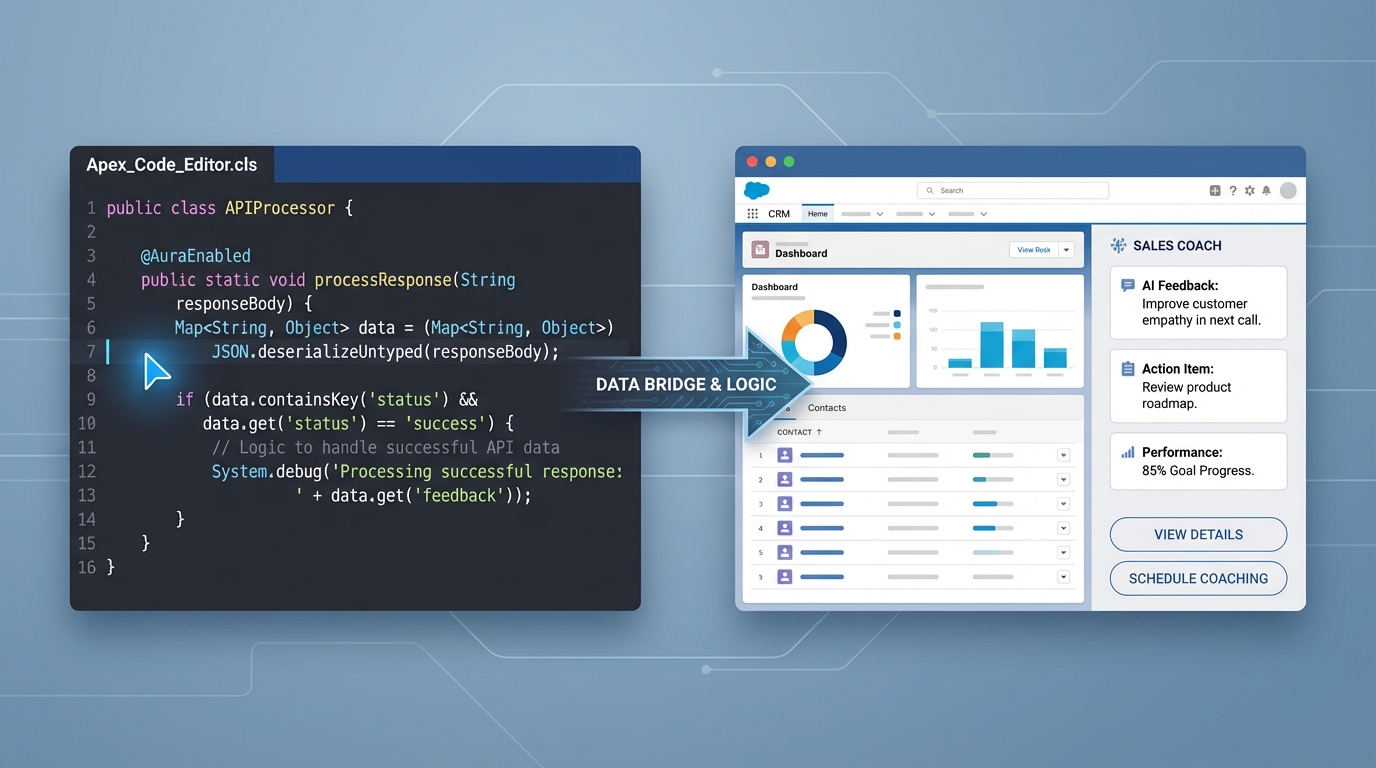
The Apex side on the left, the Sales Coach component on the right.
Setting up the Apex logic
The ConnectApi for Einstein is a bit of a nested mess at first glance. You can't pass a simple string and call it a day. You have to wrap your inputs in a specific way so the engine knows which record goes with which placeholder in your template.
ConnectApi.EinsteinPromptTemplateGenerationsInput promptInput =
    new ConnectApi.EinsteinPromptTemplateGenerationsInput();

// This map holds our parameters
Map<String, ConnectApi.WrappedValue> valueMap = new Map<String, ConnectApi.WrappedValue>();

// We need to tell the template which Opportunity we are talking about
Map<String, String> recordIdMap = new Map<String, String>();
recordIdMap.put('id', oppId);

ConnectApi.WrappedValue wrappedOpp = new ConnectApi.WrappedValue();
wrappedOpp.value = recordIdMap;

// 'Input:Candidate_Opportunity' must match your template's input name
valueMap.put('Input:Candidate_Opportunity', wrappedOpp);

promptInput.inputParams = valueMap;
promptInput.isPreview = false;
One thing that trips people up is the isPreview flag. If you leave it as true, you won't get a real response from the model. Always set it to false if you want the actual AI-generated coaching advice. You also need the ID of your prompt template record. Since you can't query these easily yet, I usually stick the ID in a Custom Metadata record to avoid hard-coding it.
Pro tip: permissions can be finicky when you call AI from code, so check those first if your initial setup keeps hitting walls.
Making the call and parsing the response
Once your input is ready, you call the generateMessagesForPromptTemplate method. The response comes back as a list of "generations," though usually you're only looking for the first one. Add some defensive null checks here. LLMs can be unpredictable, and the last thing you want is a null pointer exception crashing your LWC.
ConnectApi.EinsteinPromptTemplateGenerationsRepresentation output =
    ConnectApi.EinsteinLLM.generateMessagesForPromptTemplate('0hfao000000hh9lAAA', promptInput);

// Grab the first response text
String coachAdvice = output.generations[0].text;
Integrating Einstein Prompt Templates with LWC
Now, how do we show this to the user? In the LWC, I like to use an imperative Apex call. You can't use @wire here because ConnectApi calls aren't cacheable, and honestly you wouldn't want them to be. You want the rep to click a "Get Advice" button or open a specific tab to trigger the call.
The Javascript controller only has to track a loading flag and the advice that comes back:
@api recordId;
advice;
loading = false;

handleGetAdvice() {
    this.loading = true;
    getCoachAdvice({ oppId: this.recordId })
        .then(result => {
            this.advice = result;
            this.loading = false;
        })
        .catch(error => {
            console.error('AI Error:', error);
            this.loading = false;
        });
}
I highly recommend adding a "Coach is thinking..." spinner. AI isn't instant, and users get click-happy if they don't see immediate feedback. A simple lightning-spinner goes a long way toward making the UX feel smooth rather than broken.
Key takeaways
- Use imperative Apex so Einstein Prompt Templates only run when the user actually needs them.
- The
ConnectApi.WrappedValuestructure is picky. Make sure your map keys match your template's input variables exactly. - Always include a loading state in your LWC to account for the LLM's processing time.
- Store your template IDs in Custom Metadata instead of hard-coding them in your classes.
Final thoughts
A custom Sales Coach built on Einstein Prompt Templates is a good way to prove the value of AI to your stakeholders without going overboard on complexity, and it leaves you with a reusable pattern for any other generative features you need later. Just keep an eye on your safety scores and token usage as you scale it out to more users.



Leave a Comment