
LWC element scrolling is reshaping how Salesforce professionals work — and this article breaks down everything you need to know.
Ever built a long, complex form in Salesforce and realized your users are getting lost while scrolling? I've seen plenty of projects where the UX feels clunky because the page doesn't react when a user clicks a navigation link or hits a validation error. That's why getting your LWC element scrolling right is one of those small details that makes a massive difference in how professional your app feels.
Look, we've all been there. You have a single-page component with five different sections, and the user has to manually hunt for the "Shipping Address" block. It's annoying. But if you can programmatically snap the view to the right spot, you've just saved them a headache. In my experience, this is the kind of polish that separates a "built-in-an-afternoon" tool from a production-ready feature.
Why LWC element scrolling matters for your UX
So why should you care about LWC element scrolling? It isn't just about making things look pretty. It's about guidance. When a user clicks a "Next" button in a guided flow, they expect to be looking at the next set of fields, not the bottom of the previous section. If you're building a navigation menu to trigger these movements, you'll probably need to know how to do communication between Lightning web components so your sidebar can tell the main content area exactly where to go.
I've found that smooth scrolling is particularly useful for:
- Jumping to validation errors after a failed form submission.
- Navigating between long sections in a single-page layout.
- Lazy-loading content as the user moves down the page.
- Building custom "Back to Top" buttons for mobile users.
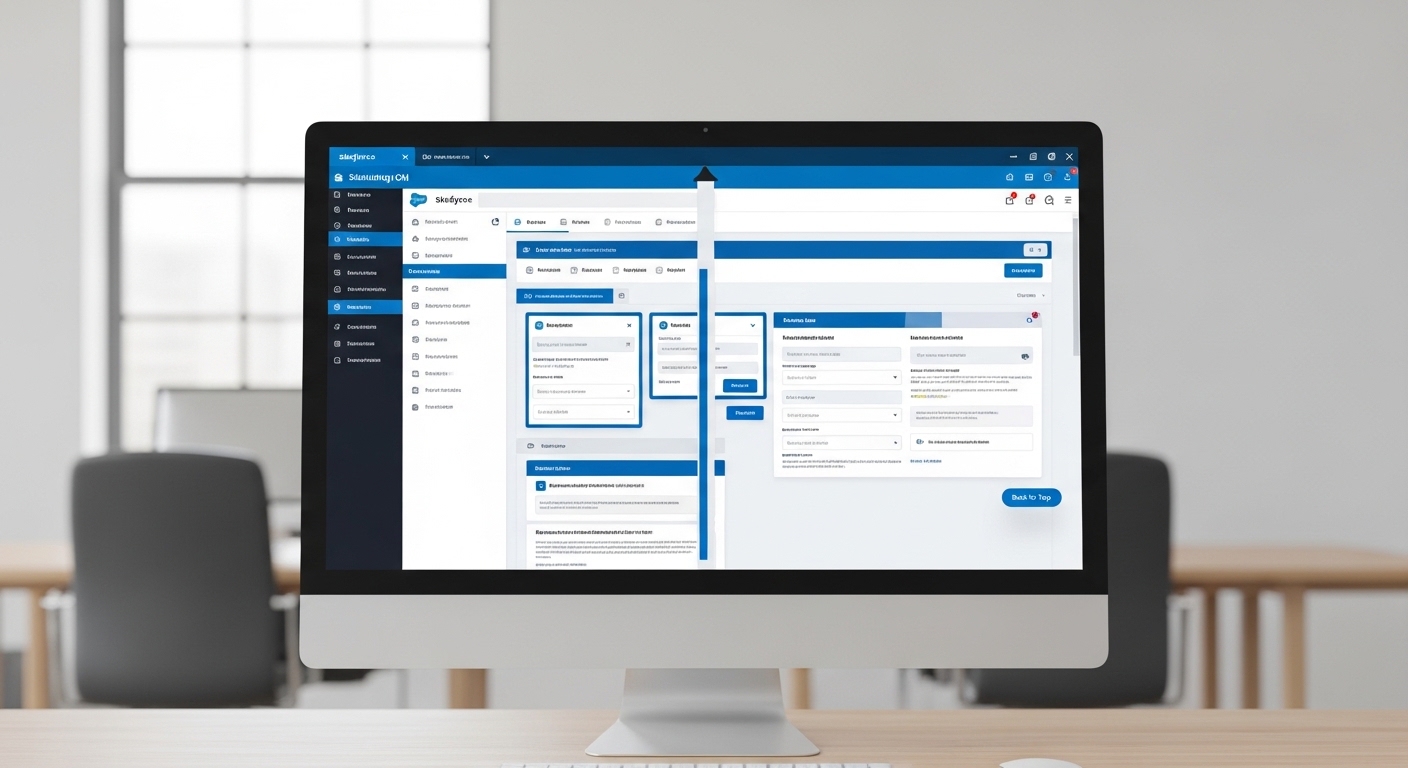
A professional UI mockup of a long, scrollable Salesforce-style record page with multiple sections and a navigation button.
The best way to handle LWC element scrolling
Here's the thing: you don't need to manually calculate pixel offsets or use messy third-party libraries. The browser's native scrollIntoView() method is your best friend here. It's simple, it's fast, and it handles the heavy lifting for you. But one thing that trips people up is how to actually target the element inside the shadow DOM.
One mistake I see constantly is devs trying to use document.getElementById(). Don't do that in LWC. The shadow DOM will break it. Always use this.template.querySelector with a data-id attribute instead.
Now, let's look at a practical example. This component shows how to target a specific section and scroll to it with a smooth animation. I've also found that adding a little extra UX polish, like creating a tooltip in a Lightning datatable, goes a long way when paired with these types of navigation patterns.
Example: The ScrollToElement component
You can drop this code into a new LWC named scrollToElement. It's a simple setup, but it gets the job done.
<template>
    <div class="container">
        <div class="scroll-section red-section" data-id="redDiv">
            Welcome to the Red Section
        </div>
        <div class="scroll-section aqua-section">
            Welcome to the Aqua Section
        </div>
        <div class="button-container">
            <lightning-button label="Scroll to Red Section" variant="brand" onclick={handleScrollClick}>
            </lightning-button>
        </div>
    </div>
</template>
The JavaScript is where the magic happens. We're grabbing the element by that data-id we set and telling the browser to scroll smoothly.
import { LightningElement } from 'lwc';

export default class ScrollToElement extends LightningElement {
    handleScrollClick() {
        const topDiv = this.template.querySelector('[data-id="redDiv"]');
        if (topDiv) {
            topDiv.scrollIntoView({
                behavior: 'smooth',
                block: 'start',
                inline: 'nearest'
            });
        }
    }
}
And don't forget the CSS to give it some height so you actually have something to scroll through.
.container {
  display: flex;
  flex-direction: column;
  align-items: center;
  padding: 20px;
}
.scroll-section {
  min-height: 1000px;
  width: 100%;
  display: flex;
  justify-content: center;
  align-items: center;
  font-size: 24px;
  color: white;
}
.red-section {
  background-color: #FF6347;
}
.aqua-section {
  background-color: #00CED1;
  color: black;
}
.button-container {
  margin-top: 20px;
}
Key Takeaways for LWC element scrolling
- Use data attributes: Use
data-idinstead of classes for querying. It's much more reliable. - Smooth behavior: The
behavior: 'smooth'option is great, but don't overdo it on pages with 50+ sections or it might feel sluggish. - Test on mobile: Scrolling behaves differently in the Salesforce mobile app than it does on a desktop browser. Always double-check your work there.
- Container issues: If your component is inside a modal or a small fixed-height container,
scrollIntoViewmight scroll the whole page instead of just the container. In those cases, you might need to target the parent element'sscrollTopproperty.
Honestly, most teams get this wrong by making it too complicated. You don't need a massive framework to handle basic navigation. Start with scrollIntoView and only move to more complex scroll event listeners if you're building something like an infinite loader or a scroll-spy menu.
If you're looking for more ways to level up your LWC game, check out the official LWC documentation. It's the best place to keep up with how Salesforce is evolving the framework. Now, go try this out in your sandbox and see how much better your long forms feel.


Leave a Comment