


Why you should restrict Aura component visibility
One of the most common questions I get from junior devs is how to keep the Lightning App Builder from looking like a junk drawer. I've seen teams build dozens of good tools and then let every single one of them show up on every record page in the org. It's a mess for admins and confusing for users. Restricting an Aura component to the objects that actually need it makes everyone's life easier.
If you've built a specialized component for the Account object, there is zero reason for it to pop up as an option when someone is editing a Case or a Lead. In my experience, a little bit of work in the metadata saves a ton of "Why is this button here?" emails later on. It also makes the UI feel faster and more intentional.
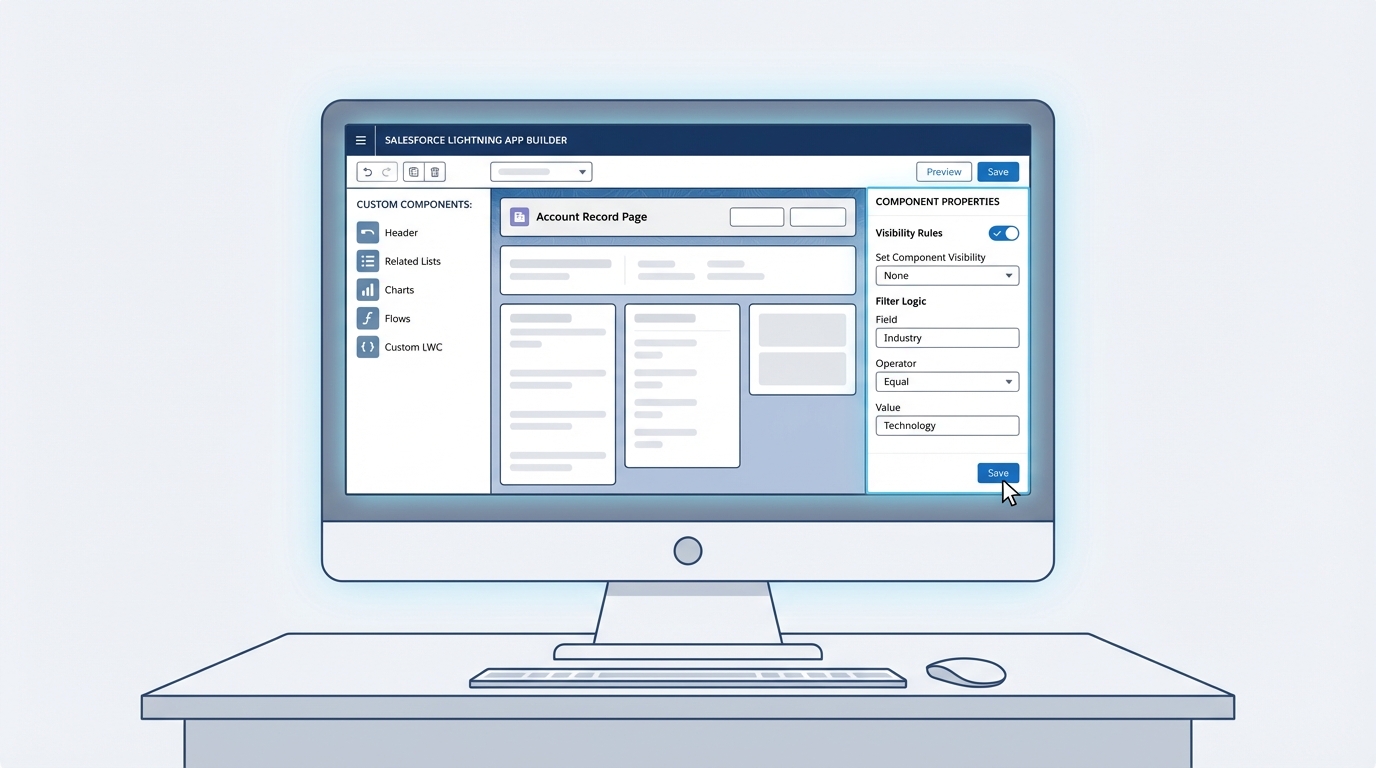
The Salesforce Lightning App Builder with a clean record page configuration and the component properties panel open.
Steps to restrict Aura component to specific objects
To restrict Aura component bundles (or their LWC counterparts) to specific pages, you have to get comfortable with the metadata file. This is the -meta.xml file that sits in your component folder. Most people only use it to set the API version or flip the isExposed switch to true, but it can do a lot more.
You need to define targetConfigs. That is where you tell Salesforce which objects the component is allowed to appear on. If you leave it out, Salesforce assumes the component is a free-for-all and puts it everywhere, which is usually not what you want.
The metadata configuration
The example below targets lightning__RecordPage and then explicitly lists the objects we want to allow. In this case, it's just Account and Contact.
<?xml version="1.0" encoding="UTF-8"?>
<LightningComponentBundle xmlns="http://soap.sforce.com/2006/04/metadata">
    <apiVersion>60.0</apiVersion>
    <isExposed>true</isExposed>
    <targets>
        <target>lightning__RecordPage</target>
    </targets>
    <targetConfigs>
        <targetConfig targets="lightning__RecordPage">
            <objects>
                <object>Account</object>
                <object>Contact</object>
            </objects>
        </targetConfig>
    </targetConfigs>
</LightningComponentBundle>
What about custom objects? Use the API name, like My_Custom_Object__c. And don't forget the namespace prefix if you're working inside a soql-in-loops-security-review-impact-for-managed-packages/" class="auto-link">managed package. I've seen that trip up even senior devs more times than I can count.
A quick note on Aura vs LWC
We often say "Aura" when we mean any custom component, but most of us are moving toward LWC these days. The example above uses the LWC metadata format. If you're still strictly in Aura, you'd typically use a .design file to control some of these attributes, though the industry is moving toward this XML structure. For anything new, stick with LWC and the targetConfigs shown above. It's much cleaner, and it helps when you're trying to master LWC element scrolling or other advanced UI behaviors.
Pro tip: Always refresh your browser or clear your cache after deploying metadata changes. Sometimes the Lightning App Builder likes to hang onto old component definitions, making you think your restriction didn't work when it actually did.
Using a programmatic guard as a backup
Sometimes metadata isn't enough, or you have a weird edge case where you need to restrict the Aura component at runtime. In those cases, you can check the object name in your controller. It isn't as clean as the metadata approach, because the component still "exists" in the builder, but it's a solid safety net.
If you're doing this in an Aura controller, you might use something like this in your doInit function. This is also a good place to think about whether you need the @AuraEnabled annotation to pull extra object details from the server before deciding whether the component should stay visible.
// Aura Controller Example
doInit: function(component, event, helper) {
    var sobjectName = component.get("v.pageReference").attributes.objectApiName;
    var allowed = ['Account', 'Contact'];
    var isAllowed = allowed.indexOf(sobjectName) !== -1;

    component.set('v.isAllowed', isAllowed);
}
Why bother? Because even if an admin accidentally drops your component on the wrong page, your code will hide the UI. It's a "belt and suspenders" approach to development. Try to fix it in the XML first, though. That's the right place for it.
Key takeaways
- Restrict Aura component visibility in the metadata to keep the App Builder clean.
- Use the
<objects>tag within<targetConfig>for thelightning__RecordPagetarget. - Make sure you use the exact API names for both standard and custom objects.
- Deploy your changes and refresh the App Builder to see the restriction in action.
- Use a runtime check in your JS controller if you need an extra layer of security.
Don't be the developer who makes the admin's life hard. Take the extra two minutes to update your -meta.xml file, and your users won't have their screens cluttered with components that don't belong there. Try it on your next deployment and see how much cleaner your Lightning pages feel.



Leave a Comment