

Integrating Salesforce with Firebase Cloud Messaging (FCM)
This is a metadata-driven architecture for connecting Salesforce to Firebase Cloud Messaging (FCM) and sending mobile push notifications: device registration, topic subscription management, and notification delivery across Sales, Service, and Field Service clouds, using Apex and Google OAuth 2.0.
A sales rep wants the lead alert as it happens, and a field service technician needs to know a dispatch changed. Salesforce has native tools for this, but a custom mobile app usually needs its own integration.
Architecture and strategy
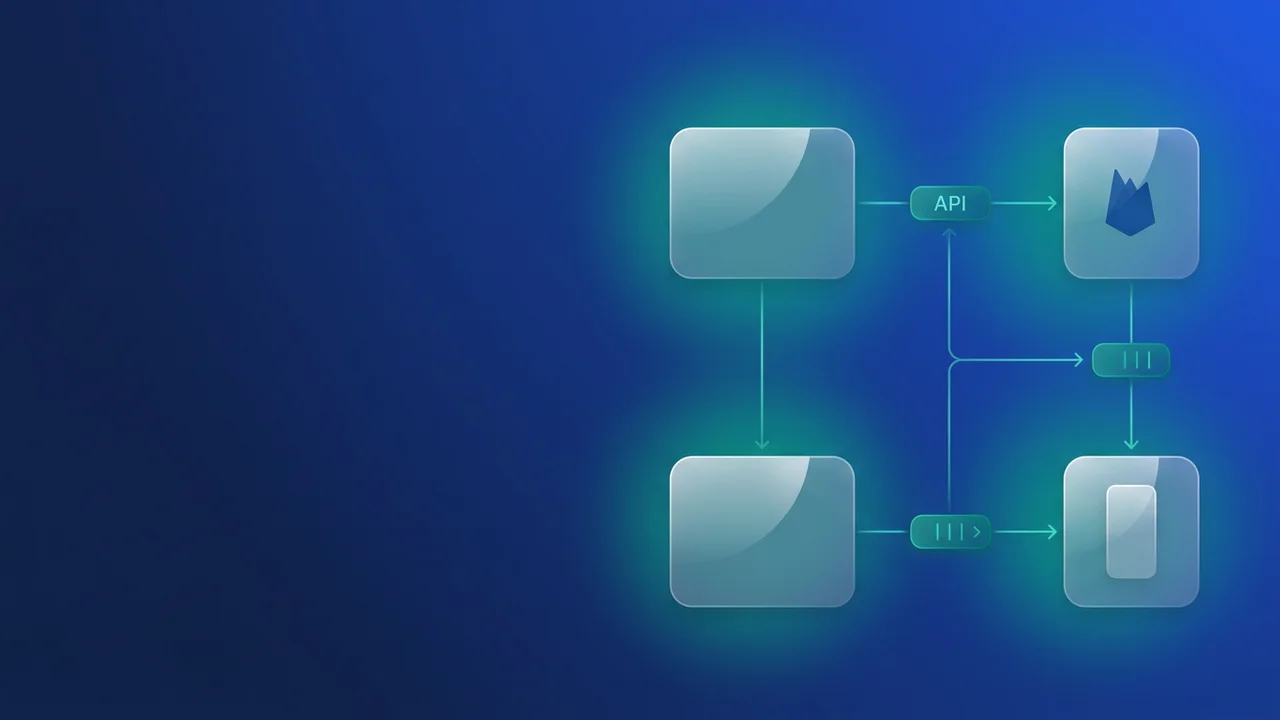
The architecture separates device management from message delivery. FCM Topics push the job of tracking individual device tokens onto Firebase, which leaves Salesforce free to be the system of record.
The four-stage lifecycle
- Handshake: the mobile app captures an FCM token at user login and stores it in Salesforce.
- Subscription: Salesforce calls the Firebase
batchAddAPI to attach the token to an FCM Topic, sayField_Service_Alerts. - Metadata engine: all API credentials and endpoints live in Custom Metadata (CMDT), so configuration stays environment-specific.
- Delivery: a business event triggers a synchronous Apex callout to the FCM API, which dispatches the notification.
FCM is the choice here because one message reaches both Android and iOS devices. This project uses the FCM HTTP v1 API, which is more secure because its access tokens are short-lived.
An Azure Function sits between Salesforce and Google as middleware. It holds the private keys, so they never live in the Salesforce org, and it absorbs the heavier data processing that would otherwise eat into Salesforce governor limits.
With FCM Topics, Salesforce sends one message to a group instead of managing thousands of individual alerts. That is what keeps it responsive.
The integration flow, step by step
The sequence matters, for both security and reliability:
- Device registration: at login, the mobile device captures its FCM token and registers it with Salesforce.
- Authentication handshake: Salesforce requests an authentication token from the Azure Function, which validates the request and returns one.
- Topic subscription: Salesforce sends a subscription request to the Azure Function, which uses the Firebase Admin SDK and Azure Key Vault to talk to Firebase.
- Confirmation and error handling: Firebase returns a success or failure status to the Azure Function, which relays it to Salesforce. On a subscription failure, Salesforce emails the business analyst and the developer so someone picks it up.
- Push delivery: once the handshake is done, Salesforce sends notification requests straight to Firebase through the FCM API, and Firebase pushes them to the devices.
Firebase and Azure Function setup
Before you write any Apex, configure the environment in Google Cloud and Azure:
- Firebase project: create one in the Firebase Console and enable the Firebase Cloud Messaging API (V1) under
Project Settings > Cloud Messaging. - Service account key: generate a Service Account JSON key from the Service Accounts tab. It carries the
private_keyandclient_emailyou need for authentication. - Azure Function middleware: create a Function App in the Azure Portal and keep the Firebase credentials in Environment Variables (Application Settings) rather than in code. Note the Function URL and Function Key for the Salesforce callouts.
Refer to the Official Firebase Setup Guide and Azure Functions Quickstart for detailed instructions.
Configuration and implementation
1. The configuration layer
Two Custom Metadata types carry the configuration:
Azure_Firebase_Creds__mdt: Azure server details.- Fields:
Client_ID__c,Client_Secret__c,Grant_Type__c,Scope__c,Subscribe_to_Topic_URL__c,Token_URL__c
- Fields:
FirebaseCreds__mdt: Firebase credentials.- Fields:
Aud__c,Client_Email__c,Endpoint__c,Private_Key__c,Private_Key_Id__c,PushNotificationUrl__c,Scope__c
- Fields:
Remote Site Settings: configure these endpoints:
https://login.microsoftonline.com(if using Azure AD authentication)https://oauth2.googleapis.comhttps://fcm.googleapis.com
2. Device subscription (Apex)
A few things worth calling out in the code below:
@future(callout=true)decouples the external callout from the Salesforce transaction. That is what preventsCallout from Triggerexceptions and keeps the UI responsive.- The "collect-then-commit" pattern: process a
Set<Id>and push everyupdateandinsertoutside the loop. That handles hundreds of simultaneous device updates without breaking Apex DML limits. - Custom Metadata and
OrganizationIdchecks replace hardcoded secrets, so endpoints and Topic names adjust themselves for UAT or Production and deployment gets simpler. - Every transaction logs an activity record in the
Mobile_Application_API_Activity__ccustom object, which gives you an audit trail when authentication or the connection misbehaves.
When a user logs in or changes permissions in the mobile app, a record is created or updated in Mobile_Device_Data__c, which fires the subscription logic below:
public class SubscribeToFCMHelper {

    public static String getAccessToken() {
        Azure_Firebase_Creds__mdt creds = Azure_Firebase_Creds__mdt.getInstance('firebase');
        if (creds == null) throw new CalloutException('Firebase credentials metadata not found.');

        HttpRequest req = new HttpRequest();
        req.setEndpoint(creds.Token_URL__c);
        req.setMethod('POST');
        req.setHeader('Content-Type', 'application/x-www-form-urlencoded');

        String requestBody = 'client_id=' + EncodingUtil.urlEncode(creds.Client_ID__c, 'UTF-8') +
                             '&scope=' + EncodingUtil.urlEncode(creds.Scope__c, 'UTF-8') +
                             '&grant_type=' + EncodingUtil.urlEncode(creds.Grant_Type__c, 'UTF-8') +
                             '&client_secret=' + EncodingUtil.urlEncode(creds.Client_Secret__c, 'UTF-8');
        req.setBody(requestBody);

        HttpResponse res = new Http().send(req);
        if (res.getStatusCode() == 200) {
            Map<String, Object> responseBody = (Map<String, Object>) JSON.deserializeUntyped(res.getBody());
            return (String) responseBody.get('access_token');
        } else {
            throw new CalloutException('Failed to retrieve Access Token: ' + res.getBody());
        }
    }

    /**
     * Future method for handling Firebase Topic Subscriptions.
     * Best Practice: Bulkified DML and Error Tracking.
     */
    @future(callout=true)
    public static void subscribe(Set<Id> deviceIds) {
        List<Mobile_Device_Data__c> devicesToUpdate = [SELECT Id, User__c, Device_Token_Fcm__c, H_Application_Name__c
                                                    FROM Mobile_Device_Data__c
                                                    WHERE Id IN :deviceIds];
        if (devicesToUpdate.isEmpty()) return;

        String accessToken = getAccessToken();
        Azure_Firebase_Creds__mdt creds = Azure_Firebase_Creds__mdt.getInstance('firebase');
        List<Mobile_Application_API_Activity__c> logs = new List<Mobile_Application_API_Activity__c>();

        for (Mobile_Device_Data__c detail : devicesToUpdate) {
            if (String.isBlank(detail.Device_Token_Fcm__c)) continue;

            // Logic to determine project key
            String projectKey = detail.H_Application_Name__c != null && detail.H_Application_Name__c.containsIgnoreCase('APP Name')
                                ? Label.FIREBASE_CONFIG_COREAPP
                                : '';
            String appName = detail.H_Application_Name__c != null ? detail.H_Application_Name__c.deleteWhitespace() : 'UnknownApp';
            if(UserInfo.getOrganizationId()==System.Label.UAT_ORG_ID) appname=appname+'UAT';

            // Use Map for JSON Body to avoid manual concatenation errors
            Map<String, Object> jsonMap = new Map<String, Object>{
                                            'project_key' => projectKey,
                                            'registration_tokens' => new List<String>{ detail.Device_Token_Fcm__c },
                                            'topic' => appName
                                          };
            String jsonBody = JSON.serialize(jsonMap);

            try {
                HttpRequest req = new HttpRequest();
                req.setEndpoint(creds.Subscribe_to_Topic_URL__c);
                req.setMethod('POST');
                req.setHeader('Authorization', 'Bearer ' + accessToken);
                req.setBody(jsonBody);

                HttpResponse res = new Http().send(req);
                String responseBody = res.getBody();
                Boolean isSuccess = (res.getStatusCode() == 200);

                // Update device record on success
                if (isSuccess) {
                    detail.Subscribed_to_Notification__c = true;
                    detail.Last_Subscribe_Time__c = System.now();
                }

                // Create log record - Collect in list for bulk DML
                logs.add(new Mobile_Application_API_Activity__c(
                    Command_Type__c = 'SUBSCRIBE TO FCM',
                    Request_Body__c = jsonBody,
                    Response_Body__c = responseBody.left(131072), // Ensure it fits in Long Text area
                    Result__c = isSuccess ? 'PASS' : 'FAIL',
                    Is_Fail__c = !isSuccess,
                    Error__c = isSuccess ? '' : responseBody.left(255),
                    Record_Identifier__c = detail.Id,
                    User__c = detail.User__c
                ));

            } catch (Exception e) {
                logs.add(new Mobile_Application_API_Activity__c(
                    Command_Type__c = 'SUBSCRIBE TO FCM ERROR',
                    Result__c = 'FAIL',
                    Is_Fail__c = true,
                    Error__c = e.getMessage().left(255),
                    Record_Identifier__c = detail.Id,
                    User__c = detail.User__c
                ));
            }
        }

        // Bulk DML for device updates and logs
        if (!devicesToUpdate.isEmpty()) {
            try {
                update devicesToUpdate;
            } catch (DmlException e) {
                // Log DML errors if necessary
            }
        }
        if (!logs.isEmpty()) {
            try {
                insert logs;
            } catch (DmlException e) {
                // Log DML errors if necessary
            }
        }
    }
}

Leave a Comment