
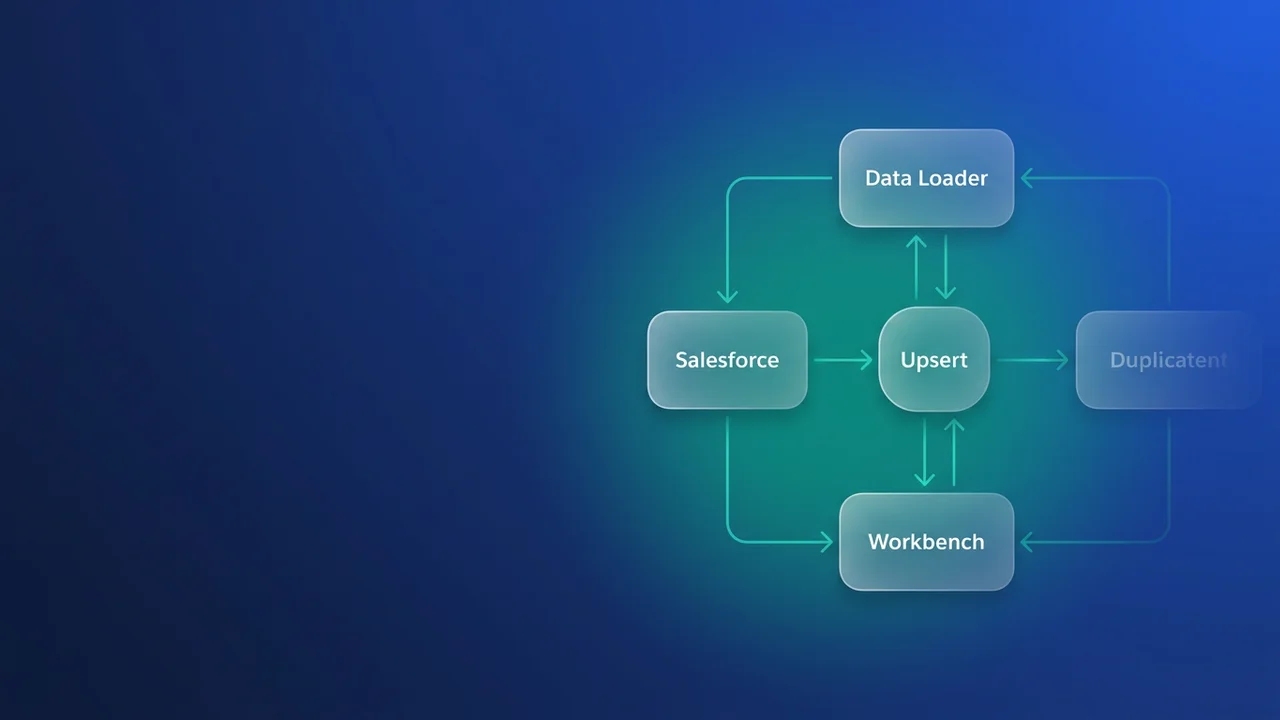

You run an upsert through Data Loader and it lands cleanly, no duplicates. You run what looks like the same job through Workbench and duplicates appear. Plenty of Salesforce people hit this and it is rarely obvious from the results screen. Here are the causes worth checking, and the order I check them in, so your data comes out the other side intact.
Understanding the upsert mechanism
A quick recap of what upsert actually does. It either inserts a new record or updates an existing one, based on an external ID or another unique identifier. Salesforce looks for a record matching the identifier you supplied. If it finds one, that record is updated with your data. If it finds nothing, a new record is inserted.
Which means the whole operation depends on the accuracy and uniqueness of the external ID field you pick. The usual candidates:
- Unique record IDs, such as a record's Salesforce ID. Less common for upserts, since you are normally bringing data over from an external system.
- Custom external ID fields: a custom field on the object that you flag as External ID and mark as Unique. This is the one you want for mapping to identifiers in a source system.
- Standard unique fields. Some standard fields are unique and will work, but they come up rarely for upserts.
Point Data Loader at a valid external ID and it handles this well. It reads your file, looks up each record, and updates or inserts accordingly. That matching step is what keeps the duplicates out.
Why Workbench might create duplicates
Workbench is a genuinely useful tool for developers and admins, but it sits closer to the API and it is less forgiving on an upsert. A few things pull the two tools apart.
- The external ID is configured wrong. This is the most common culprit. Workbench needs an external ID for an upsert exactly as Data Loader does. If the field is not specified correctly, or the values in your CSV do not match what is already in Salesforce (leading or trailing spaces, case sensitivity that was not handled, or a plain mismatch), Workbench finds nothing and inserts.
- Case sensitivity. Salesforce record IDs are case insensitive, but a custom external ID field can be case sensitive depending on how it is configured. Data Loader may compare a little more forgivingly, or your data may simply have been cased consistently all along. Different casing in the Workbench CSV against what is in Salesforce can produce a duplicate.
- Formatting and whitespace. An unexpected space before or after a value in the external ID column stops the match. Data Loader might trim it for you. Workbench might not.
- Concurrency and timing. Unlikely to be the whole story when Data Loader works, but in rare high-volume scenarios, slight timing differences or concurrent operations can race and create two records off the same unmatched identifier.
- The wrong operation. It happens: 'Insert' gets picked in Workbench when 'Upsert' was intended, and every row comes in as a new record regardless of what already exists.
- UI behavior against API behavior. Both tools talk to the same Salesforce API, but they expose and interpret parameters differently, and they guide you differently. That shows up most on something like upsert.
Debugging strategy: a step-by-step approach
Work through it in order rather than guessing.
Step 1: verify your external ID configuration in Salesforce
Start here, before you look at either tool.
Work out which field you are using as the unique identifier for the upsert. It should be a custom field with the 'External ID' property, and ideally marked 'Unique' as well. Then go to Setup > Object Manager > [Your Object] > Fields & Relationships, open that field, and confirm the 'Unique' checkbox is selected, the 'External ID' checkbox is selected, and the data type lines up with your source data, whether that is Text, Number or Email.
Step 2: analyze the data you are feeding Workbench
This is where most of the discrepancies turn up. Open the CSV in a decent text editor, Notepad++ or VS Code, or Excel if you are careful, and go through the external ID column.
Look for leading and trailing spaces around the values; find and replace will usually clear them out. Compare the casing of your values against the actual records in Salesforce, and if the field is case sensitive, a Text field with no case insensitive setting for instance, the casing has to match exactly. Check that the values match the data type of the Salesforce field, so no text going into a Number external ID. And check for blank external IDs, because a blank one gets treated as a new record to insert, by Workbench and by Data Loader alike.
Then run a SOQL query, in Workbench or in Data Loader itself, against a known set of external IDs from your CSV. That tells you whether those IDs really are present in Salesforce, and correctly formatted.
Example SOQL query to verify:
SELECT Id, External_ID_Field__c, Name FROM Your_Object__c WHERE External_ID_Field__c IN ('ID123', 'ID456', 'ID789')
Swap External_ID_Field__c for your actual external ID field API name and Your_Object__c for your object API name, and use a few IDs you can trace back to the CSV.
Step 3: replicate the Workbench operation carefully
Now redo the upsert in Workbench slowly, watching each step. Choose 'Upsert' and not 'Insert'. Double-check the object. Select your designated external ID field from the dropdown for the upsert mapping, which is the step people skim past and the one that matters. And test with a small subset first, 5-10 records you know should either exist or be new, so the outcome is easy to track and verify.
Step 4: use Workbench's 'Query and Display' feature
Workbench's 'Query and Display' is worth running before the upsert rather than after it.
Query the records using the same external IDs from your CSV and you see exactly how Workbench retrieves data and whether it matches what you expect. Compare those results against the file and look for the subtle differences in how the external ID is presented or matched.
Step 5: test with Data Loader again
Once you have corrected the CSV or fixed the Salesforce configuration, run the exact same set of records through Data Loader. If Data Loader now creates duplicates too, the problem is more fundamental: it lives in your external ID setup or in the data, not in Workbench.
Step 6: consider Flow or Apex for complex scenarios
If the manual tools keep fighting you, or your import logic is genuinely complicated, automate it with Salesforce Flow or Apex.
Salesforce Flow. A record-triggered or screen flow gives you explicit control over the matching logic.
Flow logic example:
- Get Records: find records where
External_ID_Field__cequals theExternalIDfrom your input collection. - Decision: if records were found, the flow takes the 'Update Records' path. If none were found, it takes the 'Create Records' path.
- Update Records: reference the records the 'Get Records' element returned and map the new data onto them.
- Create Records: map the new data, including
External_ID_Field__c.
Written out that way, there is nothing left for the upsert to misinterpret.
- Get Records: find records where
Apex. For heavier data transformation, validation or high-volume processing, an Apex upsert job gives you the most room. Query for the existing records, iterate through your data, and run
upsertDML with precise control.Apex upsert example:
public class DataUpserter {
    public static void performUpsert(List<Your_Object__c> recordsToUpsert) {
        // Ensure External_ID_Field__c is populated on all recordsToUpsert
        // and that the field is marked as External ID and Unique in Salesforce.

        List<Your_Object__c> existingRecords = [SELECT Id, External_ID_Field__c FROM Your_Object__c WHERE External_ID_Field__c IN :recordsToUpsert.keySet()];

        // Create maps for efficient lookup
        Map<String, Your_Object__c> existingRecordMap = new Map<String, Your_Object__c>();
        for (Your_Object__c rec : existingRecords) {
            existingRecordMap.put(rec.External_ID_Field__c, rec);
        }

        List<Your_Object__c> recordsToUpdate = new List<Your_Object__c>();
        List<Your_Object__c> recordsToInsert = new List<Your_Object__c>();

        for (Your_Object__c newRecord : recordsToUpsert) {
            if (existingRecordMap.containsKey(newRecord.External_ID_Field__c)) {
                // Record exists, prepare for update
                Your_Object__c existingRecord = existingRecordMap.get(newRecord.External_ID_Field__c);
                // Update existing record fields with new data (be selective)
                existingRecord.Field1__c = newRecord.Field1__c;
                existingRecord.Field2__c = newRecord.Field2__c;
                // ... other fields
                recordsToUpdate.add(existingRecord);
            } else {
                // Record does not exist, prepare for insert
                recordsToInsert.add(newRecord);
            }
        }

        // Perform DML operations
        if (!recordsToUpdate.isEmpty()) {
            update recordsToUpdate;
        }
        if (!recordsToInsert.isEmpty()) {
            insert recordsToInsert;
        }
    }
}
One note on that example:
recordsToUpsert.keySet()assumesrecordsToUpsertis aMap<String, Your_Object__c>keyed on the external ID. If it is aList<Your_Object__c>, you need to build a set of external IDs first.



Leave a Comment