


Can you actually do a Data Loader hard delete?
Ever had a client ask you to wipe thousands of records without leaving a trace? Yes, a Data Loader hard delete does exactly that, with conditions attached. Most people hit the standard delete button and then wonder why their storage usage has not budged. A normal delete only moves records to the Recycle Bin. Getting them gone for good takes an extra step.
I have seen teams fight storage limits for months because their "deleted" data was still sitting in the bin for 15 days. When you are managing Salesforce large data volumes, knowing how to bypass that bin helps. This is not something to play around with, though. Once the records are gone they are gone, and no admin can bring them back.
How to set up a Data Loader hard delete
Before you go near the delete button, check your settings. The hard delete option is hidden or greyed out by default, and both your permissions and your Data Loader settings have to be right before it appears.
First, you need the "Bulk API Hard Delete" permission. It usually arrives with "Modify All Data", but double-check that on a custom admin profile. Without it, the option never shows up in the tool. You also have to enable the Bulk API inside the Data Loader settings, because without the Bulk API the hard delete operation does not exist.
Pro tip: always run a full export of the records you are about to kill. I have been in situations where a "test" delete wiped out live production data because of a messy CSV filter. Keep a backup on your local drive.
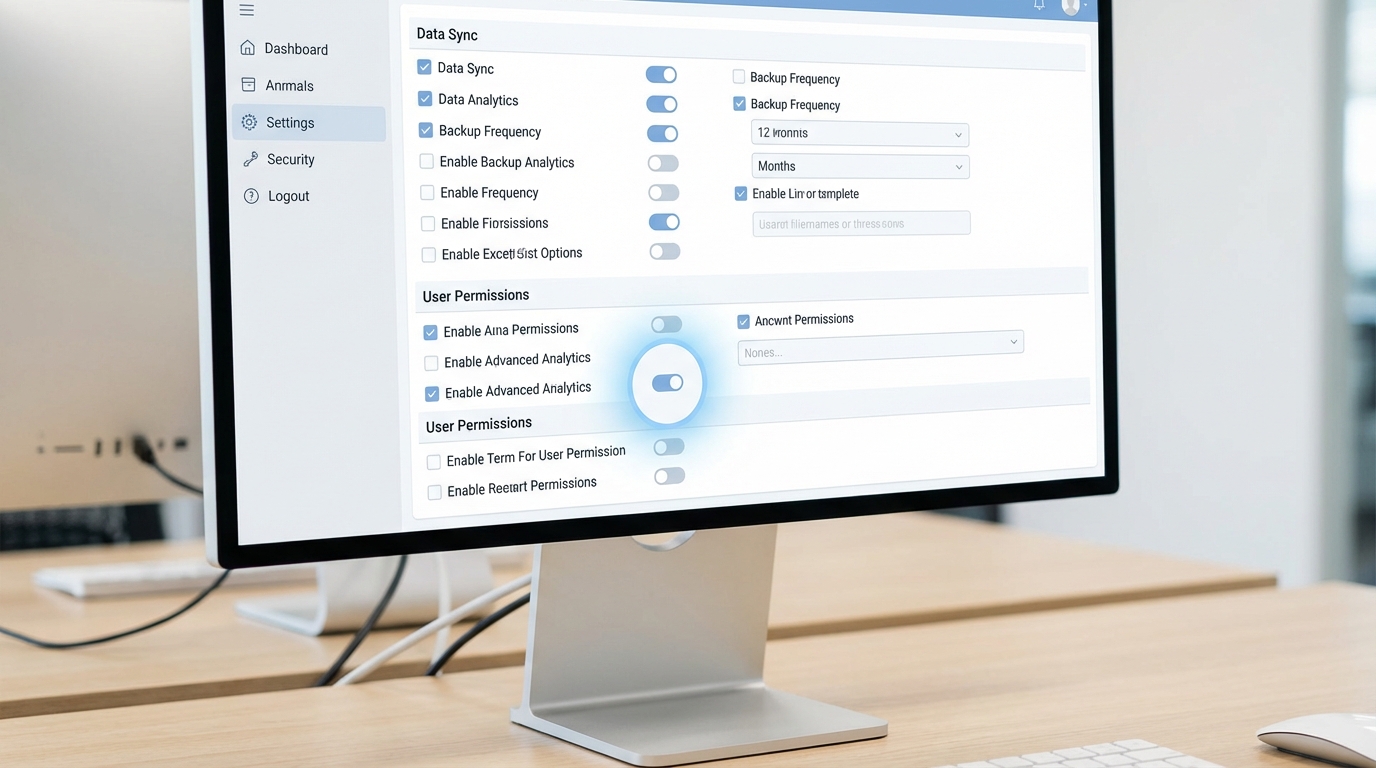
Both switches live in the same settings panel. The hard delete option stays greyed out until the Bulk API one is ticked.
Running the delete through the UI
If you prefer clicking through the desktop app, this is the workflow once the permissions are sorted.
- Open Data Loader and go to Settings.
- Check the box for Use Bulk API. This is mandatory.
- Check the box for Enable Hard Delete. Greyed out means a missing permission.
- Click the Hard Delete button on the main screen.
- Select your object and upload your CSV. The Record ID column is all you need.
- Map your fields and finish the job.
Using the CLI for automation
If you do this regularly, automate it. I have used the command-line interface (CLI) for monthly clean-up scripts and it holds up fine. Set your process.operation to hardDelete in your process-conf.xml file. The entry looks like this:
<entry key="sfdc.entity" value="Lead"/>
<entry key="process.operation" value="hardDelete"/>
<entry key="dataAccess.name" value="delete_list.csv"/>
<entry key="sfdc.bulkApiSerialMode" value="true"/>
Common mistakes with Data Loader hard delete
Referential integrity trips people up. A Data Loader hard delete does not let you ignore record relationships. Try to delete a parent record that has restricted children and the system still blocks you. It will not force anything through.
Validation rules are the other one. People forget that deletes run system logic too. If a validation rule or a trigger prevents a record from being removed under certain conditions, your hard delete fails. Work through what to check before you delete anything significant in an org and you avoid most of these headaches.
Key takeaways
- The Bulk API is required. You cannot hard delete through the standard SOAP API.
- It is permanent. The records bypass the Recycle Bin and an admin cannot recover them.
- Permissions matter. You need the "Bulk API Hard Delete" user permission.
- Backups are non-negotiable. Export your data before you run the operation.
- Check dependencies, including master-detail relationships that might block the process.
So, should you use it? For cleaning up sandbox junk or purging sensitive data for GDPR compliance, absolutely. It is the most efficient way to keep an org lean. There is no undo button here, so start with a small batch of five or ten records to confirm your mapping and permissions are right before you pull the trigger on a million rows.


Leave a Comment