

If you're building anything in Salesforce, you're going to spend a lot of time thinking about Apex Data Types. It's one of those foundational things that seems simple until you're staring at a heap limit error or a rounding issue with currency. I've seen plenty of projects where a simple mistake in choosing a data type caused massive headaches during testing.
So, let's look at how these work in the real world. Whether you're a dev or an admin getting into code, understanding how to handle your data is the difference between a clean deployment and a buggy mess.
The Basics of Apex Data Types: Primitives
Primitives are your building blocks. They hold a single value and they're what you'll use most often for basic logic. But even here, there are some traps. Here's a quick rundown of the ones you'll use every day:
- Integer - Use this for whole numbers like counters. It's a 32-bit number.
- Long - If you're dealing with very large numbers or timestamps, go with Long. It's 64-bit.
- Decimal - This is your best friend for money. It handles exact precision, which is vital for currency.
- Double - These are floating-point numbers. Honestly, I rarely use these unless I'm doing complex scientific math.
- String - Text values. Remember that Strings in Apex are immutable. If you're doing heavy text manipulation, look into the StringBuilder class.
- Boolean - Your standard true or false flags.
- Date and DateTime - Dates are just the day, while DateTime includes the time. Just remember that Salesforce stores DateTime in GMT.
- ID - This is a specific type for Salesforce record IDs. It handles both 15 and 18-character versions automatically.
- Blob - Used for binary data, like file attachments or crypto keys.
// Quick primitive examples
Integer leadCount = 5;
Decimal totalAmount = 1500.50;
Id myAccountId = '001D00000123456789';
DateTime now = DateTime.now();
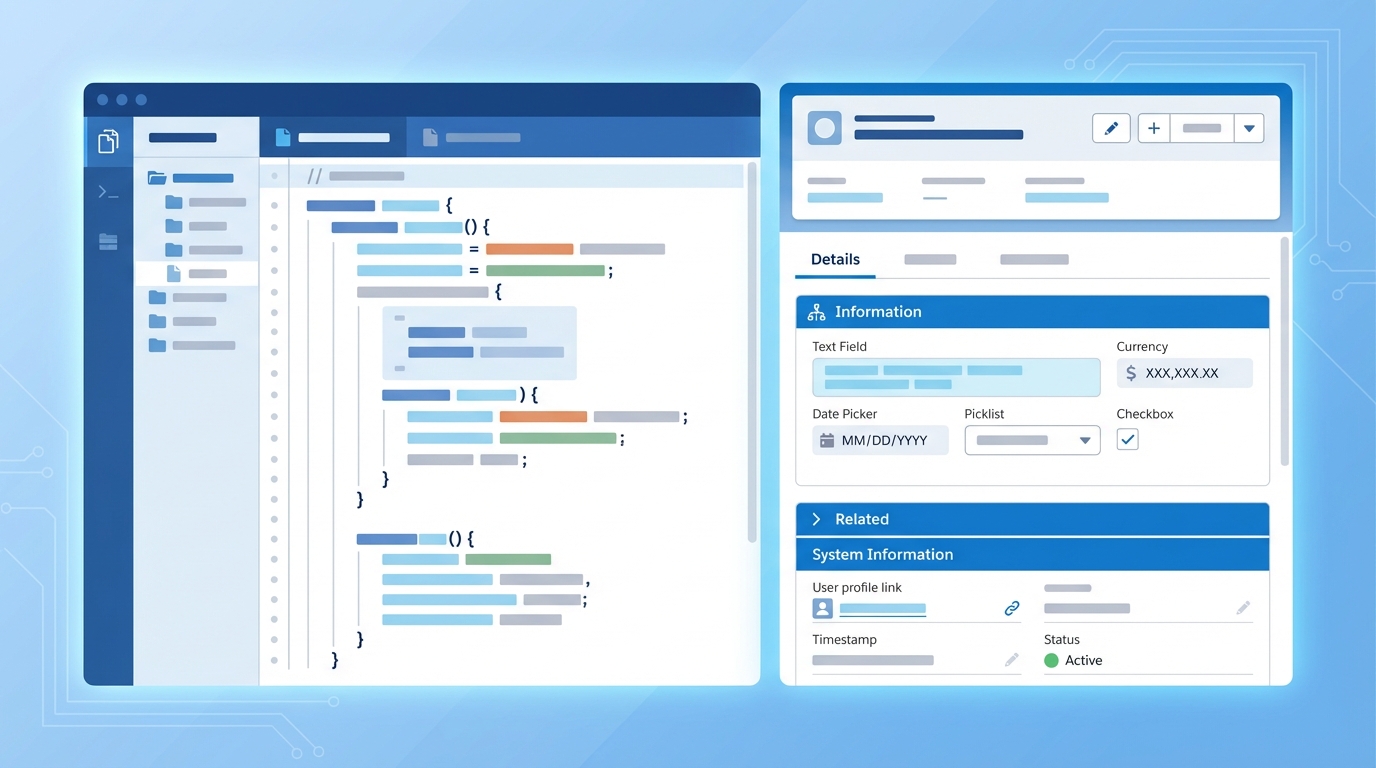
A split-screen visualization showing a code editor with data variables next to a realistic Salesforce record layout interface.
Working with sObjects and Dynamic Data
Now, we can't talk about Apex without mentioning sObjects. In Salesforce, an sObject is basically just a record in code form. It could be a standard object like an Account or a custom one you built yourself. When you work with these, you're interacting with the standard and custom tables in your database.
One thing that trips people up is the difference between static and dynamic access. You can hard-code a field like acc.Name, or you can use put() and get() if you don't know the field name until the code is actually running. Here's how that looks:
// Static access
Account acc = new Account(Name = 'Cloud Tech');
acc.Industry = 'Technology';

// Dynamic access
acc.put('Phone', '555-0123');
String phone = (String) acc.get('Phone');
Apex Data Types for Bulkification: Collections
If you're writing code instead of using Flow, you're likely doing it because you need more control or better performance. If you're still deciding which to use, check out this guide on Apex vs Flow. But if you're in the code, you need collections. Without them, your code won't scale.
Lists, Sets, and Maps
Lists are your go-to for ordered groups of data. You'll use these for almost every SOQL query result. Sets are great when you need to make sure every value is unique-I use them all the time to collect IDs before running a query. Maps are the real power players. They let you store key-value pairs, which makes looking up data incredibly fast.
// A List for ordered records
List<Account> accList = [SELECT Id, Name FROM Account LIMIT 10];

// A Set for unique IDs
Set<Id> accountIds = new Set<Id>();

// A Map for fast lookups
Map<Id, Account> accMap = new Map<Id, Account>(accList);
Account specificAcc = accMap.get('001D00000123456');
Real-World Best Practices for Apex Data Types
I've seen teams run into serious production bugs because they didn't pick the right types early on. Here's the thing: Apex is pretty forgiving, but it has limits. If you're handling large datasets, you have to be smart about memory and precision.
Always use Decimal for currency. Doubles will give you rounding headaches that are a nightmare to debug when the numbers don't add up in your financial reports.
- Don't use Strings for everything. If it's an ID, use the ID type. It provides extra validation.
- Watch your heap size. Blobs and large Lists can eat up your memory fast.
- Null checks are your friend. Always check if a collection is empty before you try to access an index.
- Use the right numeric type. Don't use a Long if an Integer will do the job.
Key Takeaways
- Primitives handle single values like text, numbers, and dates.
- sObjects represent your Salesforce records and allow for both static and dynamic field access.
- Collections (List, Set, Map) are essential for writing bulkified, scalable code.
- Decimal is the only choice for currency to avoid rounding errors.
- Maps are the most efficient way to link data together without using nested loops.
Choosing the right Apex Data Types isn't just about making the code work; it's about making it last. When you pick the correct type for the job, your code is easier to read, faster to run, and way less likely to break when the data volume grows. Stick to these basics, keep your collections organized, and you'll avoid the most common pitfalls I see in the field.




Leave a Comment