

Finding the best Screen Flow use cases
If you're looking for the best Screen Flow use cases, you've probably realized that Salesforce users hate messy data entry. I've spent years watching sales reps struggle with 50 fields on a single page, and honestly, it's a recipe for bad data. Screen Flows are the perfect fix when you need to guide someone through a specific task without making them hunt for fields.
Think of it as a conversation. Instead of dumping everything on a layout, you ask one question at a time. I've seen teams transform their entire onboarding process just by switching from a standard page to a guided flow. It's about making the right path the easiest path to follow.
Common Screen Flow use cases: The Guided Lead Wizard
One of the most frequent Screen Flow use cases I run into is lead qualification. We've all seen it: a rep talks to a prospect, takes some messy notes, and forgets to fill out the budget or timeline fields. By the time the manager sees the record, it's a ghost town of empty fields.
But what if you replaced that "Edit" button with a "Qualify Lead" action? Here's how that usually looks in the real world:
- The Intro: A screen shows the current lead info and asks for the missing pieces, like company size or industry.
- The Logic: You ask a few "Yes/No" questions about their budget and authority.
- The Branch: Based on the answers, the flow decides if this is a hot lead or a "nurture" candidate.
- The Result: The flow updates the lead, creates a follow-up task, and maybe even pings a Slack channel.
Pro tip: Don't just make a flow for the sake of it. If a user can do the job in two clicks on a standard page, a flow will just slow them down. Use these for the complex stuff that people usually mess up.
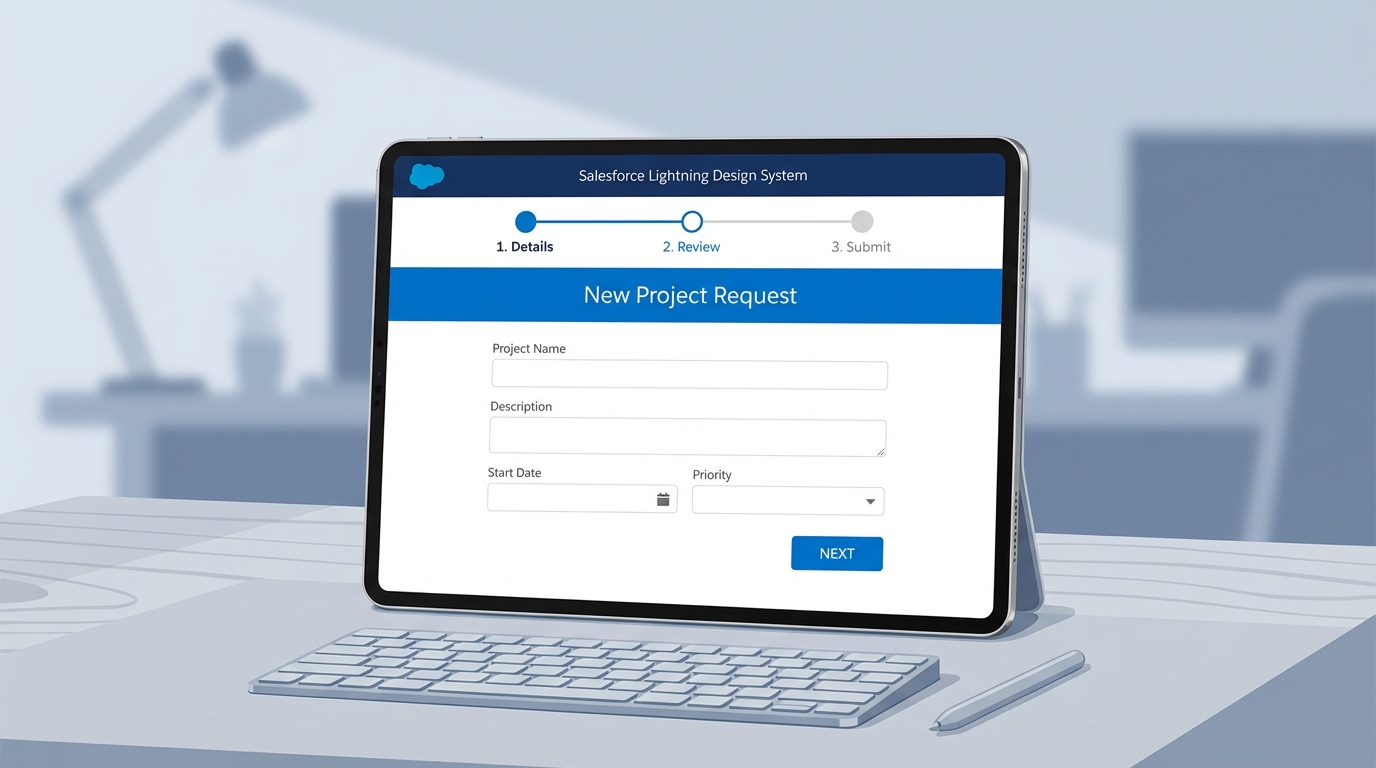
A photorealistic mockup of a Salesforce Screen Flow on a tablet, illustrating a simplified step-by-step data entry process.
Why these Screen Flow use cases matter for your data
So why does this matter? Well, for one, it's mobile-friendly. If your team is out in the field using the Salesforce mobile app, trying to navigate a massive record page is a nightmare. A Screen Flow looks great on a phone and keeps things simple. It's also a great way to handle different Salesforce flow types without needing a developer to write a single line of code.
Another big win is real-time validation. You can stop a user from entering a fake phone number or a past date before they even hit the "Save" button. This is much more user-friendly than those annoying red error messages that pop up at the top of a page after you've already filled everything out. And since it's all no-code, you can tweak the logic in minutes when the business process changes.
Where should you put your flows?
Now, once you've built a great flow, you need people to actually find it. Here's where I usually stick them:
- Quick Actions: This is my go-to. Put a "New Case" or "Log Visit" button right at the top of the record.
- Lightning Pages: You can drop a flow component directly onto a page. I love doing this for "Welcome" messages or daily checklists.
- The Utility Bar: Great for tools that people need to access from anywhere, like a quick calculator or a search tool.
A few hard-earned best practices
Look, I've built some pretty ugly flows in my time. One thing that trips people up is trying to cram too much into one screen. If a user has to scroll down a flow screen, you've probably failed. Keep it short. Break it into three screens instead of one long one. It feels faster to the user, even if it's the same amount of work.
Also, always use the {!recordId} variable. It's the standard way to tell your flow exactly which record the user is looking at. If you don't do this, your flow won't know which Lead or Account to update, and you'll spend hours wondering why nothing is happening. For more on keeping things clean, check out these Salesforce Flow best practices.
When to skip the Screen Flow
Here's the thing: Screen Flows aren't for everything. If you need something to happen in the background without a human clicking a button, you want a Record-Triggered Flow. And if you need a super flashy UI with custom drag-and-drop features that Flow Builder doesn't offer, that's when you finally call a developer for a Lightning Web Component. But honestly? Most teams get 90% of what they need from a standard Screen Flow.
Key Takeaways
- Use Screen Flows to simplify complex, multi-step processes for your users.
- The best Screen Flow use cases involve data entry that requires validation or branching logic.
- Keep your screens short and punchy to avoid overwhelming people.
- Always pass the Record ID into the flow so you're working with the right data.
- If no human interaction is needed, go with a background automation instead.
At the end of the day, Screen Flows are about making Salesforce feel less like a database and more like a tool that actually helps people get their work done. Start with one small process-maybe a simple "Close Lost" reason collector-and see how your team likes it. You'll probably find that once they get a taste of guided automation, they'll be asking for more.




Leave a Comment