


The struggle to disable paste lightning input in LWC
A stakeholder asks you to make sure a user actually types a sensitive value, like a password confirmation or a verification code. Then you find out that blocking paste on a lightning input isn't as simple as adding an attribute. lightning-input is a base component, so it hides its internal parts behind the Shadow DOM, which makes it a bit of a pain to work with.
You can't reach inside the component and grab the actual HTML input element, and that is the whole problem. It's one of those classic LWC hurdles where the easy way isn't available. I've seen teams spend hours on standard event listeners that never fire, because of how LWC component communication and event bubbling work across shadow boundaries.
There are three ways around it that I've seen work on real projects.
Using a native HTML input to disable paste lightning input
The cleanest path is to stop using the base component for that one field. A standard HTML input gives you full control over every event, including paste.
<template>
  <input class="slds-input" onpaste={handlePaste} placeholder="Type the code here" />
</template>
In your JavaScript, it's a one-liner to kill the event. You will have to add your own SLDS classes to make it look like the rest of your Salesforce form, and you lose the built-in validation that comes with lightning-input. That's the trade.
handlePaste(event) {
  event.preventDefault();
}
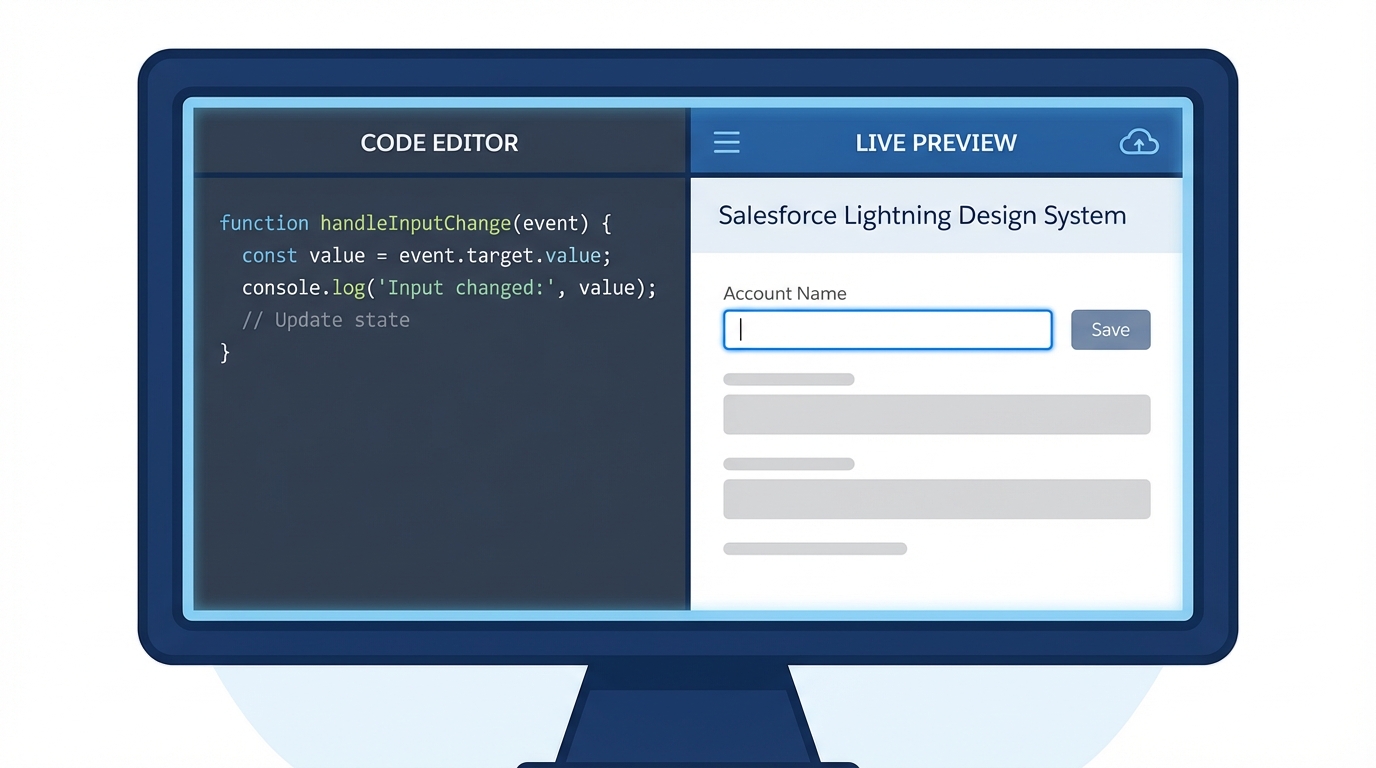
The handler on the left, the field it protects on the right.
How to disable paste lightning input using the document listener
What if you're stuck with the base component? Maybe you need its built-in validation or the specific look and feel of lightning-input. Since you can't touch the internal input directly, you listen at the document level and check where the event came from.
That is what composedPath() is for. It shows you exactly which elements the event traveled through, even the ones inside a shadow root. It also comes up in Salesforce developer interview questions because it tests your knowledge of the DOM.
import { LightningElement } from 'lwc';

export default class DisablePasteField extends LightningElement {
  connectedCallback() {
    this._pasteHandler = this.handleGlobalPaste.bind(this);
    document.addEventListener('paste', this._pasteHandler, true);
  }

  disconnectedCallback() {
    document.removeEventListener('paste', this._pasteHandler, true);
  }

  handleGlobalPaste(event) {
    const path = event.composedPath();
    const myInput = this.template.querySelector('lightning-input[data-id="secure-field"]');

    if (path.includes(myInput)) {
      event.preventDefault();
      // Maybe add a toast message here to tell the user why it failed
    }
  }
}
This works, but it's heavy, because you're adding a listener to the whole document. Clean it up in the disconnectedCallback or you'll end up with memory leaks that will haunt your production org later. Notice the true as the third argument to addEventListener. That puts the listener in the capture phase, which is usually what you want when you're intercepting events early.
The UX and accessibility problem
Just because you can disable paste on a lightning input doesn't mean you always should. Blocking the clipboard is a nightmare for people using password managers or screen readers, and most users find it annoying. If you're doing this for a simple "confirm email" field, you might want to rethink your life choices. But if it's for a high-security OTP (One Time Password) field, then it's a different story.
Pro Tip: If you must block paste, always provide a clear error message. There is nothing worse than a button or field that just "doesn't work" for no apparent reason. Use a small text hint or a toast message to explain that manual typing is required.
Validation as an alternative
Instead of hard-blocking the paste, let them paste and then tell them it's wrong. You can use the onchange or oninput events to check whether the value contains invalid characters. That keeps the UI accessible while still enforcing your rules, and setCustomValidity() on the lightning-input gives you a proper SLDS error message when they try to cheat.
Key takeaways
- Use a standard HTML input if you need direct
onpastecontrol without the Shadow DOM headache. - If you stay with
lightning-input, useevent.composedPath()to identify the source of a global paste event. - Always remove document-level event listeners in the
disconnectedCallback. - Only disable paste on a lightning input when it is genuinely necessary for security. Accessibility should come first.
There is no "disablePaste" attribute on the base component, so you're choosing between the native HTML approach and the global listener hack. In my experience the native input is usually the way to go if you want to keep your code readable and avoid weird side effects with other components on the page.



Leave a Comment