

Why Salesforce bucket fields are a lifesaver
Ever been asked to group opportunities by "Small," "Medium," and "Large" but realized you don't actually have a size field on the record? It happens all the time. Instead of waiting for a developer to write code or an admin to add a new picklist, you can use Salesforce bucket fields to categorize your data right inside the report builder.
Look, I've seen teams waste hours trying to export data to Excel just to group rows manually. That is a total time-sink. Salesforce bucket fields allow you to create these categories on the fly. They don't change your actual data, and they don't show up on the page layout. They just live in your report to make your charts and summaries look a whole lot cleaner.
What exactly is a bucket field?
Think of a bucket field as a "virtual" field. You take a bunch of different values - like 50 different lead sources or a range of dollar amounts - and toss them into a few labeled buckets. It is a report-level feature, meaning it's great for ad-hoc analysis. If you are still learning the ropes of Salesforce report types, this is one of the most useful tools to keep in your back pocket.
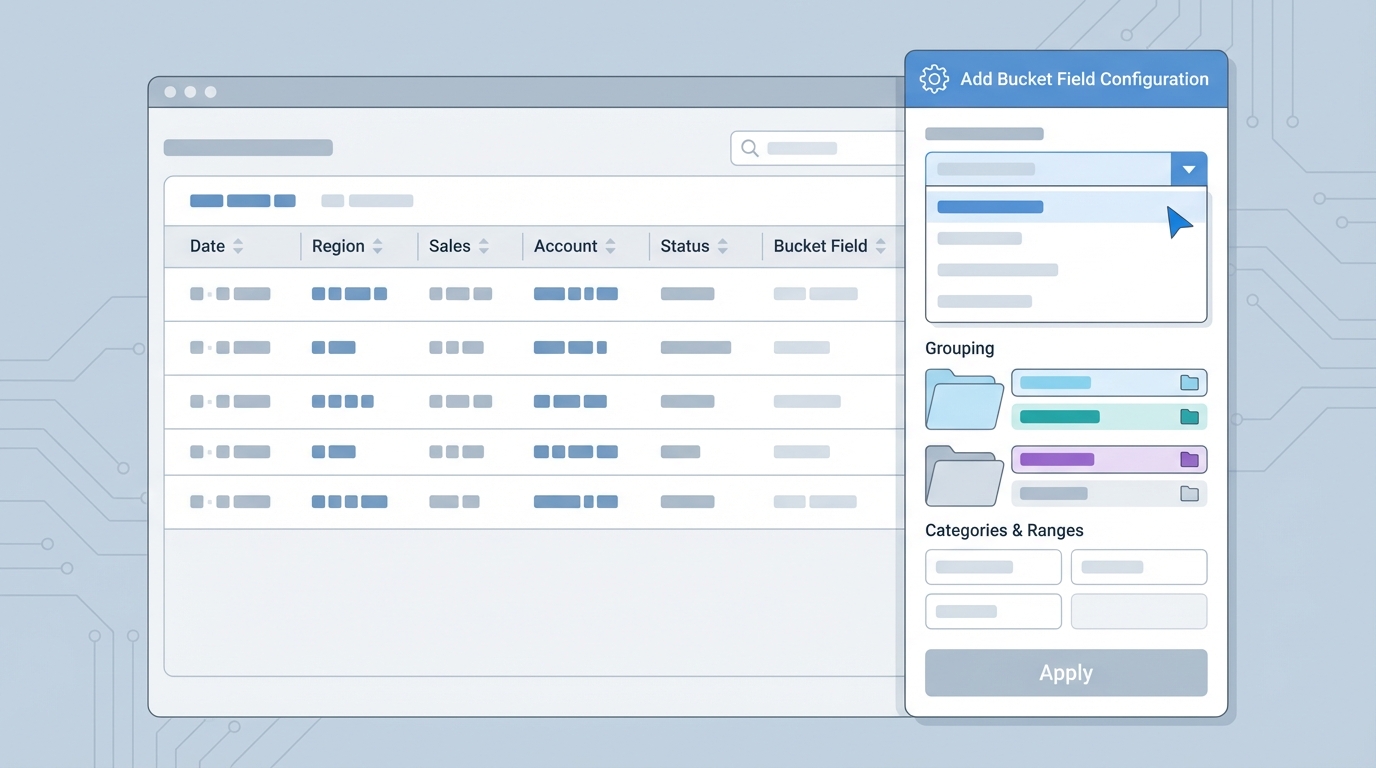
A professional mockup of the Salesforce Report Builder interface showing the configuration of bucket fields to group data.
Setting up Salesforce bucket fields in five minutes
Setting this up is actually pretty simple. You don't need to be a technical wizard to get it working. Here is how I usually walk people through it:
- Open your report in the Report Builder and find the column you want to group.
- Click the little dropdown arrow on that column and select "Bucket this Field."
- Give your bucket field a name. This is what will show up as the header in your report and on your dashboard charts.
- Define your buckets. If it's a number field, you'll set ranges. If it's a picklist or text, you'll pick specific values to group together.
- Hit Apply. You'll see a new column appear with your custom category names.
Now, you can use that new field to group your rows or even as the X-axis on a chart. It is a quick way to show Salesforce Admin value by providing clarity without cluttering up the actual database schema.
Real-world examples I use all the time
In my experience, there are two or three ways people use Salesforce bucket fields most often. One is Opportunity sizing. You might want to see your pipeline split by deal size:
- Small: Under $10k
- Mid-Market: $10k to $50k
- Enterprise: Over $50k
Another great use case is cleaning up messy Lead Sources. If you have "Webinar," "Web-Event," and "Online Seminar," you can just bucket them all into a single category called "Digital Events." It makes your dashboard much easier to read at a glance.
Pro tip: If you find yourself building the exact same bucket field in five different reports, it is time to stop. That is a clear sign you should just create a formula field on the object itself so everyone can use it.
Limitations you need to know about
But here is the catch. Salesforce bucket fields aren't a magic fix for everything. Since they only exist inside that specific report, you can't use them in a Flow, a validation rule, or a different report. They are strictly for visualization.
Also, keep an eye on performance. If you have a massive report with thousands of records and complex bucketing, it can occasionally slow things down. And remember, you can only have a few bucket fields per report. If you need more than that, you're probably over-complicating things and should look at a real field or a formula instead.
Key Takeaways
- No Admin required: You can create these without changing the object's fields.
- Report-specific: They only live in the report where you built them.
- Great for charts: They turn messy data into clean, readable dashboard components.
- Value ranges: Perfect for grouping ages, dates, or revenue into "bands."
So, the next time your boss asks for a report that groups data in a way the system wasn't originally built for, don't panic. Just use Salesforce bucket fields. It's the fastest way to get the answer they need without opening a ticket for a configuration change. Give it a try on your next pipeline report and see how much cleaner your charts look.




Leave a Comment