


If you've spent any time in the page layout editor, you've probably run into those stubborn required Case fields that just won't go away. You try to drag them off the layout to clean things up for your users, and Salesforce won't let you. It's one of those small things that can be really annoying when you're trying to build a streamlined experience.
I've seen plenty of admins get frustrated by this, especially when they're working in older orgs still using Classic page layouts. You want a clean screen, but Salesforce insists that certain data points stay right where they are. Here is what's happening, and what you can do about it.
Which required Case fields are locked in Classic?
When you're editing a Case page layout, you'll notice some fields have a little blue dot next to them. That dot is Salesforce's way of telling you, "This isn't going anywhere." In my experience, these are the ones that usually trip people up because they're hardcoded into the layout's requirements.
The usual suspects for these fixed fields include:
- Contact Name
- Status
- Priority
- Case Origin
- Subject
- Description
- Web Email
You might not use all of these for every single business process. But because the Case object is so central to how Salesforce handles support, the platform treats these required Case fields as the bare essentials for a record to even exist in a Classic view.
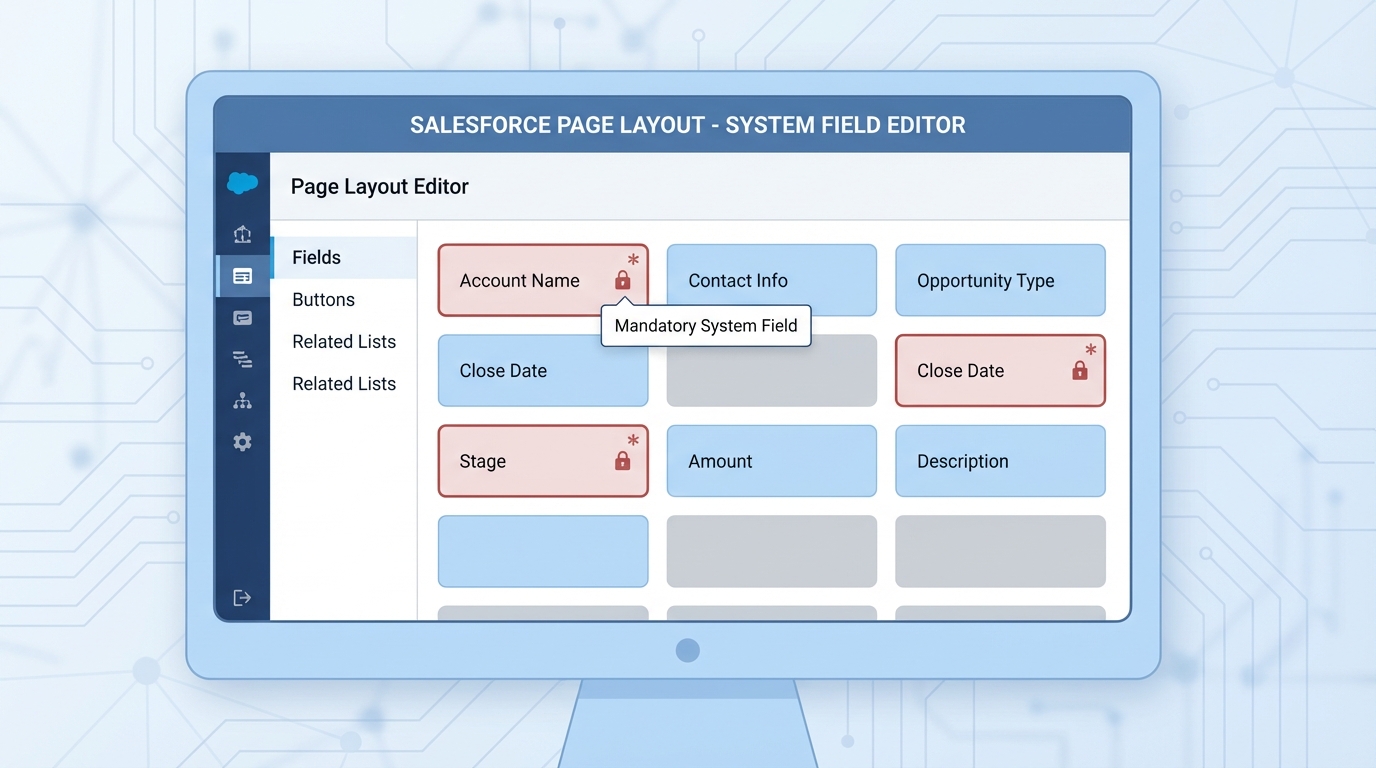
The page layout editor, with the locked Case fields flagged.
Why you can't simply delete these required Case fields
Salesforce built the Case object with a specific logic in mind for support teams. In the old-school Classic page layout engine, these fields count as part of the "system" requirements. Salesforce decided years ago that a Case without a Status or a Subject isn't really a Case, so they locked them in to prevent data integrity issues.
Most teams get this wrong by leaving them in the middle of the screen. Just because they have to be there doesn't mean they have to be in the way. In my experience, the most useful thing an admin does is keep the screen clear, and a cluttered layout works against that. If your users don't need to see "Web Email" because you don't use Web-to-Case, having it sit there just creates noise.
Smart ways to handle required Case fields without breaking your org
If you're stuck with Classic layouts for now, you aren't completely out of luck. You can't delete them, but you can manage them better. Here are a few tricks I've used on projects to keep the UI clean:
- Set the field to read-only on the layout if you don't want users touching it but Salesforce says it has to stay. That keeps the data safe and stops people clicking into things they shouldn't.
- Create a "junk" section at the very bottom of the page, called something like "System Information" or "Hidden Fields," and move the required Case fields down there so nobody scrolls past them every day.
- Set a default value on a field like "Case Origin" when you only ever have one type, then move the field out of the primary view.
Pro tip: If you're struggling with layout clutter, always ask yourself if the user actually needs to edit the field or just see it. Moving non-essential fields to the bottom of the page is the easiest way to improve user adoption overnight.
Switching to Dynamic Forms
If you really want to get rid of these restrictions, you need to move to Dynamic Forms. This is probably the most overlooked feature for people still clinging to old layouts. When you migrate a Case record page to Dynamic Forms, that "blue dot" restriction disappears. You can finally take those required Case fields off the UI entirely if they aren't relevant to your process.
If you're still weighing your options, check out this guide on Salesforce Dynamic Forms vs Record Types to see which path makes sense for your team. Dynamic Forms let you show or hide fields based on user profile, record type, or even the value of another field. It changes how you approach page design.
Key takeaways
- Salesforce Classic layouts force certain standard fields to stay on the page.
- Look for the blue dot in the layout editor to identify these required Case fields.
- You can hide them from immediate view by moving them to a bottom section or making them read-only.
- Upgrading to Dynamic Forms is the only way to truly remove these fields from the user interface.
Your job is to make the CRM easy to use, and dealing with required Case fields is part of that puzzle. If you can't move to Dynamic Forms yet, use the "bottom of the page" trick to keep your users focused on the data that actually helps them close cases. Your support team will thank you for it.


Leave a Comment