

Prepping for Salesforce Connect interview questions
If you are heading into a technical role, you'll almost certainly run into Salesforce Connect interview questions. It's one of those features that sounds simple on paper but gets complicated fast once you start talking about limits and licensing. I've been on both sides of the interview table, and the candidates who stand out are the ones who understand that this isn't just about "linking data" - it is about making smart architectural choices.
Look, the biggest thing to remember is that Salesforce Connect is about viewing data, not moving it. We've all seen projects where someone tries to sync millions of rows of legacy data into custom objects. That's a nightmare for managing Salesforce large data volumes. Connect solves this by letting you see that data in real-time without actually storing it in your org.
What exactly is Salesforce Connect?
In its simplest form, it's a way to surface data from an external system - like an ERP or another Salesforce org - as if it lived inside your own. It uses something called external objects. These look and act a lot like the custom objects you're used to, but they don't count against your data storage limits. You'll recognize them by the __x suffix in their API name.
So how does it actually work? When a user clicks a tab or a related list for an external object, Salesforce doesn't look at its own database. Instead, it sends a real-time request to the external system. The data comes back, shows up in the UI, and then it's gone. It's a live window into your other systems.
The building blocks you need to know
- External Data Source: This is the connection setup. It tells Salesforce where to go, how to log in, and what kind of "language" (adapter) to speak.
- Adapters: These are the translators. Out of the box, you get OData (2.0 or 4.0), which is common for SAP or Microsoft systems. There's also a Cross-Org adapter for connecting two Salesforce environments.
- Apex Custom Adapters: Here's the thing - if the external system doesn't speak OData, you aren't stuck. You can write your own adapter using Apex to handle unique APIs.
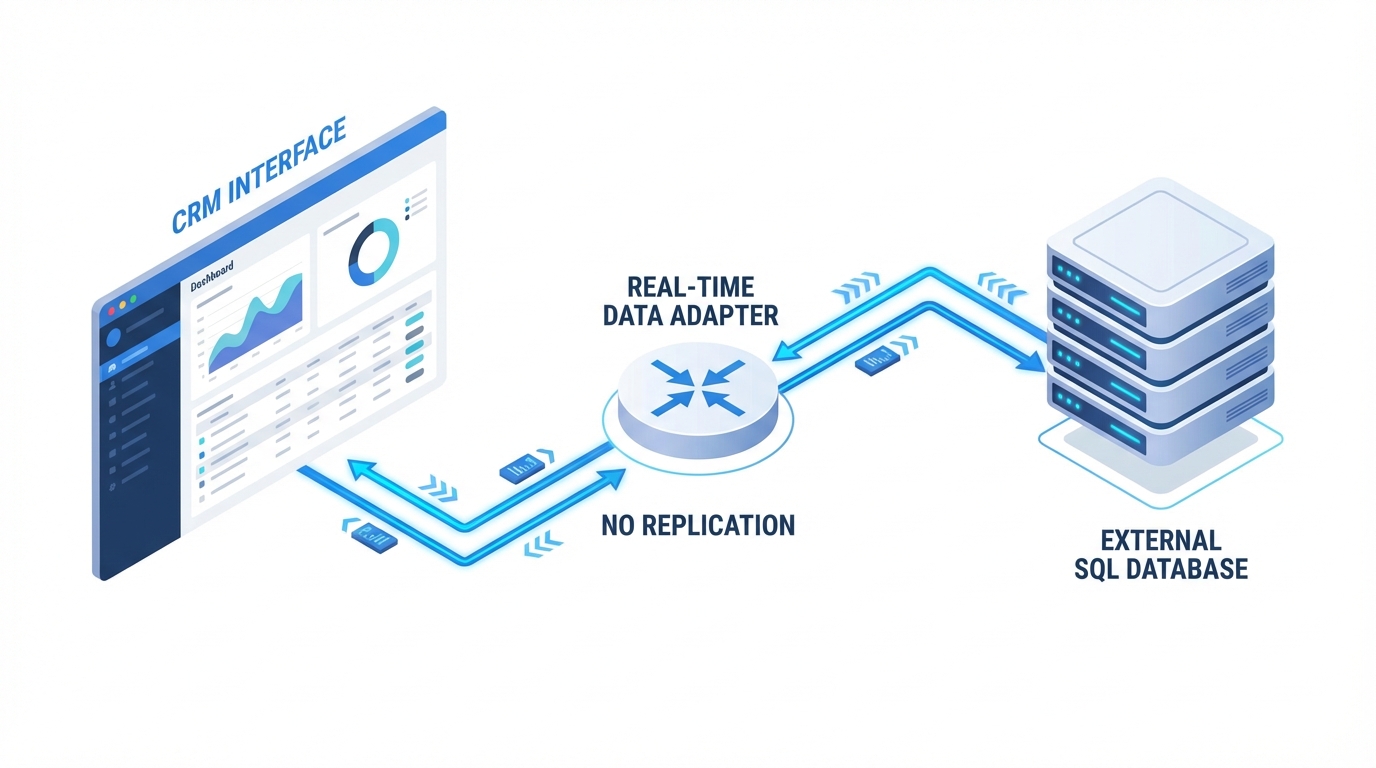
An architectural diagram showing a real-time integration between a CRM system and an external database using an API adapter.
Answering Salesforce Connect interview questions about use cases
When an interviewer asks when to use this, don't just say "to show data." Be specific. I've seen teams use it most effectively when they have massive datasets in an old SQL database that they only need to look at occasionally. You don't want to pay for Salesforce storage for 10 million old invoices that nobody ever edits.
Another great scenario is when the data changes every few minutes. If you try to sync that with a batch job, you're always looking at old info. With Connect, it's always the "source of truth" because it's a live fetch. This is a top-tier answer for Salesforce integration options when real-time access is the priority.
Pro tip: Always mention the "cost vs. benefit" during an interview. Salesforce Connect is a paid add-on. If a client only needs to see five records a day, a simple LWC with an API call might be cheaper than buying a Connect license.
The limits and "gotchas" that trip people up
But it's not all magic. There are some serious trade-offs you have to mention to show you've actually done this before. First, performance is only as good as the external system. If that old ERP is slow, your Salesforce page is going to be slow too. And since the data isn't in Salesforce, you can't use it in standard reports the same way you do with native data.
And then there's the SOQL side of things. You can query external objects, sure, but you can't do complex stuff like full-text searches or certain types of aggregates easily. Here is an example of what a query looks like:
SELECT Id, OrderNumber__c, TotalAmount__c FROM ERP_Order__x WHERE Status__c = 'Shipped'
It looks normal, right? But behind the scenes, Salesforce is translating that SOQL into an OData call. If the external system doesn't support a specific filter, the query will fail. That's a common point of failure I've hit in the field.
How to set it up (High-Level)
- Define the Source: Go to Setup, find External Data Sources, and plug in your URL and credentials.
- Choose Auth: Decide if everyone uses one "Named Principal" account or if every user needs their own login to the external system.
- Sync: Click the "Validate and Sync" button. This is the cool part - Salesforce reads the external metadata and builds the external objects for you.
- Relate the Data: Use External Lookups or Indirect Lookups to link these new objects to your Accounts or Contacts.
Key Takeaways for your next interview
- Data Storage: External objects don't use Salesforce data storage. This is huge for cost savings.
- Real-time: It's a live connection. No sync delays, but you're at the mercy of the external system's speed.
- Relationship Types: Know the difference between External and Indirect lookups. If you can explain these, you'll pass most Salesforce Connect interview questions easily.
- Read/Write: Most people think it's read-only, but it actually supports Create, Edit, and Delete if the adapter and external system allow it.
Wrapping it up
So, is Salesforce Connect the right choice every time? No. But when you need to show massive amounts of external data without the headache of a custom integration or massive storage costs, it's a lifesaver. Just make sure you've checked the licensing costs before you recommend it to a client. Honestly, most teams get the "how" right but fail on the "why." If you can explain the business value and the technical limits together, you're going to nail those Salesforce Connect interview questions.




Leave a Comment