

Why You Need a Muting Permission Set in Your Permission Set Groups
I remember when Permission Set Groups first launched and we all thought it was the end of profile-heavy orgs. But then we hit a snag: what happens when a group is 90% perfect but gives one permission too many? That is where the Muting Permission Set saves the day by letting you subtract access instead of adding it.
Look, we have all been there. You have a great set of permissions that works for most of the sales team, but you need a slightly restricted version for your interns. Instead of rebuilding everything from scratch, you just use a Muting Permission Set to turn off the sensitive stuff. It is a much cleaner way to handle security and keeps your list of permission sets from spiraling out of control.
What is a Muting Permission Set anyway?
Think of it as a "reverse" permission set. While a normal one grants access, this one specifically blocks it. But here is the thing: you cannot assign a Muting Permission Set directly to a user. It only exists as a component inside a Permission Set Group. It is there to act as a filter for the other permission sets in that group.
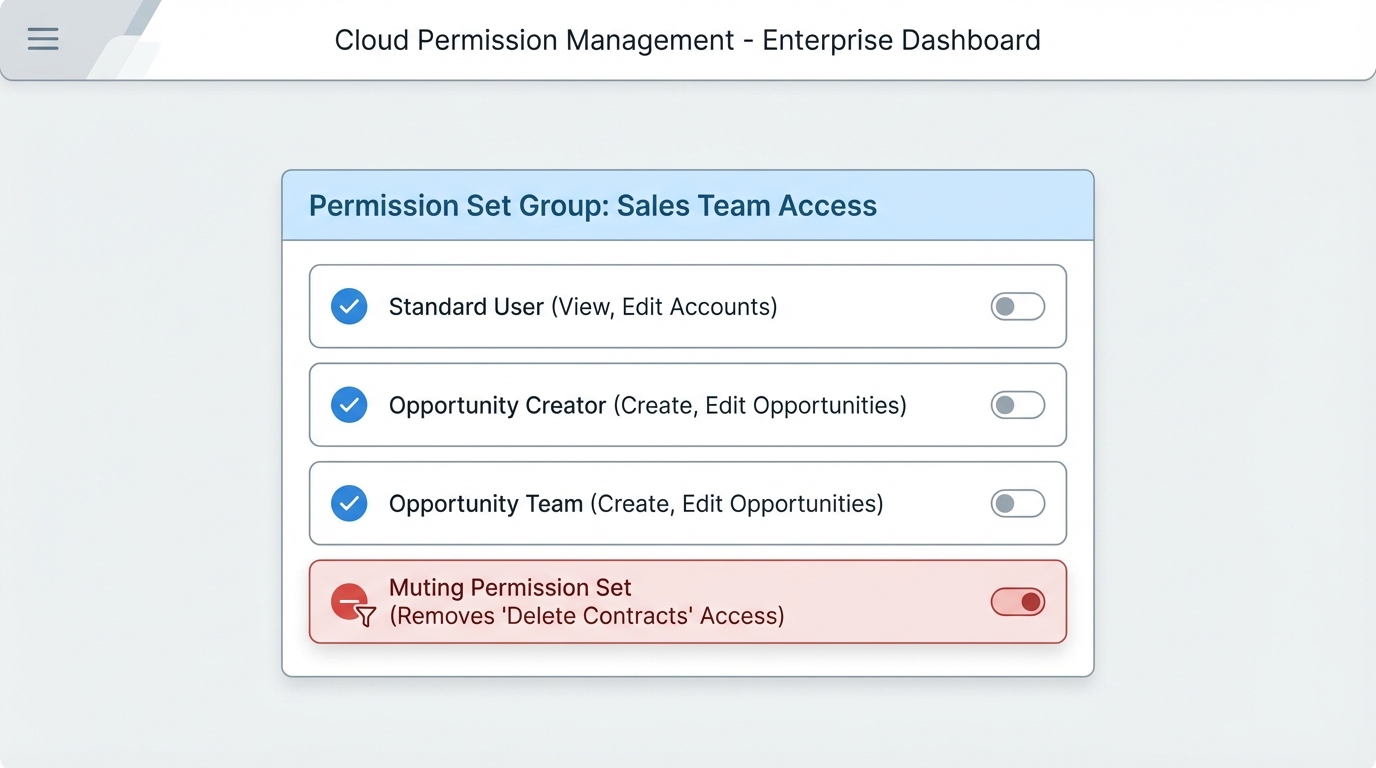
A technical UI diagram of a Permission Set Group showing a Muting Permission Set acting as a filter to subtract specific permissions from the overall group.
Real-World Use Cases for the Muting Permission Set
In my experience, this feature is a lifesaver for implementing the principle of least privilege. You can start with a broad group of permissions and then surgically remove high-risk ones like "Delete" or "Modify All Data" for specific user groups. It keeps your org way more organized than having dozens of nearly identical permission sets. Sound familiar?
- Handling Interns or Temp Staff: Use your standard group but mute the ability to export reports or delete records.
- Environment Specifics: Maybe you want certain permissions active in a Sandbox but muted in Production while you finish a rollout.
- Cleaning Up Overlaps: If two permission sets in a group clash, you can use a mute to define exactly what the final access should be.
One thing that trips people up is thinking this is a global "deny" button. It is not. If a user gets the permission from a profile or a separate permission set outside the group, the mute won't stop them.
How a Muting Permission Set Actually Works
So what does this actually mean for your users? The logic follows a simple rule: Muting only affects the permissions granted inside that specific Permission Set Group. If you are trying to fix a messy security model, you might also want to look at how you are managing roles vs profiles to ensure there are no holes in your strategy.
Here is a quick breakdown of the precedence:
- If the Group grants "Edit" and the Muting Permission Set disables "Edit," the result for that group is no "Edit" access.
- If the User's Profile grants "Edit," the mute in a group will NOT take that away.
- Muting can target almost anything - objects, fields, system permissions, or even Apex class access.
Setting Up the Mute in the UI
It is pretty straightforward to set up. You just go into your Permission Set Group and look for the "Muting Permission Set in Group" section. From there, you create a new one. I always suggest naming it something obvious like Mute_Delete_Permissions so the next admin knows exactly what is going on. Once you are in there, you just check the "Muted" box next to the permissions you want to kill.
Deploying via Metadata
If you are like me and prefer deploying via SFDX or a CI/CD tool, you will see this in the XML. The mutingPermissionSets tag sits right inside the Permission Set Group file. Here is a quick look at how that snippet looks:
<PermissionSetGroup xmlns="http://soap.sforce.com/2006/04/metadata">
  <label>Sales Support Group</label>
  <permissionSets>
    <fullName>Standard_User_Access</fullName>
  </permissionSets>
  <mutingPermissionSets>
    <fullName>Mute_Sensitive_Actions</fullName>
  </mutingPermissionSets>
</PermissionSetGroup>
Don't Make These Common Mistakes
Honestly, most teams get this wrong the first time. The biggest mistake is assuming a Muting Permission Set works like a global "Deny" permission. It doesn't. It is strictly a subtraction tool for that specific group. If you're struggling with complex logic, sometimes it's better to step back and check your clarity as an admin before adding more layers of complexity.
Another thing? Always test this in a sandbox. I have seen admins mute a permission thinking it would fix a security hole, only to realize the user still had the permission through their profile. Always use the "View Summary" button on the Permission Set Group to see the actual resulting permissions. It will save you a lot of headache during an audit.
Key Takeaways
- A Muting Permission Set only works inside a Permission Set Group.
- It cannot be assigned directly to users, so don't try to find it in the assignment screen.
- It only mutes permissions granted by other sets within the same group.
- It is perfect for creating "restricted" versions of standard permission sets without cloning them.
- Always name them clearly (prefix with
Mute_) to avoid confusing your teammates.
At the end of the day, using a Muting Permission Set is about keeping your org simple. Instead of creating five different versions of a "Sales" permission set, you have one base set and a few groups with mutes. It makes your life easier and your security model much easier to audit. Give it a shot next time you are tempted to hit that "Clone" button on a permission set.




Leave a Comment