

If you've spent more than five minutes in the Setup menu, you've probably had to decide between static and Salesforce dynamic dashboards. It's one of those choices that seems small until your VP of Sales asks why they can't see their team's numbers, or worse, why a junior rep is seeing the entire company's pipeline.
Look, I've seen teams get this wrong all the time. They either build fifty versions of the same dashboard or they accidentally expose sensitive data because they didn't understand the "View Dashboard As" setting. Let's break down how this actually works so you don't have to spend your weekend rebuilding reports.
Why Salesforce dynamic dashboards are a literal lifesaver
The short answer? Security context. A static dashboard is like a printed map; everyone looks at the same thing. You set it to "Run as a specified user" (usually someone with high-level access), and every single person who opens that dashboard sees the data through that person's eyes. It doesn't matter if the viewer is a new intern or the CFO-they see exactly what the specified user sees.
But Salesforce dynamic dashboards are different. They're more like a mirror. When I log in, I see my records. When you log in, you see yours. It automatically respects the sharing model you've already spent hours setting up. If you're still wrapping your head around security basics, check out this breakdown of Salesforce roles vs profiles to see how record visibility actually works.
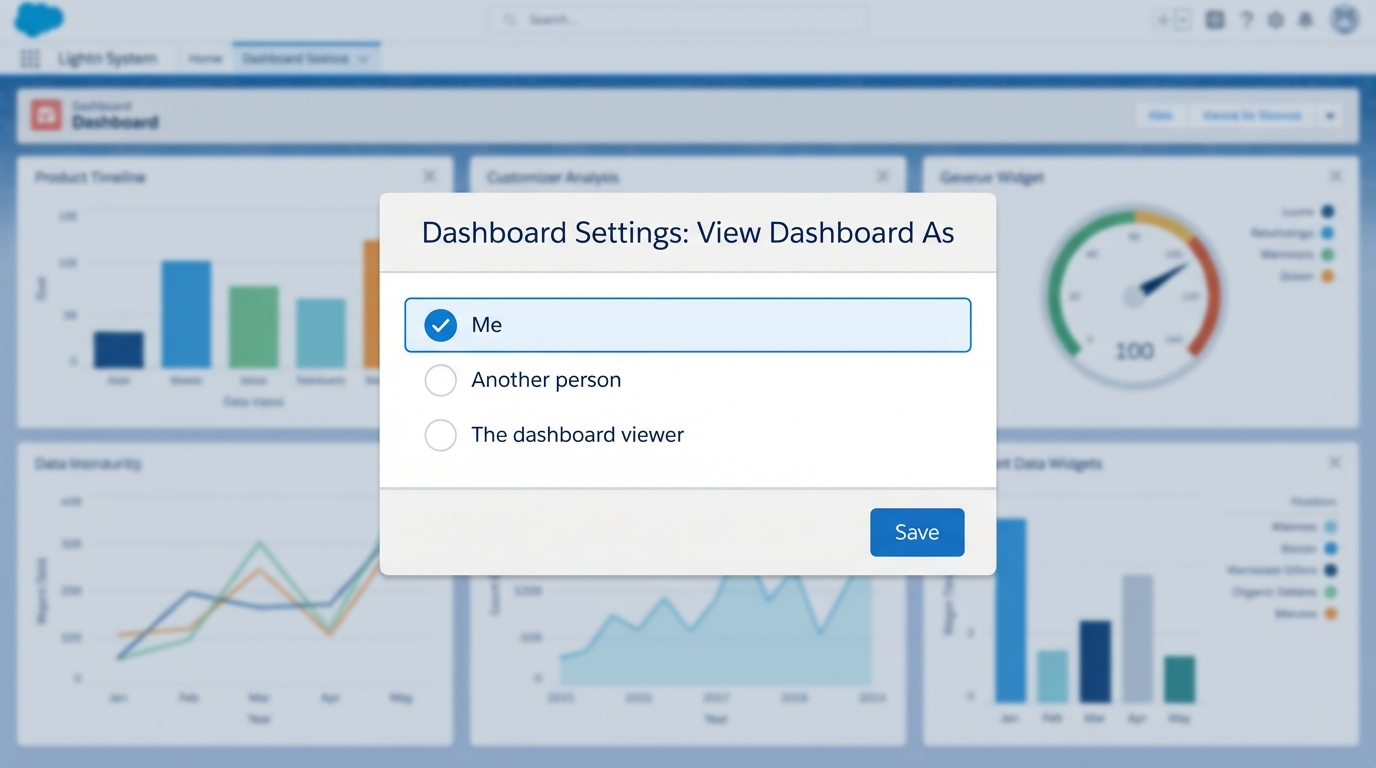
A realistic UI mockup of a Salesforce dashboard configuration panel showing visibility and user view settings.
The hard truth about Salesforce dynamic dashboards and limits
Now, before you go and turn every single dashboard in your org into a dynamic one, we need to talk about limits. This is probably the most overlooked feature-or rather, restriction-in the system. Salesforce isn't just giving these away for free. Most editions have a very strict cap on how many you can have.
For example, Enterprise edition usually gives you 5, and Unlimited gives you 10. I've been in situations where a client wanted a personalized view for every single department head, but we hit the limit by Tuesday afternoon. So, you have to be strategic. Don't use a dynamic setup for a global KPI board that everyone should see the same way anyway. Save those precious slots for managers who actually need to switch between "My Team" and "Me" views.
Pro Tip: If you're running out of dynamic slots, try using dashboard filters on a static dashboard first. Sometimes a simple "Owner" filter can do 90% of the work without hitting your org limits.
When to stick with static
Static dashboards are your best friend for executive rollups. If the Board of Directors wants to see the total company revenue, they don't want a "personalized" view-they want the big number. And since static dashboards run as one person, you don't have to worry about weird data gaps because a manager forgot to share a folder. Before you even start building, you need to make sure your Salesforce report types are set up correctly, or your dashboard components won't show the right fields.
When to go dynamic
Go dynamic when you have a "Sales Manager" dashboard. Instead of creating "Sales Manager - East," "Sales Manager - West," and "Sales Manager - Central," you build one. When the East manager opens it, they see the East team. It saves you a massive amount of maintenance work. Part of being a great admin is providing clarity, and sometimes that means choosing the simplest tool for the job. You can read more about that in our post on the value of a clear admin mindset.
How to actually set it up
It's easy to find, but easy to miss if you're rushing. Here is the play-by-play:
- Open your dashboard and hit Edit.
- Click the Gear Icon (Dashboard Properties).
- Look for the View Dashboard As section.
- Select The dashboard viewer for a dynamic view, or Another person for a static view.
- Save it and test it! (Seriously, log in as another user to make sure they see what they're supposed to).
Key Takeaways
- Static: Runs as one person. Everyone sees the same data. Great for company-wide KPIs.
- Dynamic: Runs as the logged-in user. Respects individual sharing rules. Great for managers and reps.
- Limits: You only get a few dynamic slots per org. Use them wisely.
- Maintenance: Dynamic views reduce the number of dashboards you have to manage, but they are harder on your org limits.
One thing that trips people up is the "View My Team's Dashboards" permission. If your managers can't see their reps' data on a dynamic dashboard, check their permissions first. It's usually a simple fix in the profile or a permission set. At the end of the day, pick the version that makes your life easier and keeps your data secure. If you can get away with a static dashboard and a few filters, do it. If you need true, hands-off personalization, go dynamic.




Leave a Comment