

Why OmniScript performance is a deal-breaker
If you've ever watched a loading spinner go round for ten seconds while trying to complete a simple guided flow, you know why OmniScript performance is a top priority. I've seen projects where the business logic was perfect, but the user adoption was zero because the screens felt sluggish. Slow tools lead to frustrated users and, eventually, a lot of support tickets that you don't want to deal with.
Improving how your scripts run isn't just about making things "fast." It's about reducing the weight of the data being sent back and forth and being smart about when you ask the server for help. In my experience, most performance issues come down to two things: massive JSON payloads and too many separate server calls. Let's look at how we can fix that.
Quick wins for better OmniScript performance
Before you start digging into complex code, check these high-impact items first. These are the "low hanging fruit" that usually give you the biggest speed boost for the least amount of effort.
- Always use Integration Procedures (IPs) instead of calling multiple DataRaptors directly.
- Clean up your JSON. If you aren't using a field on the screen, don't keep it in the data tree.
- Only load data when you actually need it. Pre-loading everything at the start is a performance killer.
- Combine your server requests. One "heavy" call is almost always better than five "light" ones.
- Use the browser's Network tab and OmniStudio logs to see exactly what is taking so long.
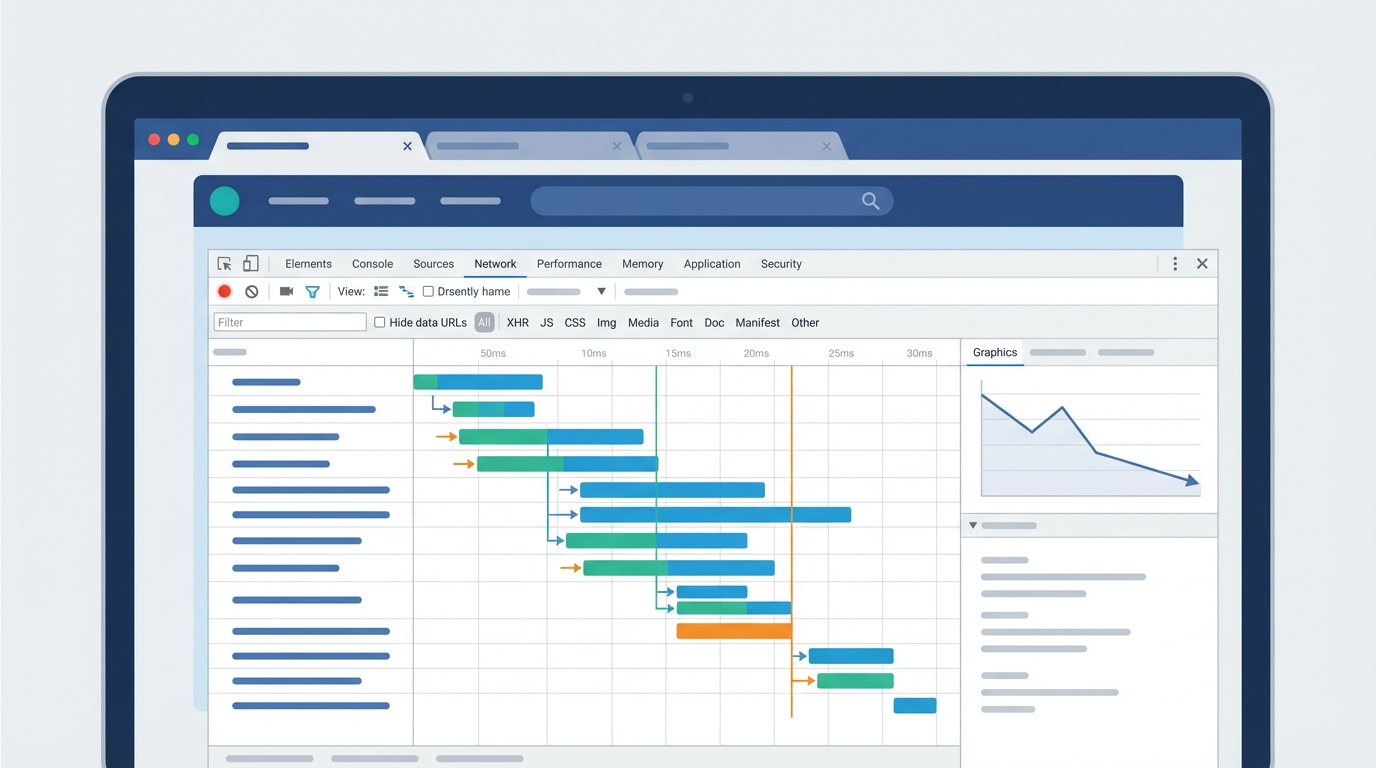
A professional UI mockup of a browser network performance tab showing request timing and data flow analysis.
Real-world ways to boost OmniScript performance
1) Stop making so many server trips
Every time your OmniScript reaches out to Salesforce, there's a cost. Even a fast DataRaptor has to deal with network latency and overhead. I've seen teams fire off three different extracts on the first step just to get basic account info. But here's the thing: you can wrap all of those into a single Integration Procedure.
By using an IP, you're doing the heavy lifting on the server side. The OmniScript makes one request, the IP runs all your logic, and it sends back one clean package of data. This is probably the most overlooked way to make your UI feel snappier.
2) Trim the fat from your JSON
The JSON data tree is the heart of your OmniScript, but it can get bloated fast. If you're pulling in 50 fields from an Account but only showing three, you're forcing the browser to carry around a lot of dead weight. This is especially true if you follow standard naming conventions and keep your data organized; it makes it easier to see what's actually necessary.
Smaller JSON means faster parsing and less memory usage on the user's device. I always tell my devs to use the "Send/Response Transformations" in their actions to filter out the noise. If the user doesn't see it, the OmniScript shouldn't know about it.
3) Use lazy loading for complex sections
Look, you don't need to fetch the entire history of a customer's cases if they're only on the first page of an intake form. Use Conditional Views to hide complex groups until they're needed. Even better, use a "Post Action" to fetch that specific data only when the user clicks "Next" or expands a section. This keeps the initial load time low and the experience smooth.
One thing that trips people up is thinking they need all the data upfront for "just in case" scenarios. Don't fall for it. Fetching data on-demand is almost always the better architectural choice for OmniScript performance.
4) Smart caching and data handling
If you have picklists or reference data that doesn't change every five minutes, use caching. You can cache IP responses so the system doesn't have to re-run the same query over and over. This is a huge help when you're dealing with large data volumes where queries might naturally be a bit slower.
5) Keep the DOM simple
Every element you add to the OmniScript designer adds to the complexity of the rendered page. Too many nested groups or excessive conditional logic on every single field can make the browser struggle, especially on older laptops or mobile devices. Try to keep your steps focused. If a page is getting too long, it's usually a sign you should break it into a separate step or a child OmniScript.
Key Takeaways for OmniScript performance
| Area | Action | Impact |
|---|---|---|
| Server Calls | Consolidate into Integration Procedures | High |
| Data Volume | Filter JSON to only necessary fields | High |
| UI Rendering | Use lazy loading and conditional views | Medium |
| Logic | Move transforms to the server side | Medium |
How to measure your progress
So how do you know if your changes are actually working? Open up the Chrome DevTools and look at the Network tab. You're looking for the "XHR" requests. If you see a long list of separate calls, you've got work to do. Check the "Time" column to see which ones are the bottlenecks.
Also, don't forget the OmniStudio Action Debugger. It's built right into the preview mode and shows you exactly how long each DataRaptor or IP took to run. Use this data to justify your refactoring. It's much easier to tell a stakeholder "I reduced load time by 3 seconds" than "I made the code better."
Start with the Integration Procedure consolidation and the JSON trimming. In most cases, those two steps alone will solve 80 percent of your speed problems. Once you've got the basics down, you can start worrying about the more granular UI optimizations. Keep it simple, keep it lean, and your users will thank you.




Leave a Comment