

Handling a Salesforce Apex password reset for new users
Ever found yourself needing to bypass the standard "Welcome to Salesforce" email flow just to get a user into an org? I've been there. Whether you're building out a complex CI/CD pipeline or just trying to spin up twenty test users for a QA team, sometimes the manual way just won't cut it. That's where a Salesforce Apex password reset comes in handy. It allows you to programmatically define a password right when the user record is created.
But before you start hardcoding credentials everywhere, you need to know how this actually behaves. It isn't exactly the same as a user choosing their own password through a secure link. Here is the lowdown on how to use it, when it's a lifesaver, and why you should be careful with it in production environments.
The code: System.setPassword in action
The heavy lifting is done by a single method: System.setPassword(userId, password). You'll usually run this immediately after your insert statement. Here is a quick look at how I usually structure this when I'm setting up a new user in a script.
// Create the user record first User newUser = new User( Username = 'dev_[email protected]', LastName = 'Tester', Email = 'dev_[email protected]', Alias = 'dtest', TimeZoneSidKey = 'America/New_York', LocaleSidKey = 'en_US', EmailEncodingKey = 'UTF-8', LanguageLocaleKey = 'en_US', ProfileId = [SELECT Id FROM Profile WHERE Name='Standard User' LIMIT 1].Id ); insert newUser;
// Now trigger the Salesforce Apex password reset System.setPassword(newUser.Id, 'Welcome2025!@#');
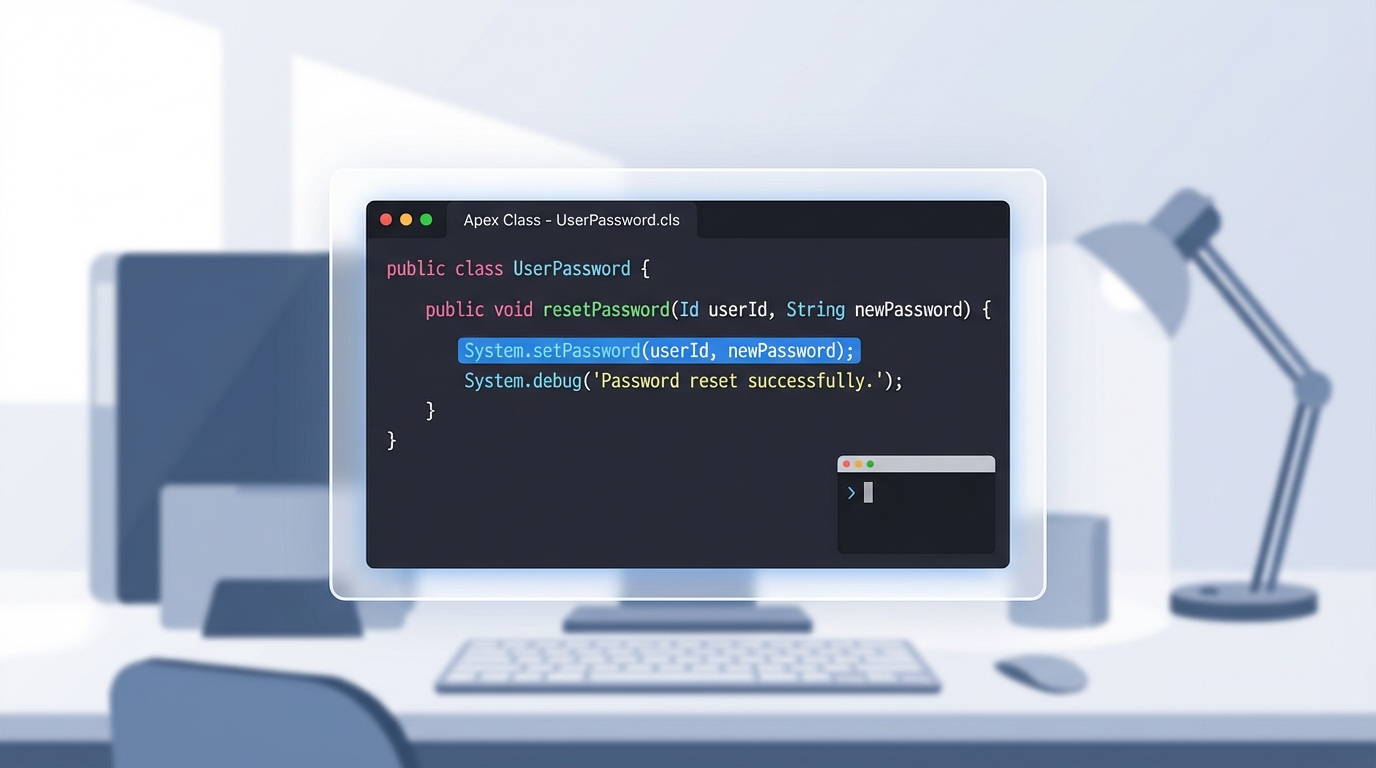
A clean code editor view showing Salesforce Apex code used to programmatically set a user password.
When a Salesforce Apex password reset makes sense
So why would you do this instead of just letting Salesforce send the standard email? In my experience, it's all about speed and automation. If you are working with different Salesforce sandbox types, you know that setting up data can be a pain. Here are a few spots where this method really shines:
- Bulk Test Users: If you need 50 users in a scratch org for a load test, you don't want to click 50 emails.
- Automated Integration Tests: When your Selenium or Playwright scripts need to log in, having a predictable password makes the setup much smoother.
- Internal Demo Orgs: If you're handing off a demo org to a sales team, giving them a single "start here" credential can prevent a lot of Slack messages.
One thing that trips people up is the "Change Password" prompt. When you use this method, Salesforce will still ask the user to change their password the first time they log in. However, there's a catch: they can actually click "Cancel" on that screen and keep using the password you set. For a test user, that's great. For a real employee? Not so much.
Security risks of the Salesforce Apex password reset method
Look, we have to talk about the security side of this. Using a Salesforce Apex password reset for real people in a production org is generally a bad idea. Why? Because you're essentially creating a "known" password that might live in your code, logs, or developer console history. That's a massive red flag for any security audit.
Always prioritize the standard UserManagement flows for real users. It's better to let the system handle the encryption and reset links so you aren't responsible for handling plain-text passwords.
If you're deciding between writing custom code or using a declarative tool, you might want to check out this guide on Apex vs Flow. While Flow is getting better every day, some of these system-level user management tasks still require the precision of Apex.
Key Takeaways
- The
System.setPasswordmethod is the primary way to perform a Salesforce Apex password reset. - Users are still prompted to change their password on first login, but they can bypass it by clicking cancel.
- This is a perfect tool for sandboxes, scratch orgs, and QA automation.
- Avoid using this in production to keep your security posture solid and your auditors happy.
At the end of the day, the Salesforce Apex password reset is a specialized tool. It's one of those things you won't use every day, but when you're deep in the weeds of environment automation, you'll be glad it's in your toolkit. Just keep it out of your production onboarding flows and you'll be fine. If you're looking for more ways to speed up your work, I've found that using the right Salesforce Chrome extensions can also save you a ton of time during these manual setup phases.




Leave a Comment