

Why you should call Apex from Flow
I've been in plenty of design sessions where the debate is "Flow vs. Apex." But honestly, the best architects don't pick a side. They know that the real magic happens when you use both together. When you need to perform complex logic, heavy math, or external integrations that are just too messy for a canvas, you'll want to call Apex from Flow to handle the heavy lifting.
Flow is great for the UI and the general "if this, then that" orchestration. But let's be real: sometimes a Flow becomes a "spaghetti monster" of loops and assignments. That's when you move that logic into an Apex class. It makes your automation easier to read and much easier to maintain. Comparing Apex vs Flow is a common starting point, but learning how to bridge them is where you'll really level up.
How to call Apex from Flow using Invocable Methods
To make your code visible to the Flow Builder, you have to use the @InvocableMethod annotation. This is basically a "bridge" that tells Salesforce, "Hey, this specific block of code is ready to be used as an action."
When you call Apex from Flow, your method has to be static. And here's the part that trips up almost everyone at first: it has to accept and return a List. Why? Because Salesforce bulkifies Flow execution. If 100 records trigger a Flow, Salesforce doesn't run your Apex 100 times. It runs it once with a list of 100 inputs. If you don't build your code to handle lists, your automation will fail the second you try to upload data via the Data Loader.
public with sharing class DiscountService {
    public class Request {
        @InvocableVariable(label='Account ID' required=true)
        public Id accountId;
        @InvocableVariable(label='Amount' required=true)
        public Decimal amount;
    }

    public class Response {
        @InvocableVariable(label='Discounted Amount')
        public Decimal discountedAmount;
    }

    @InvocableMethod(label='Calculate Special Discount' description='Returns a custom discount based on account history')
    public static List<Response> calculate(List<Request> requests) {
        List<Response> results = new List<Response>();
        for (Request req : requests) {
            Response res = new Response();
            // Do your complex math or queries here
            res.discountedAmount = req.amount * 0.9;
            results.add(res);
        }
        return results;
    }
}
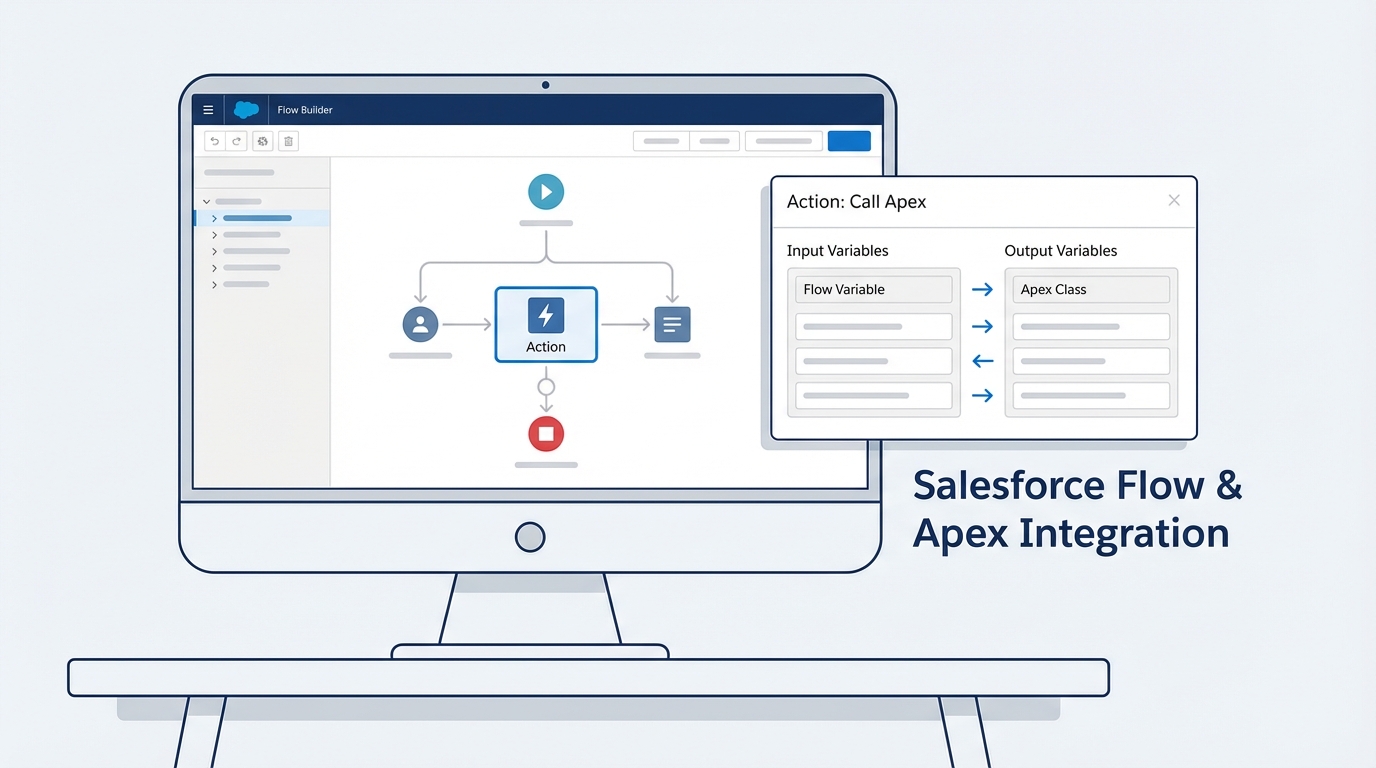
A realistic technical mockup of the Salesforce Flow Builder interface showing the configuration of an Apex action and its input variables.
Using Apex-defined data types
Sometimes you need to pass more than just a single ID or a string. You might have a whole bundle of data. By using a wrapper class with @InvocableVariable, you can create what the Flow Builder calls an "Apex-defined" variable. This lets you map multiple fields from the Flow into one structured object in your code. It's much cleaner than passing 10 different individual variables into your method.
Going the other way: Launching Flows from Apex
Now, what if you're already in a trigger or a custom controller and you want to start a Flow? You can do that too using the Flow.Interview class. I've used this when a client had a complex business process already built in a Flow, and we needed to trigger that same logic from a custom LWC button or a legacy trigger.
You just pass your variables into a Map and call the start() method. It's pretty straightforward. Just remember that the Flow you're calling needs to be an "Autolaunched Flow" - you can't launch a Screen Flow from the background and expect it to pop up on someone's monitor.
Map<String, Object> params = new Map<String, Object>();
params.put('recordId', someAccount.Id);
params.put('updateType', 'Full Refresh');

Flow.Interview.My_Custom_Process myFlow = new Flow.Interview.My_Custom_Process(params);
myFlow.start();
Best practices when you call Apex from Flow
Look, just because you can call Apex doesn't mean you should ignore the rules of the road. Here's how to keep your org from breaking:
- Bulkify everything. I'll say it again because it's that important. Always loop through your input list. Never put a SOQL query or a DML statement inside that loop. If you need a refresher, check out this guide on Salesforce Flow bulkification.
- Watch your limits. Flow and Apex share the same transaction. If your Flow has already used up 90 SOQL queries and your Apex tries to do 20 more, you're going to hit a governor limit and the whole thing will roll back.
- Handle errors gracefully. Don't just let the code crash. Use try-catch blocks and return an error message back to the Flow so the user knows what went wrong instead of seeing a "generic fault" screen.
Pro tip: Always give your Invocable Method a clear label and description. Six months from now, when an admin is looking at the Flow, they should know exactly what that Apex action does without having to open VS Code.
Key Takeaways
- Use
@InvocableMethodto let your Flows trigger programmatic logic. - Always design your Apex to handle Lists of inputs to support bulk operations.
- Use wrapper classes to pass complex data structures between the two tools.
- Remember that Flow and Apex share the same governor limits in a single transaction.
- Unit tests are still mandatory - you need to cover your Invocable Apex just like any other class.
Wrapping up
At the end of the day, being able to call Apex from Flow gives you the best of both worlds. You get the speed of low-code for the simple stuff and the precision of code for the hard stuff. Don't be afraid to move logic into Apex if the Flow is getting too hard to manage. It'll save you a lot of headaches during debugging and deployment. Start small, bulkify your methods, and you'll find that your automations are much more stable.




Leave a Comment